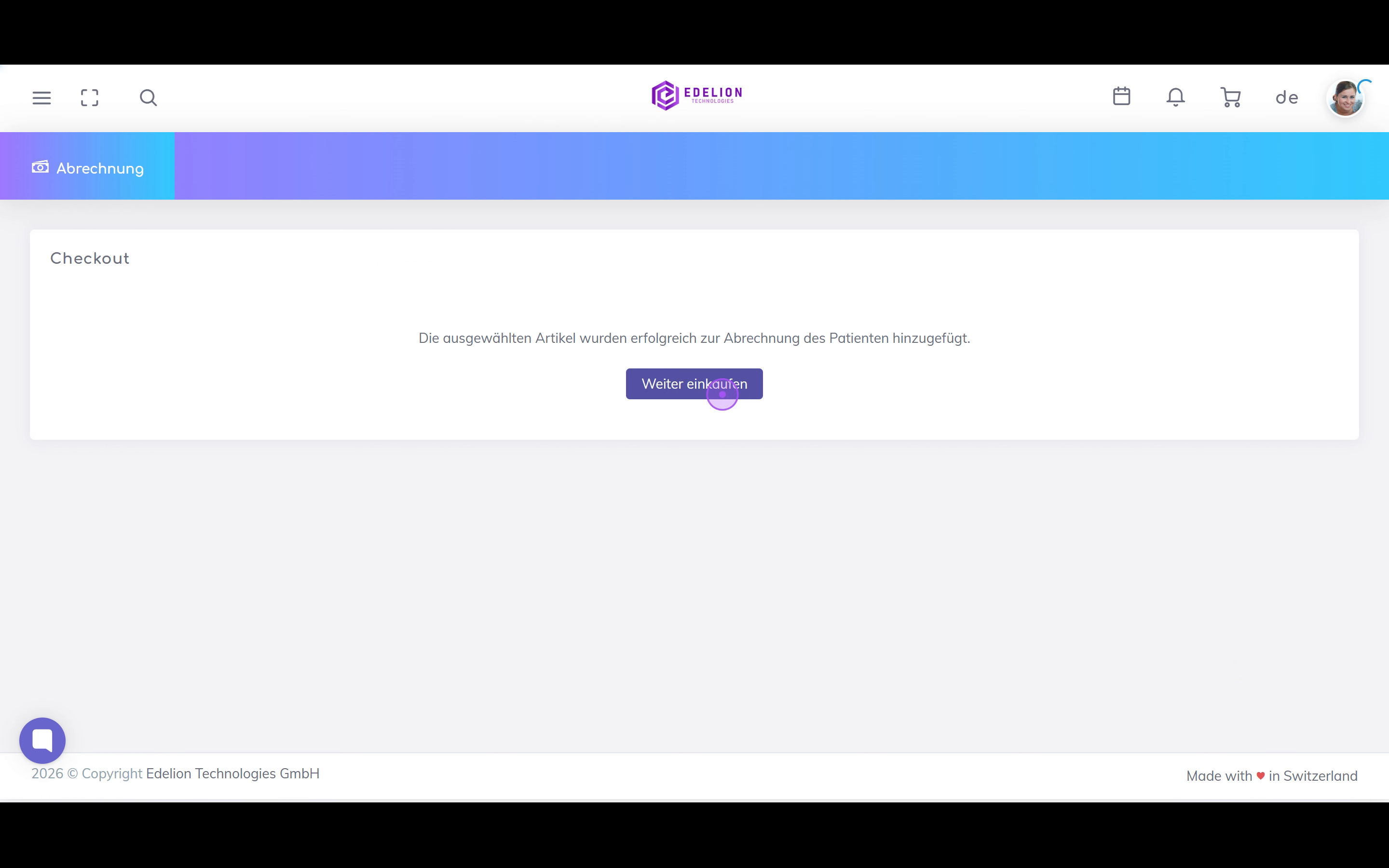
This guide walks service providers through the complete process of selecting services from the catalog and assigning them to a resident for billing.

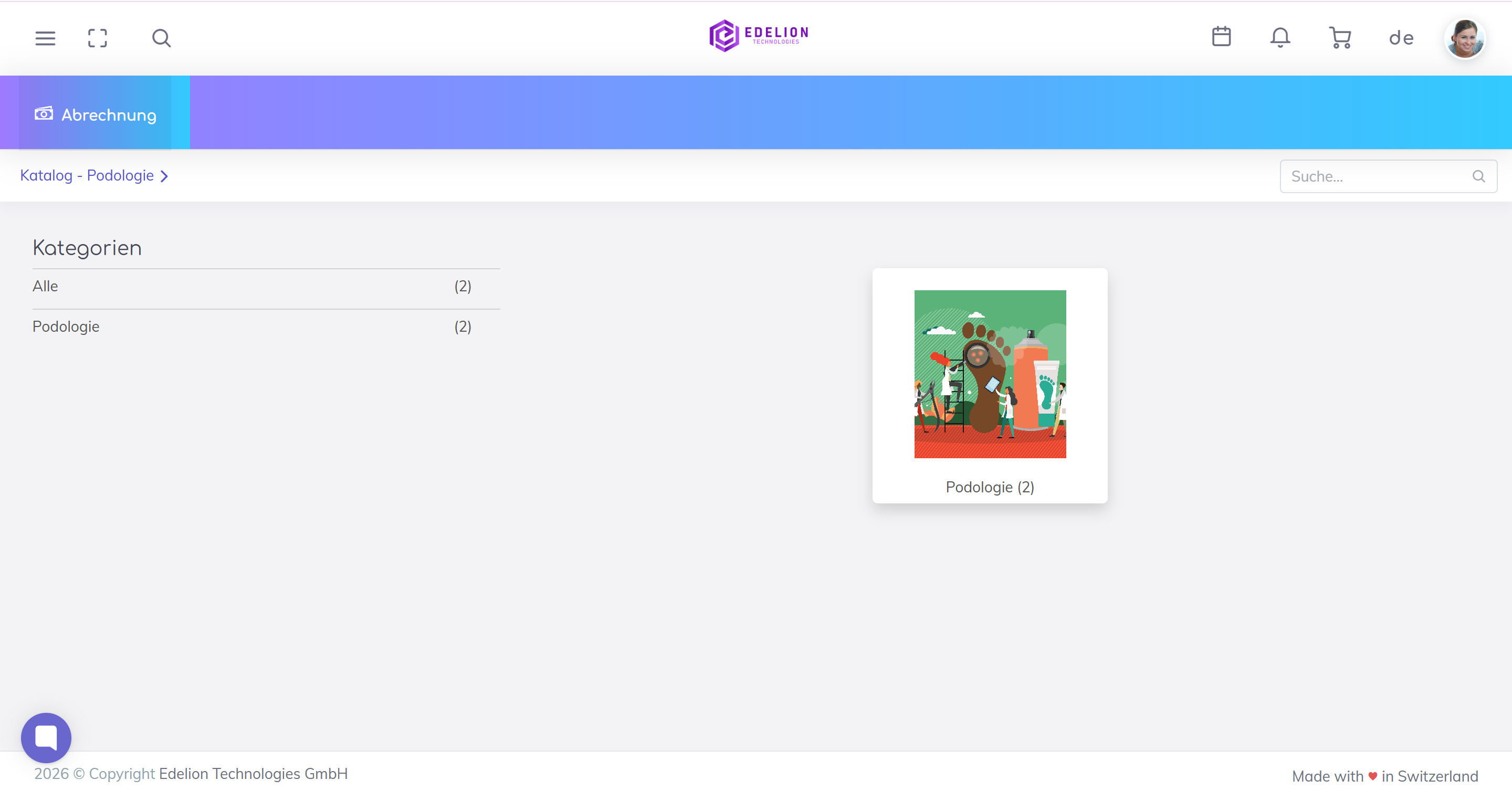
Start by clicking on the desired category (e.g., Podology) in the left sidebar or on the category card to view available services.
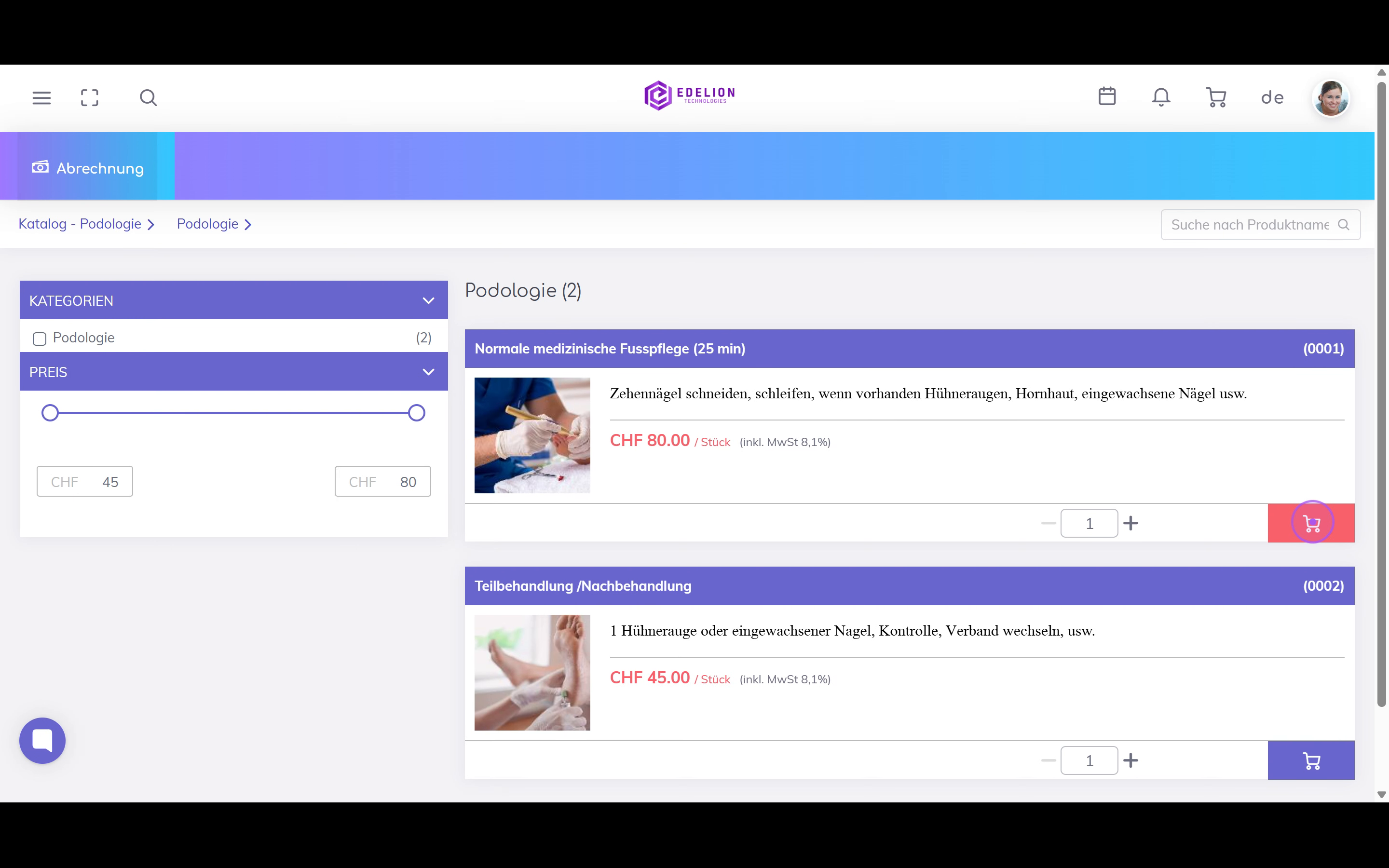
Once you find the service you need, click the purple cart icon next to the quantity selector to add it to your shopping cart.
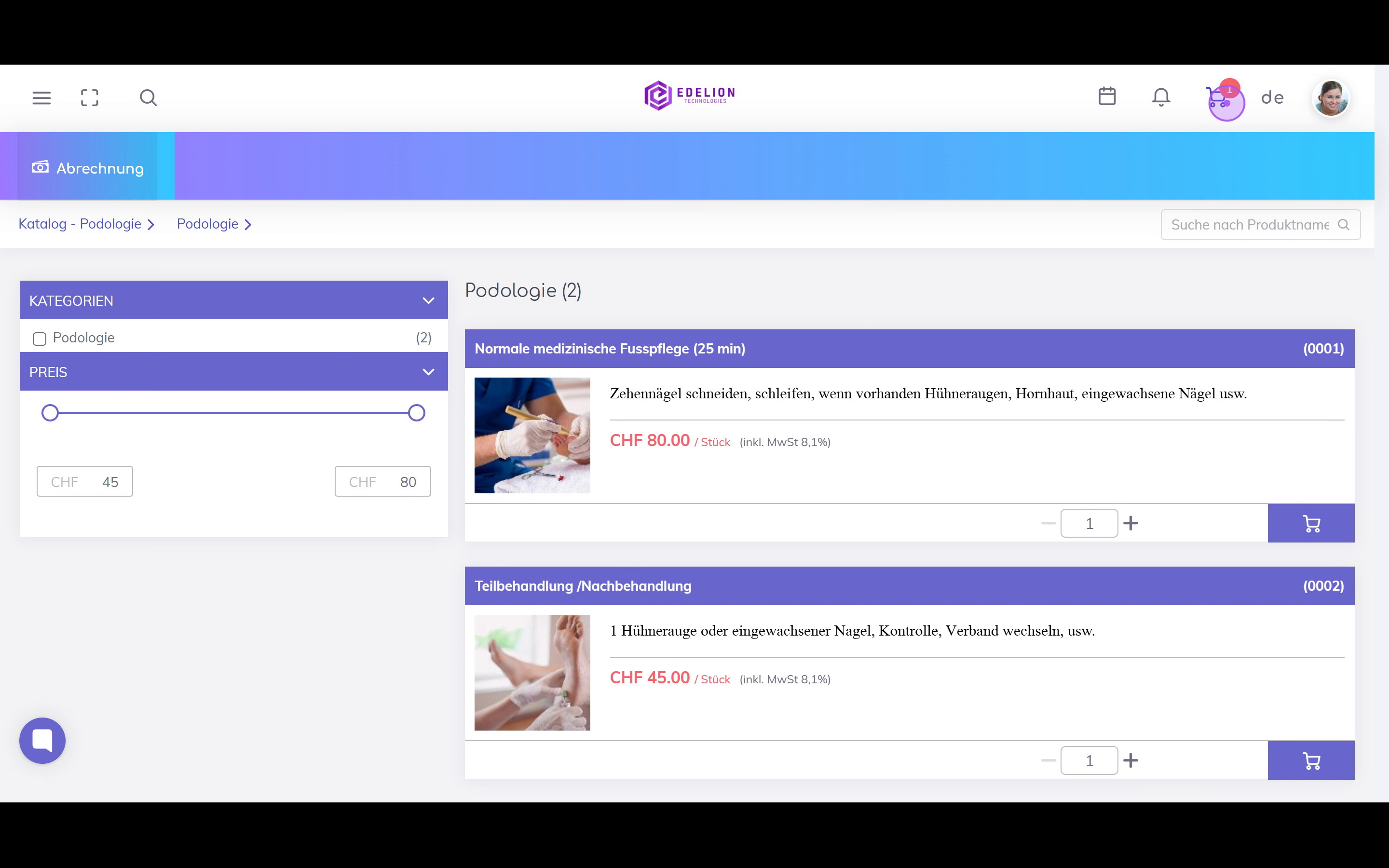
Click the shopping cart icon in the top navigation bar (showing the number of items) to review your selection.
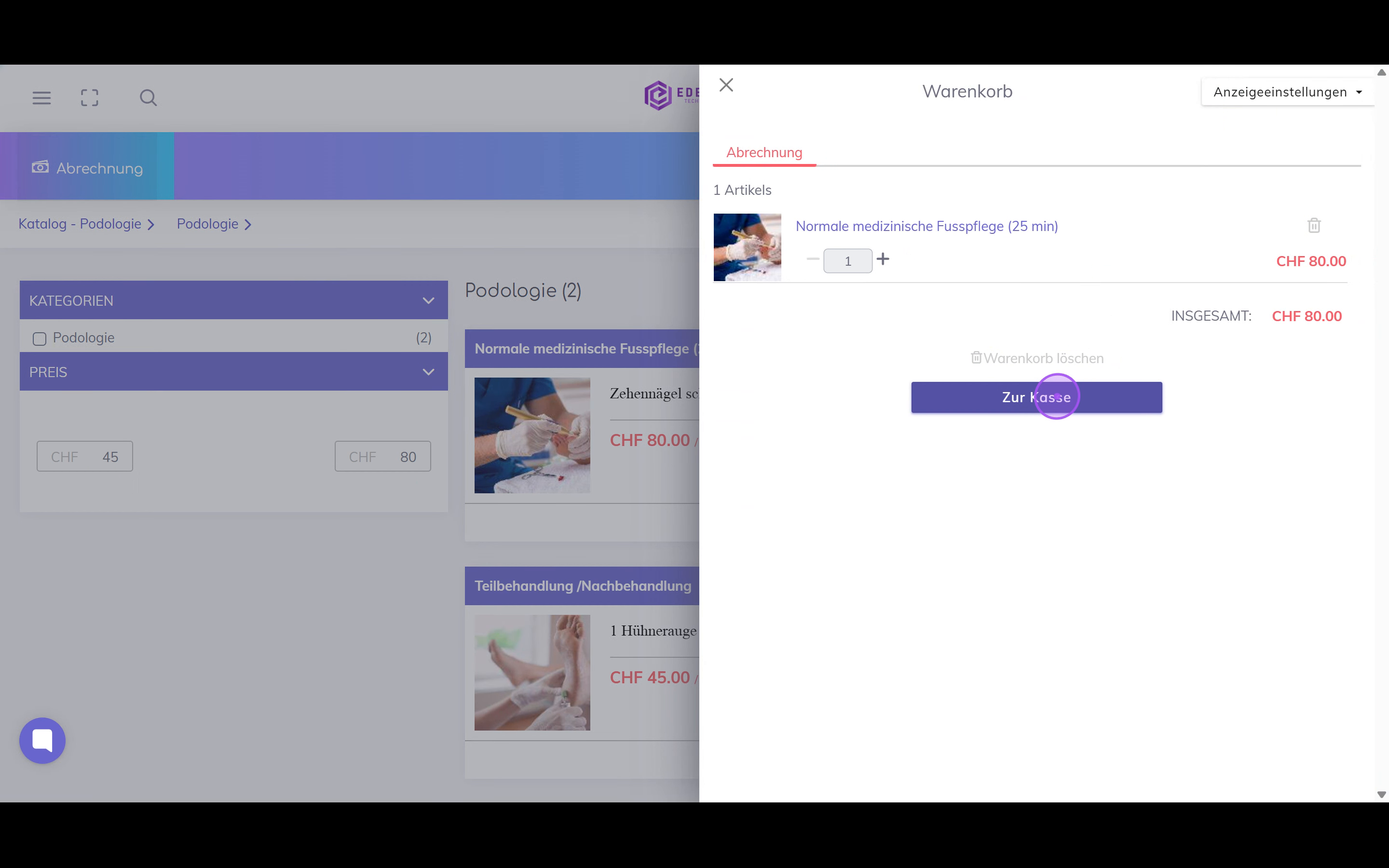
Review the items in your cart, then click the 'To Checkout' button to continue to the billing form.
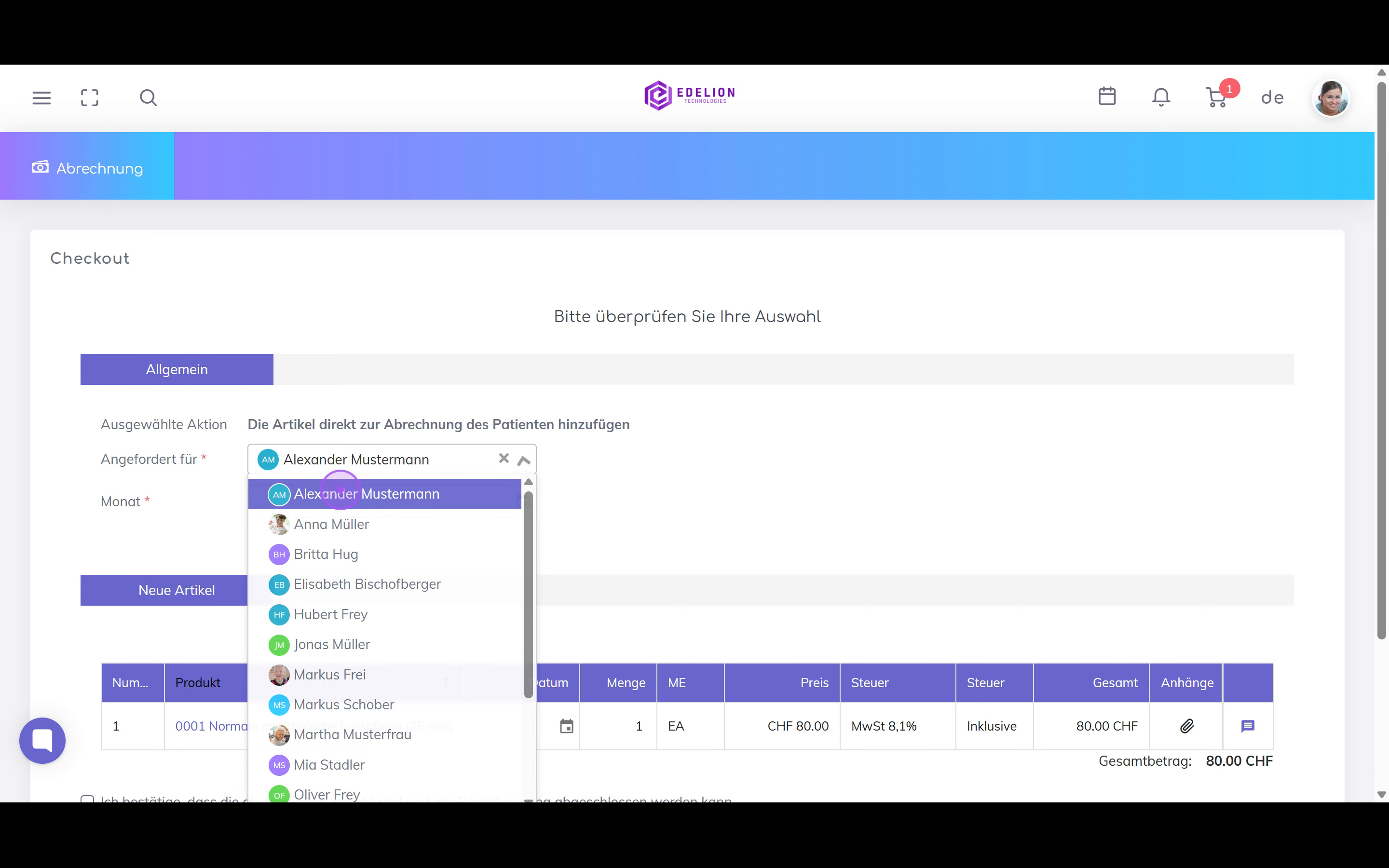
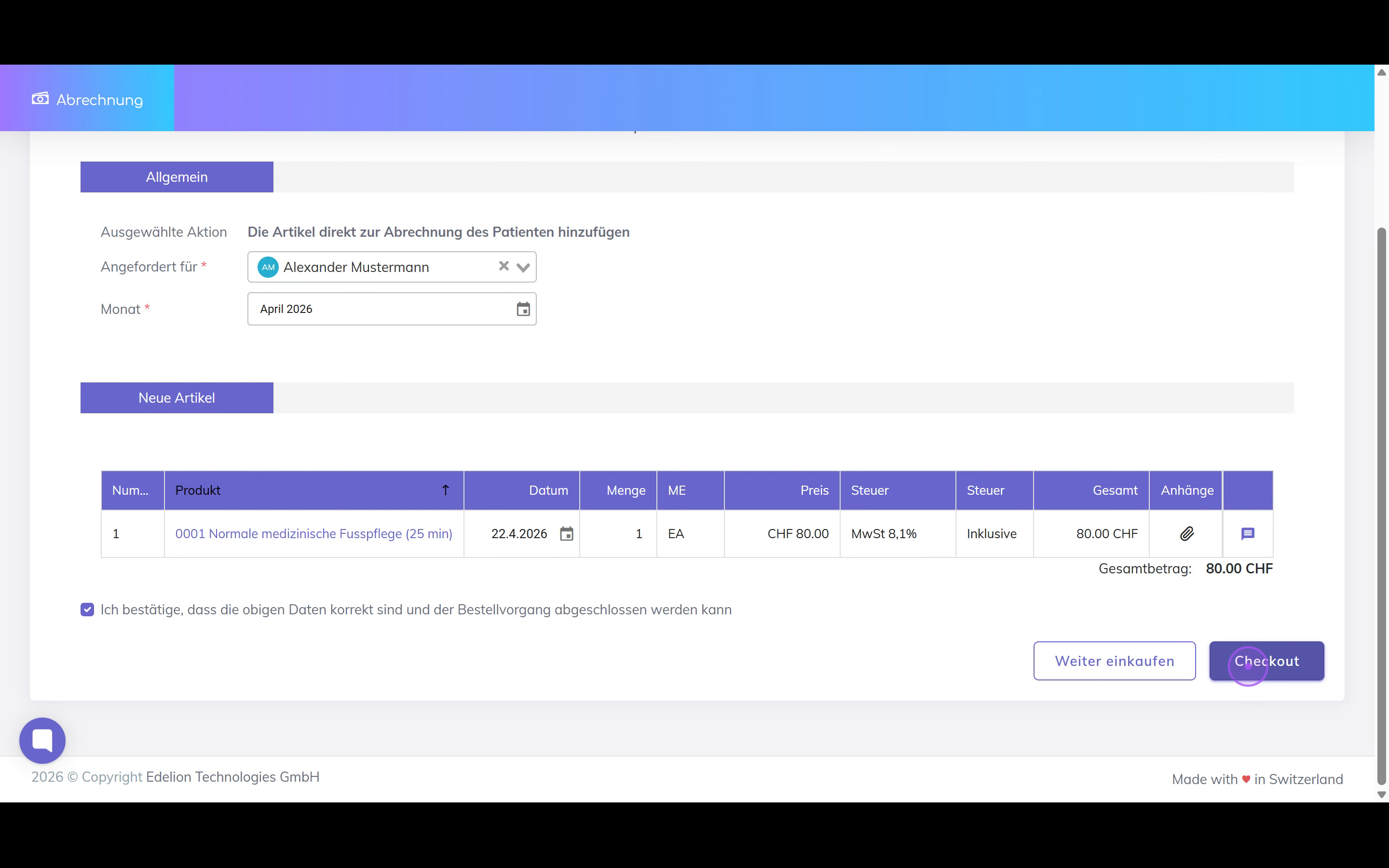
Click the 'Requested for' dropdown and select the resident from the list who should be billed for this service.
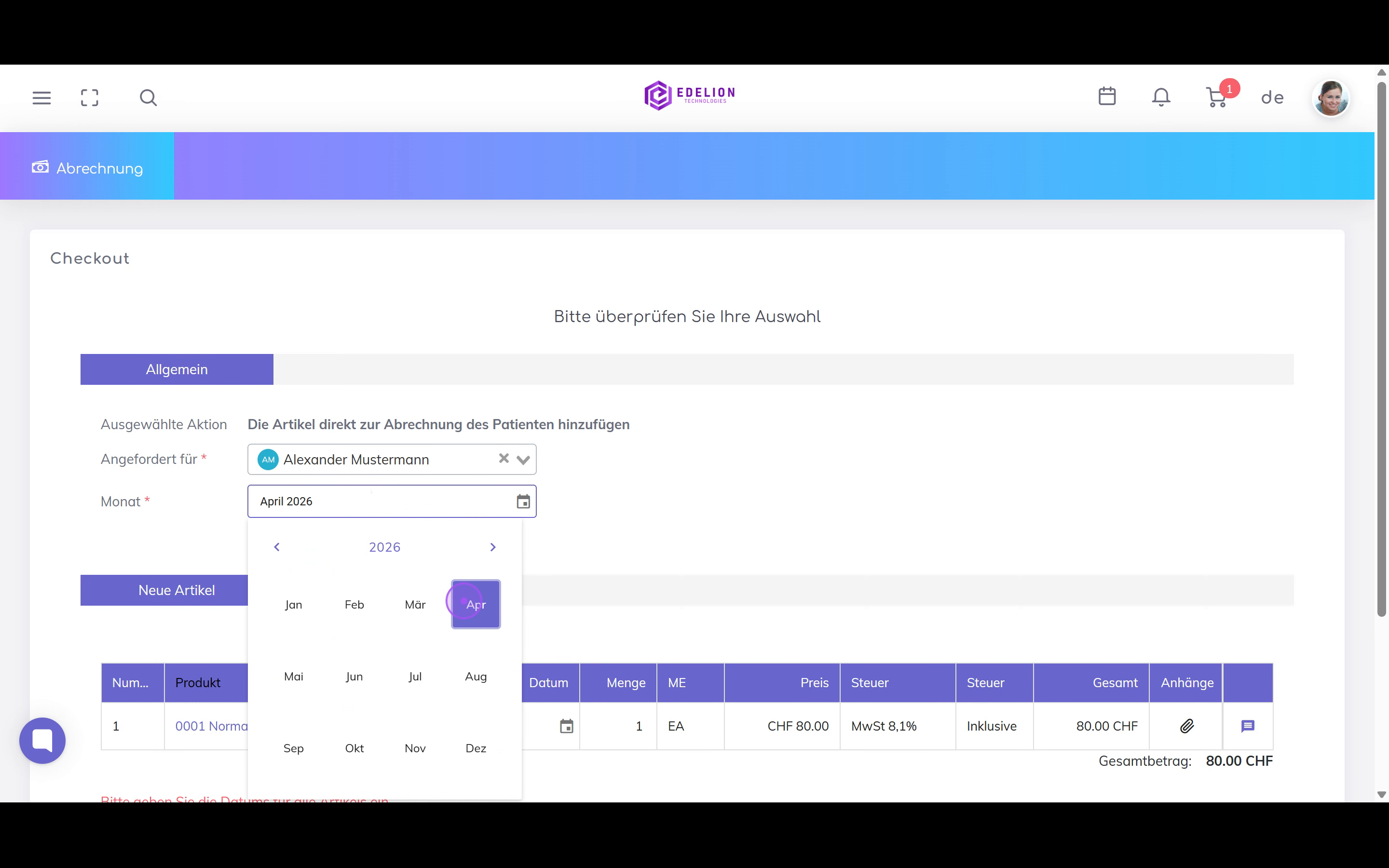
Click the 'Month' field and select the appropriate billing month from the calendar view.
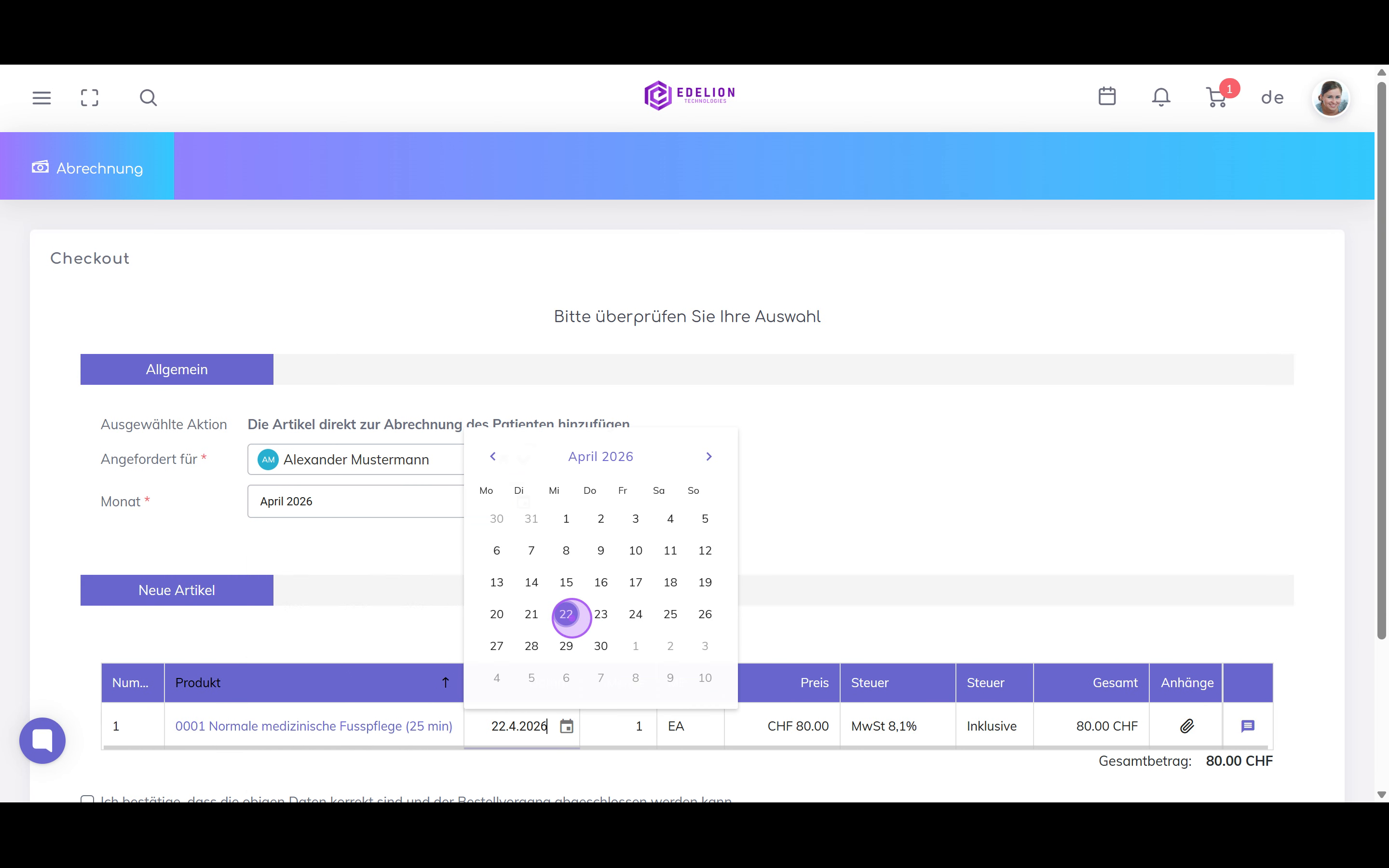
Click the calendar icon in the 'Date' column of the item table, then select the specific date when the service was provided.
Check the confirmation box to verify the data is correct, then click the 'Checkout' button to finalize and add the items to the resident’s billing.
After successful completion, click 'Continue shopping' to return to the catalog and add more services if needed.