

User Management
Setup User Roles
Within the Staff Application, please proceed to the User Roles section. It is important to note that various personnel within your care facility hold distinct positions, thus necessitating the creation of diverse user roles that dictate the specific actions your users can undertake within the application.
By default, an Admin role exists, to which you have been assigned. This particular Admin role contains permissions for all features within the application.
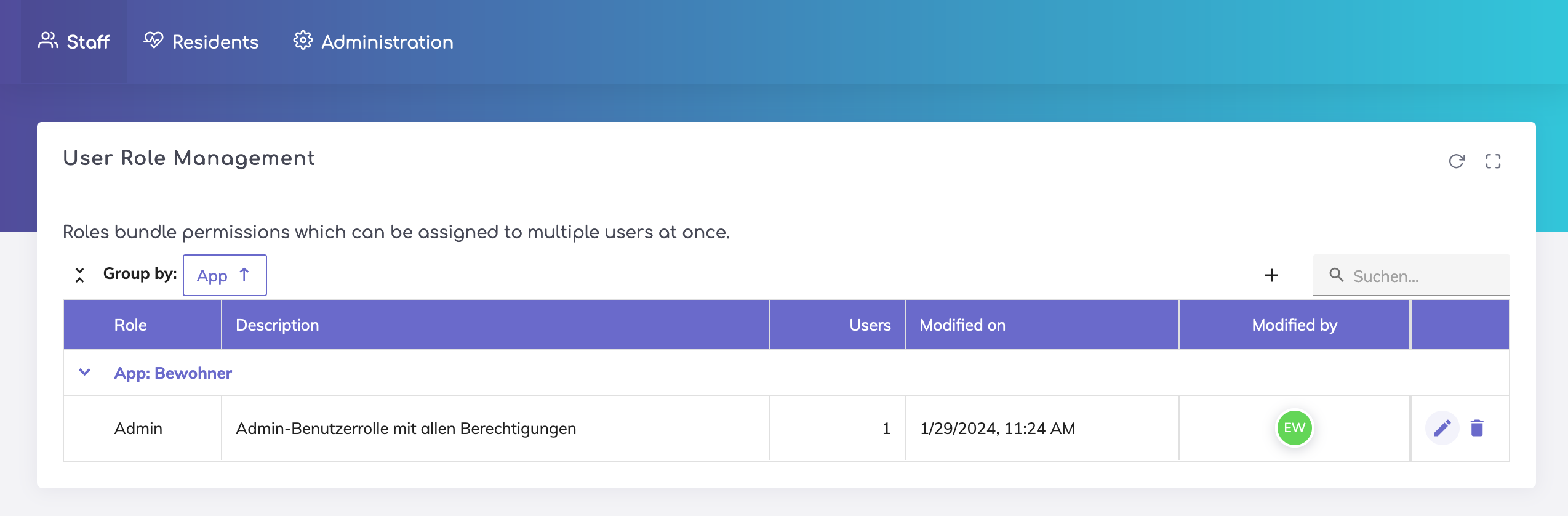
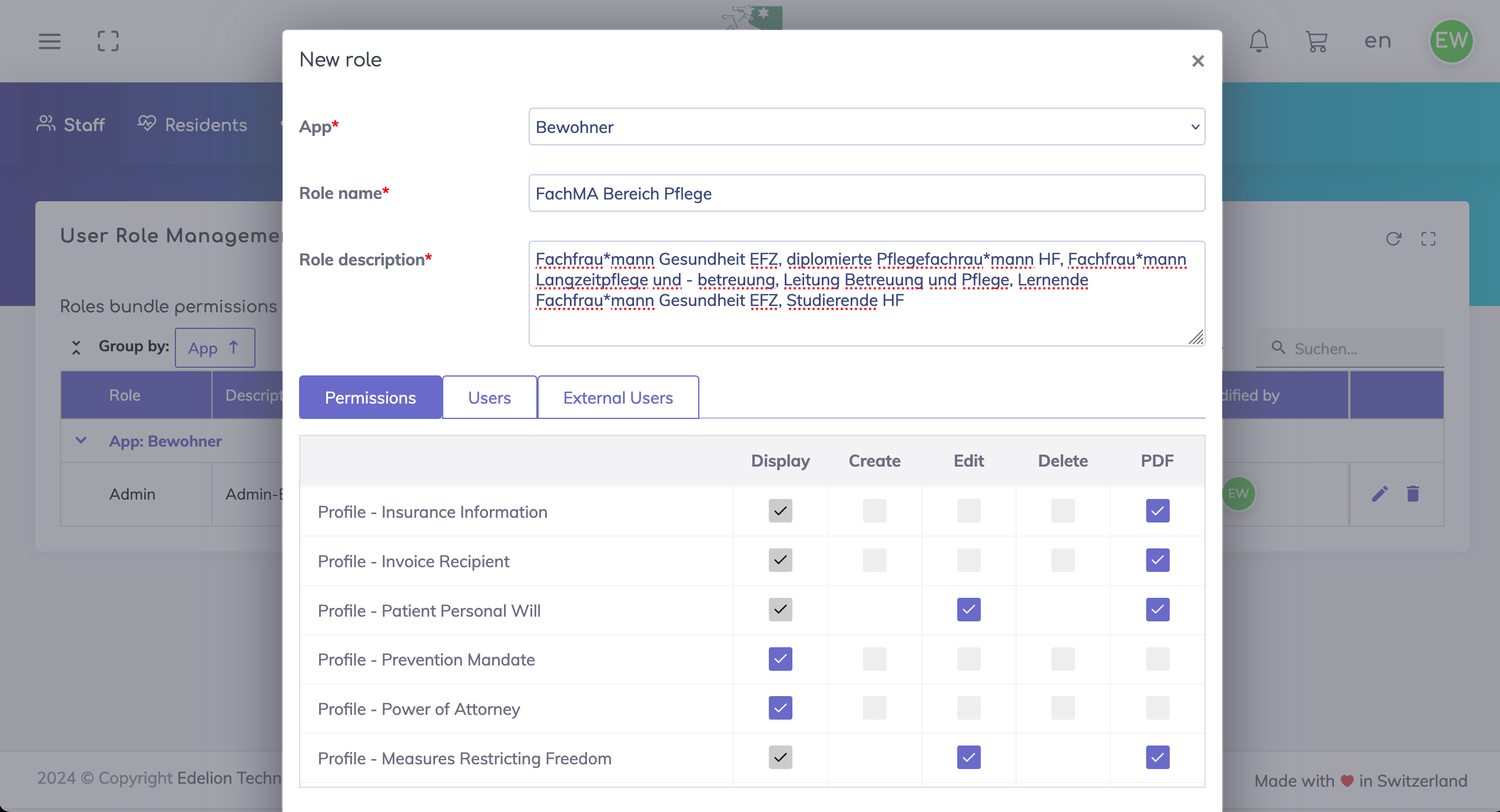
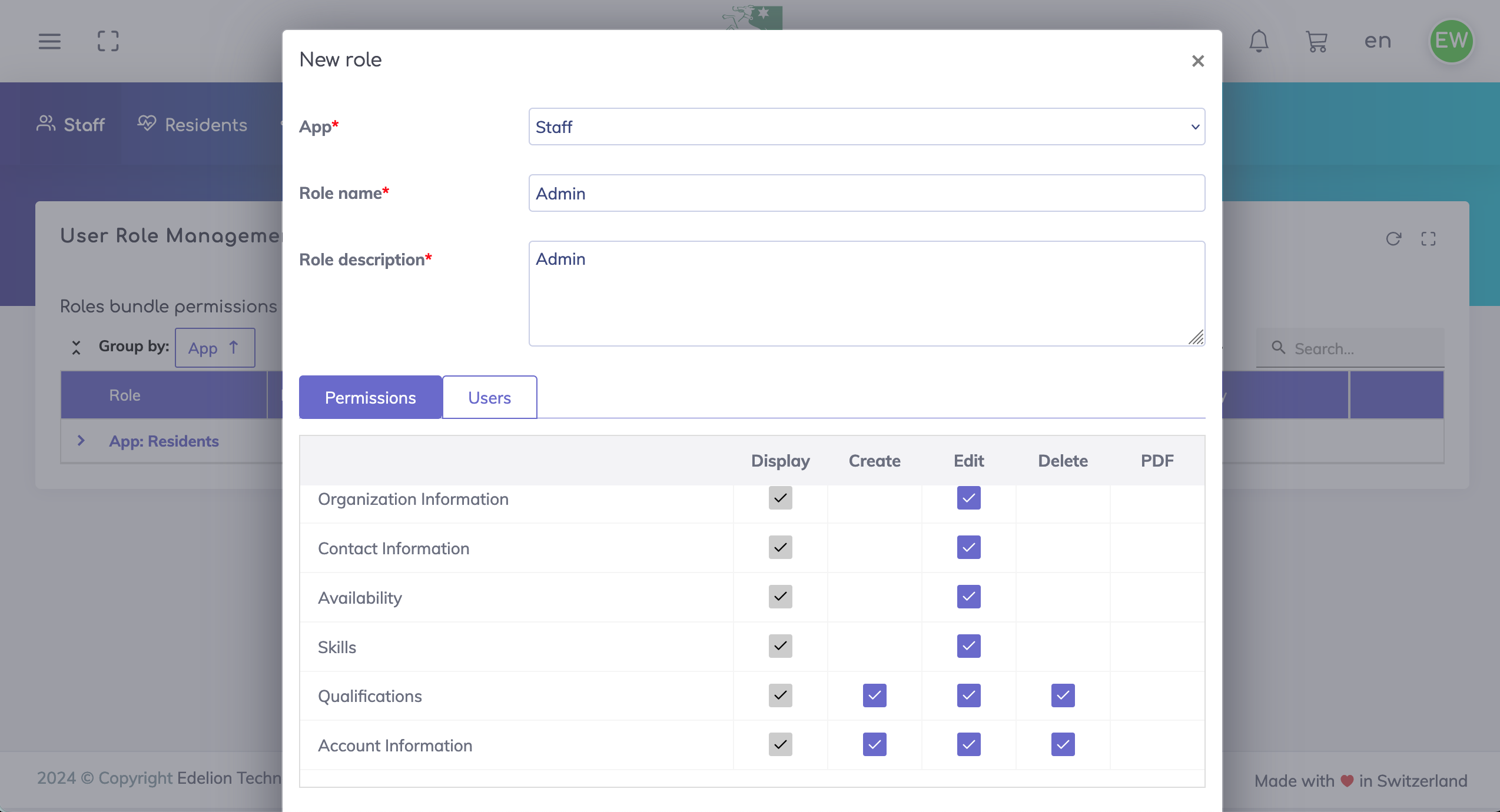
To create a new user role, please locate the "+" button located on the table above. Upon clicking this button, a popup will appear. Within the popup, select the desired application for which you wish to establish a new user role. Provide a concise and appropriate name for the role, and utilize the description field to input more extensive text as necessary. Subsequently, proceed to the Permissions tab, where you can choose the permissions (such as Display, Create, Edit, Delete, and PDF Export) that you desire to be associated with this role. Lastly, navigate to the bottom of the page and select the "Save" option to finalize the creation process.

Setup Users
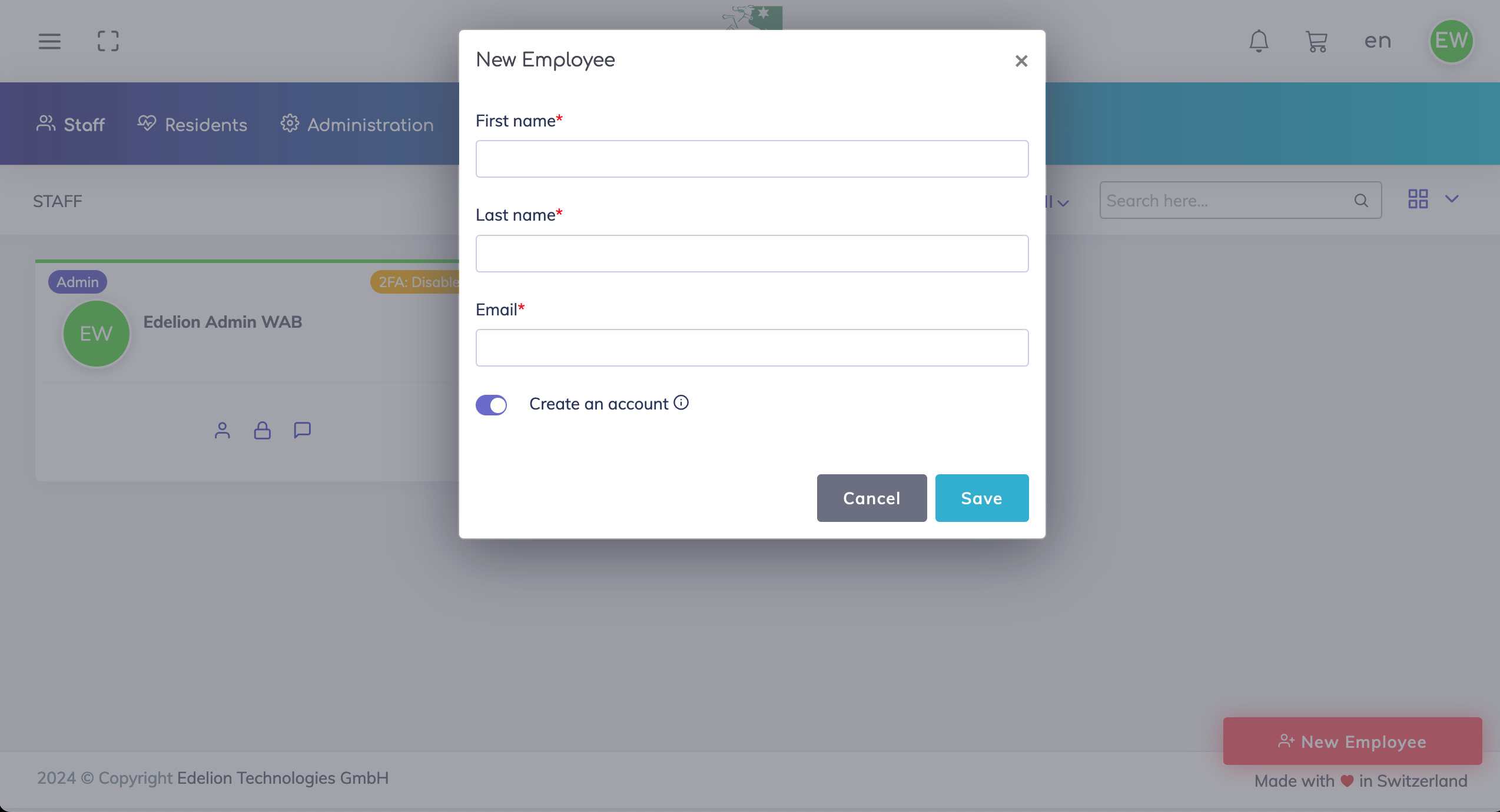
Within the Staff Application, please proceed to the Staff List section. Click on the New Employee button on the bottom right of the screen. Provide relevant details and activate the "Create an account" switch to trigger an automatic email to the user with their login information.
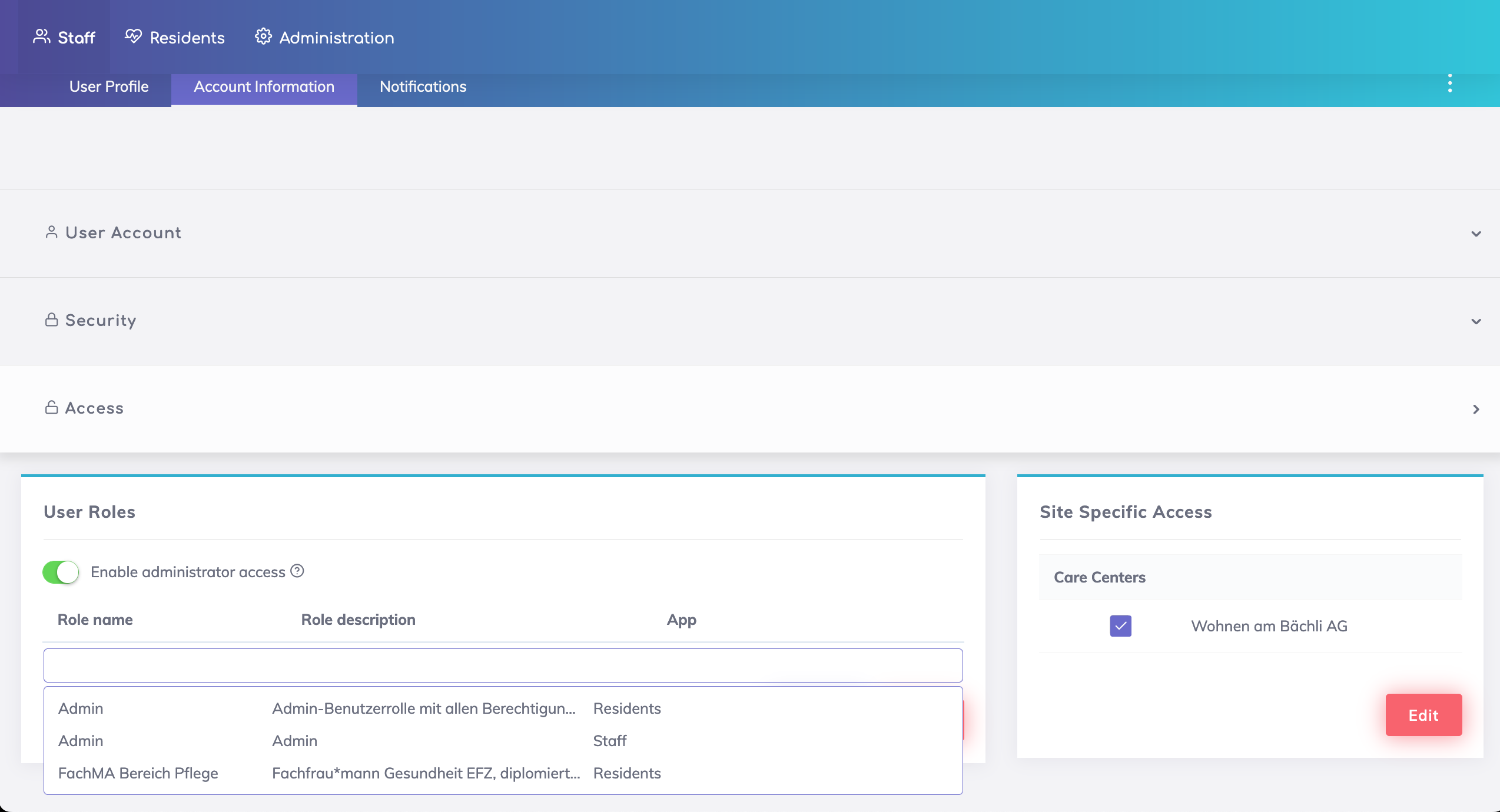
Click on the user, then go to the tab "Account Information" and under the section "Access", click on Edit and add the required user role. Don't forget to Save.
Still got questions?
We're here to help. Please feel free to contact us.