Go to the Recipes Catalog on the Gastronomy App.
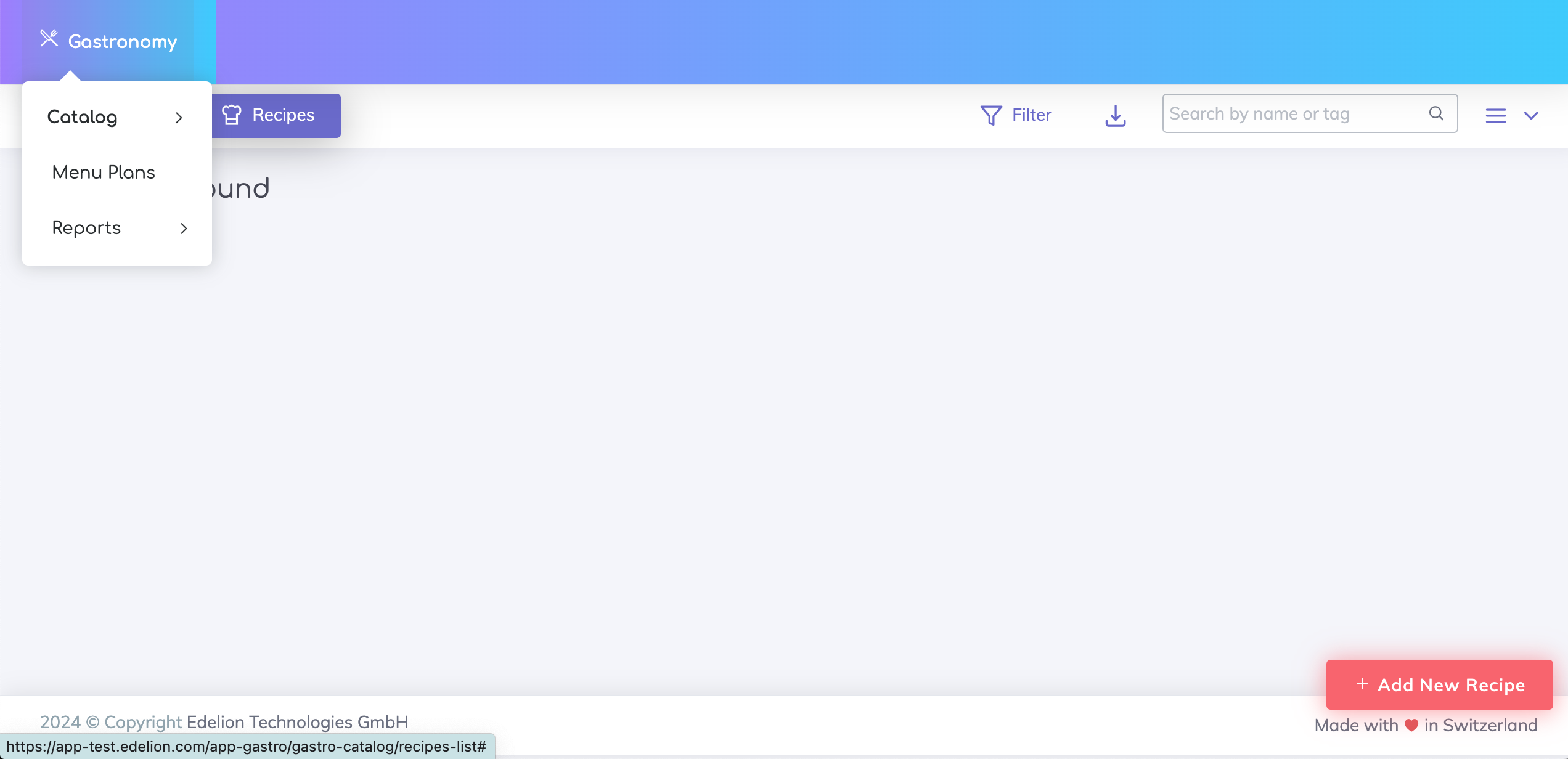
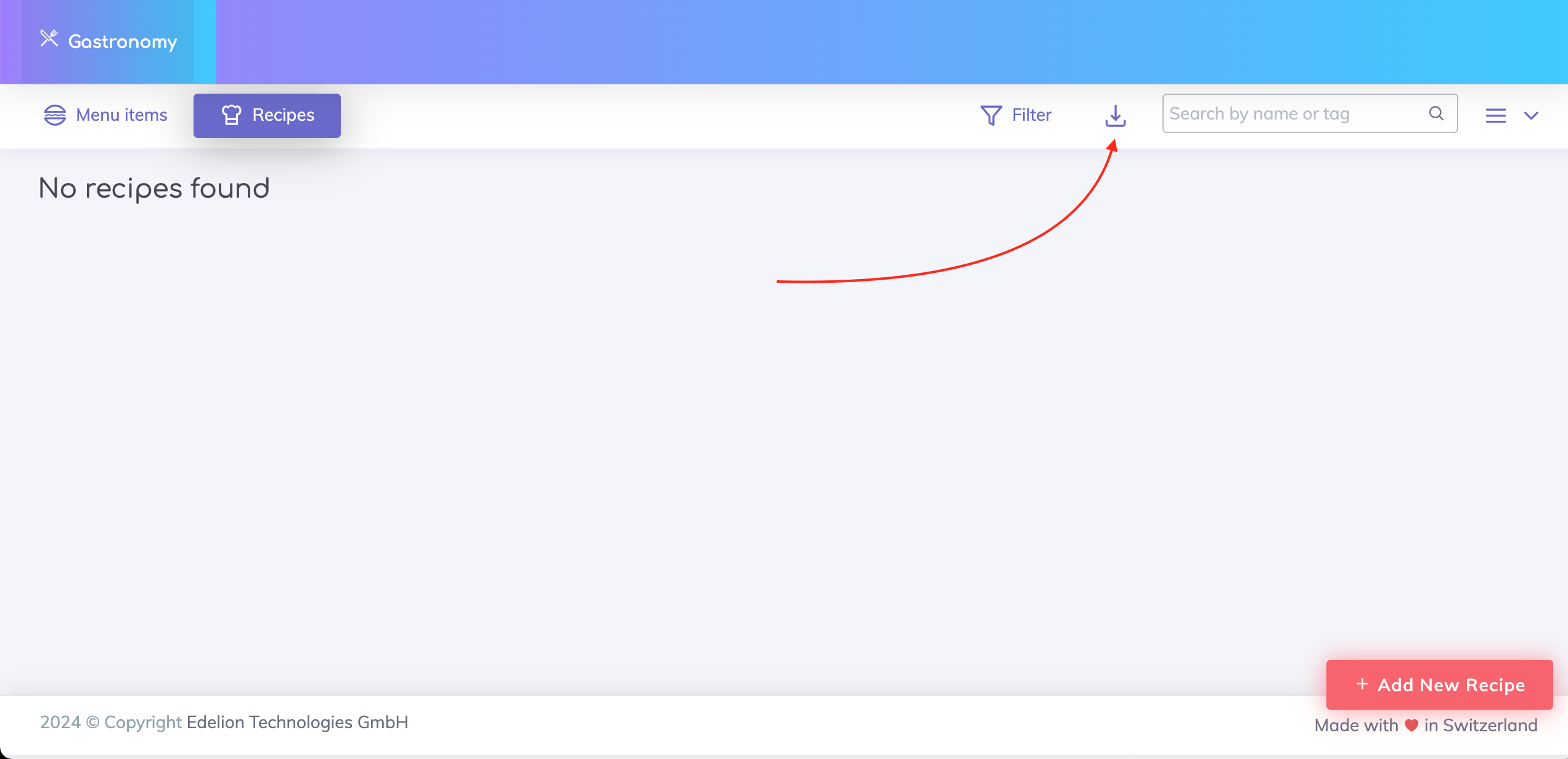
The import icon is located next to the search bar as shown below.

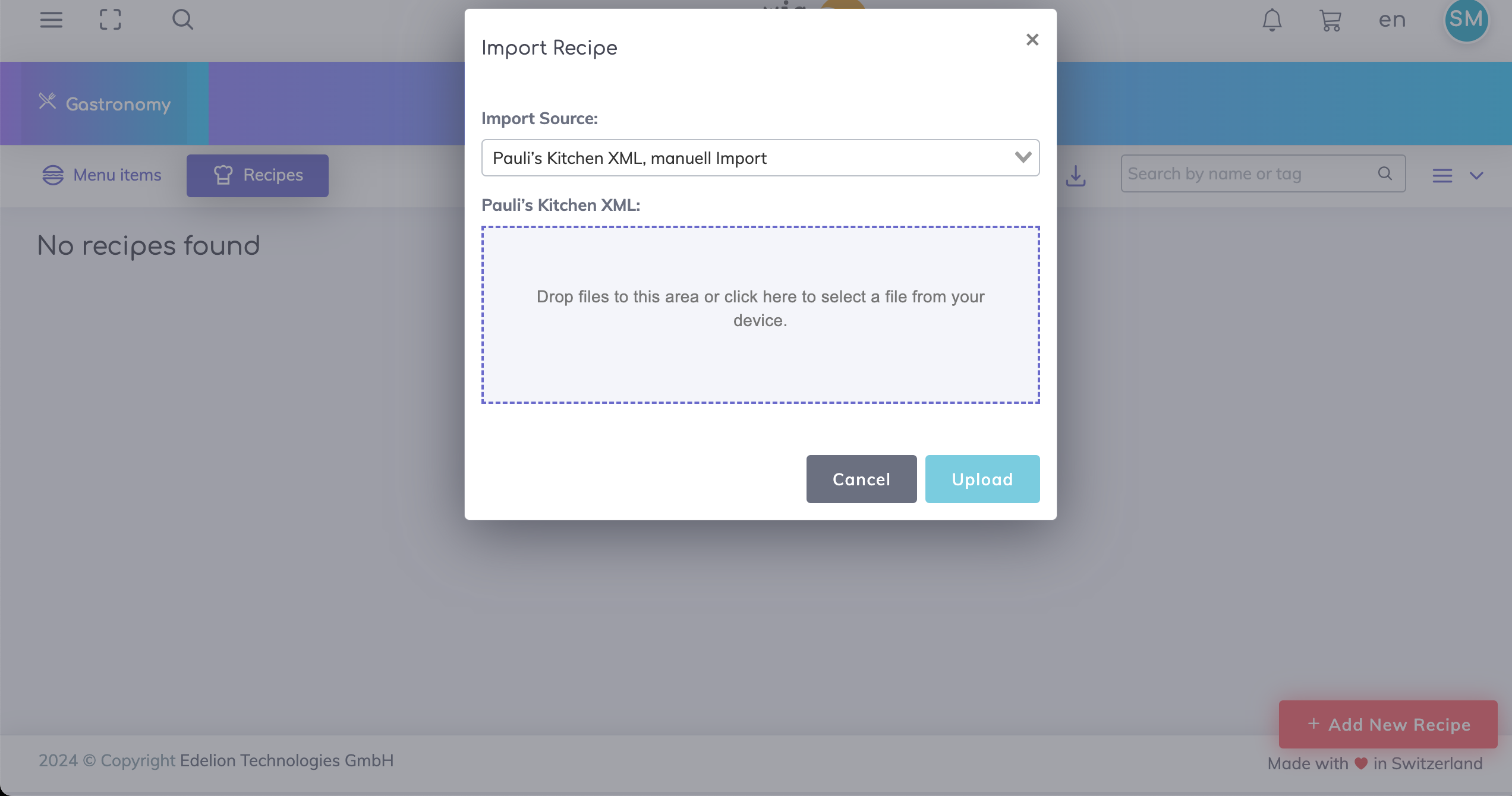
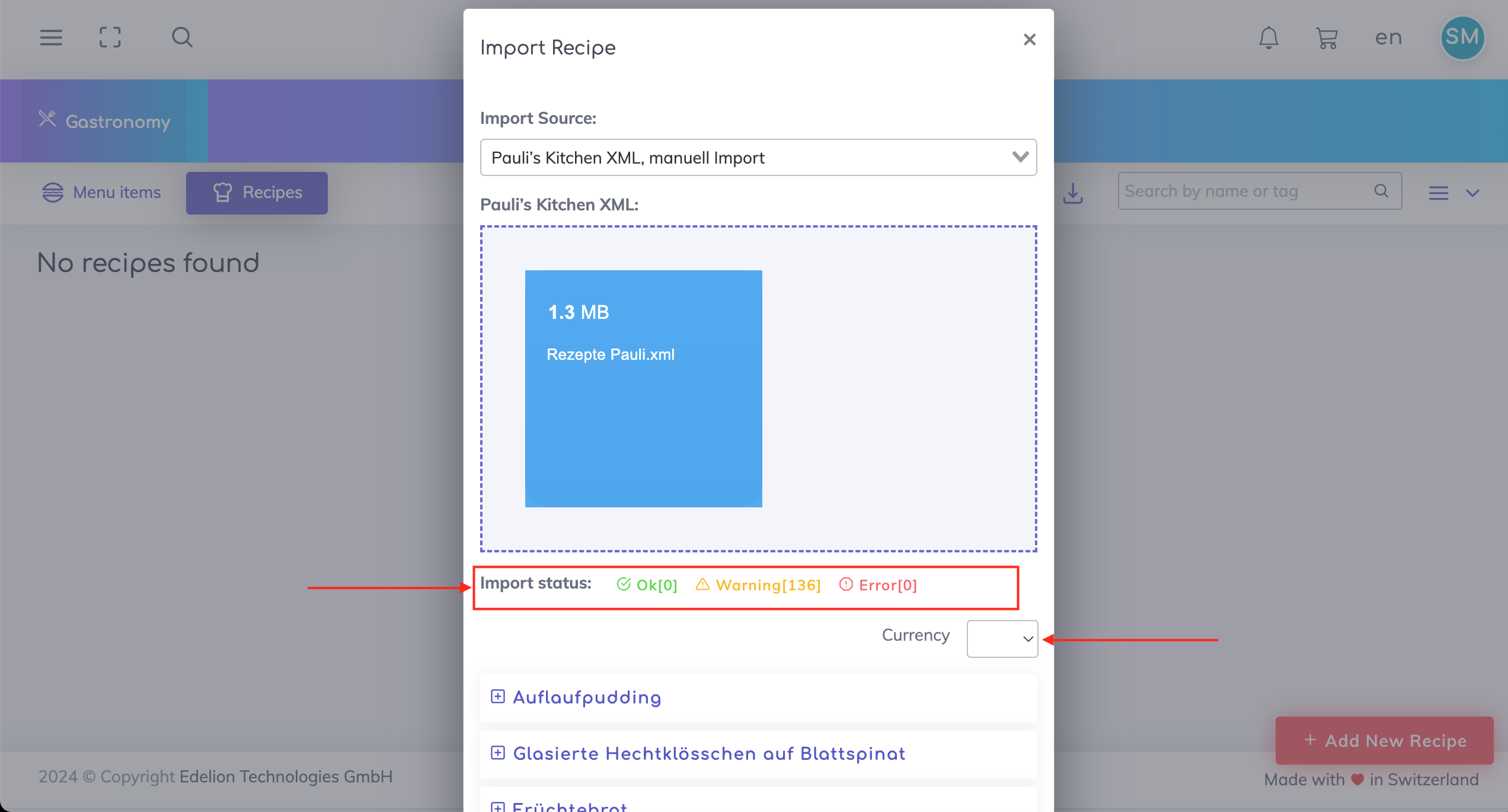
On the pop-up, select "Pauli's Kitchen XML" as the Import Source. Select the Recipes XML file that you would like to import from your device.
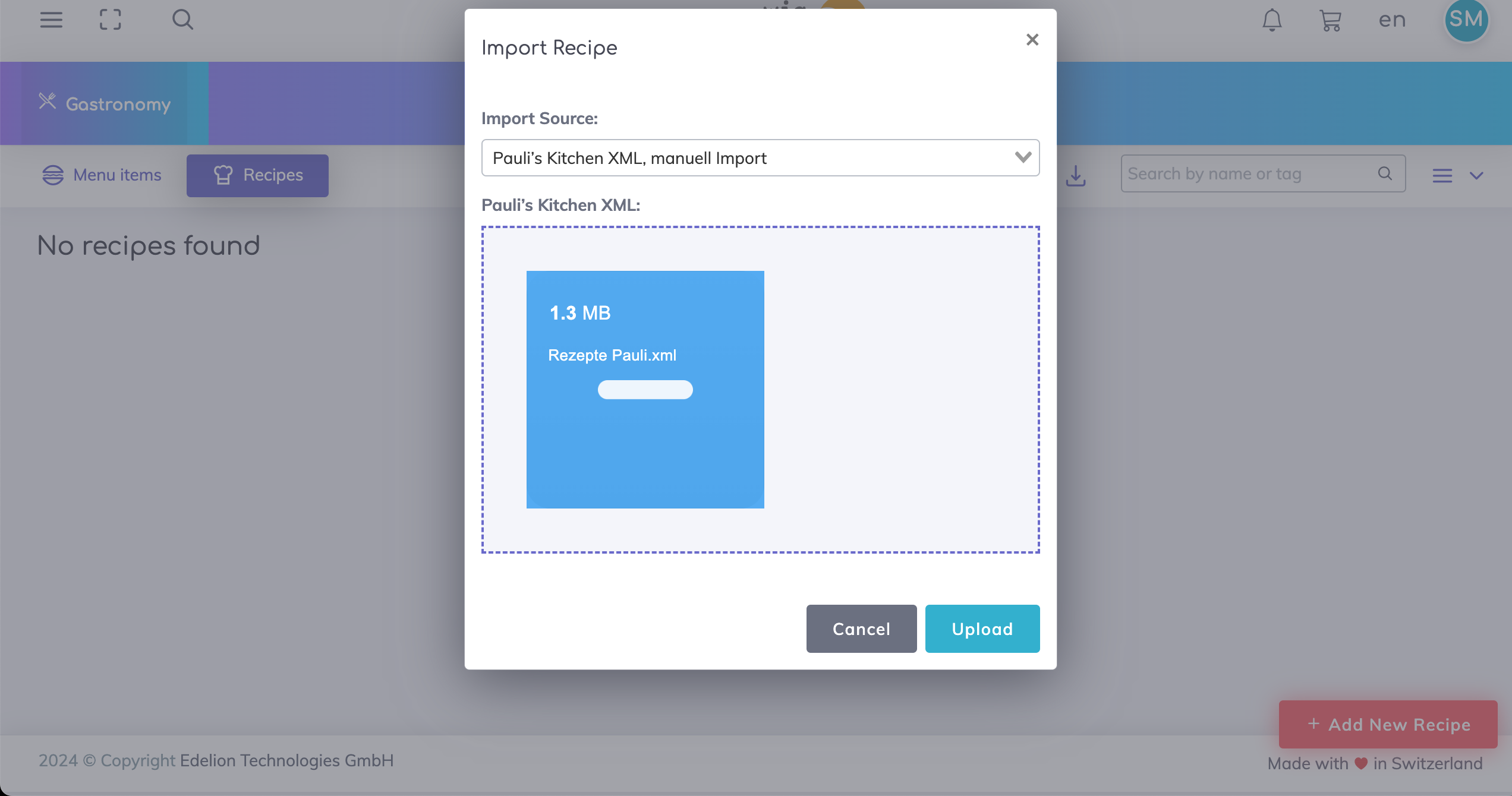
Once the file is selected, click on Upload.
Before the recipes are imported, a simulation (test import) is done to check if the recipes contains any errors or warnings. The import status is visible as shown below.

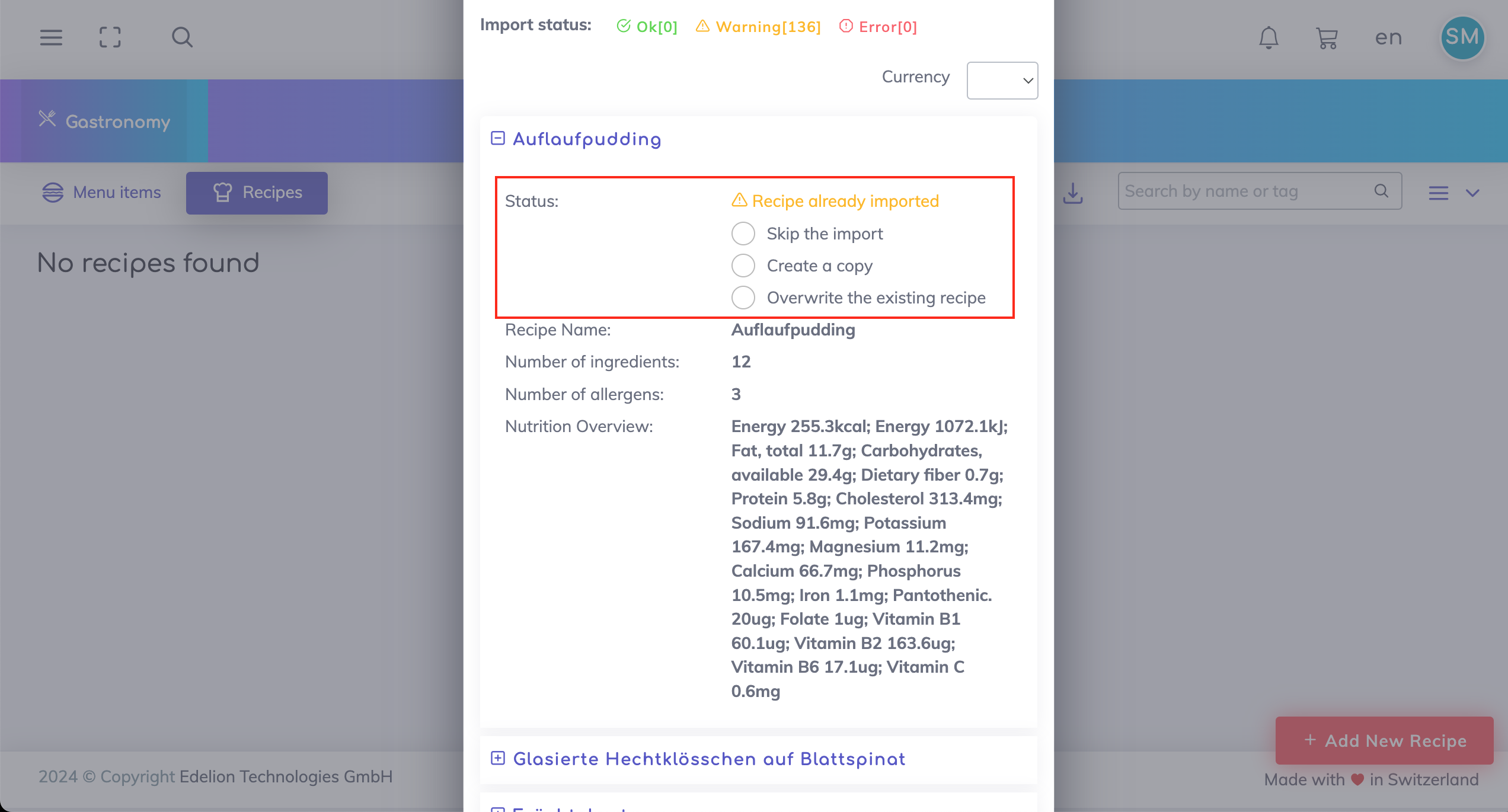
When you click on one the recipes, the status is shown for that recipe. You have the option to skip the import of this recipe, create a copy of this recipe or overwrite the existing recipe.
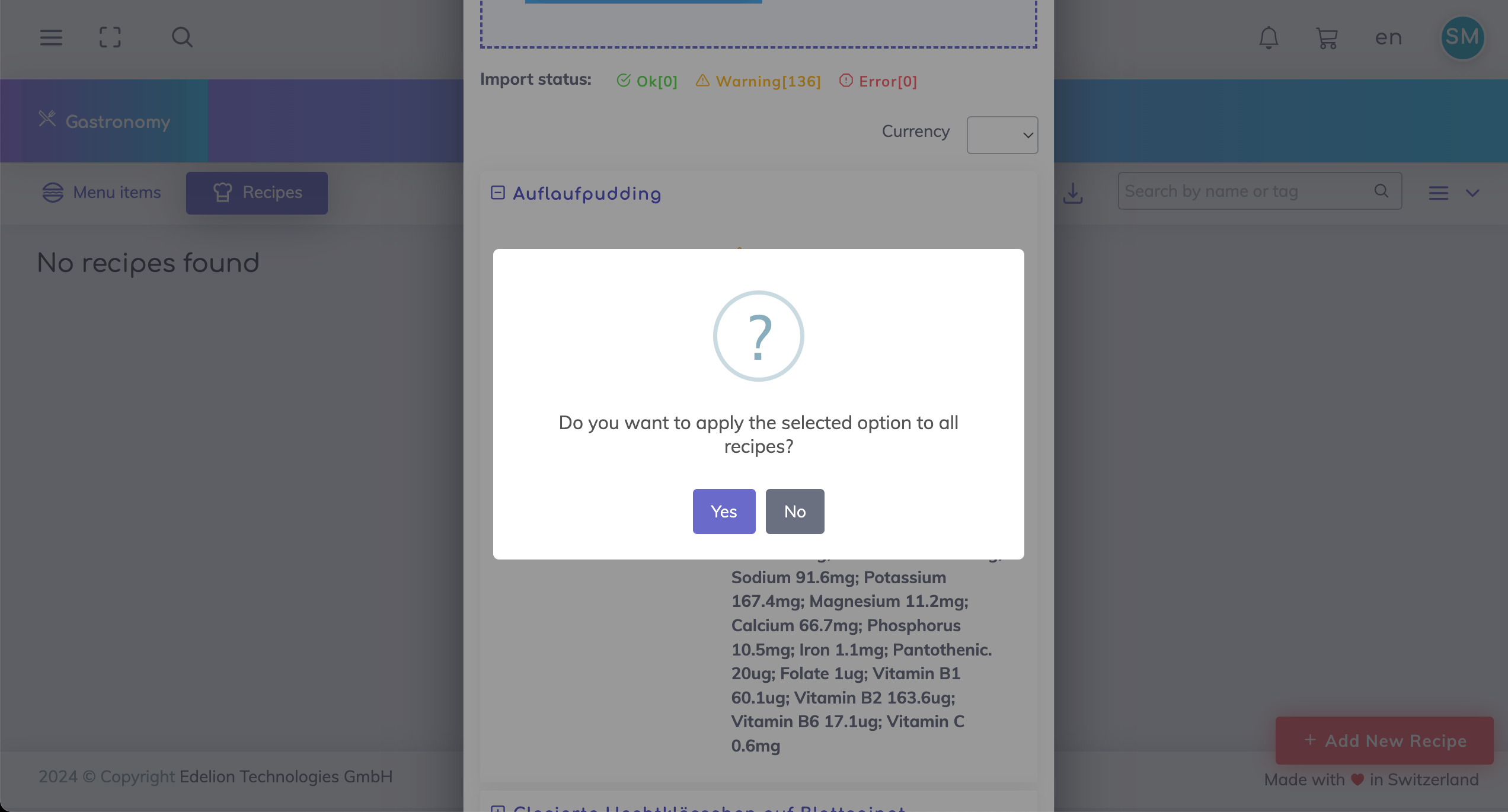
When you select an option, you can choose whether the same option applies to all recipes. If you select no, then you will need to individually decide the status of each recipe.
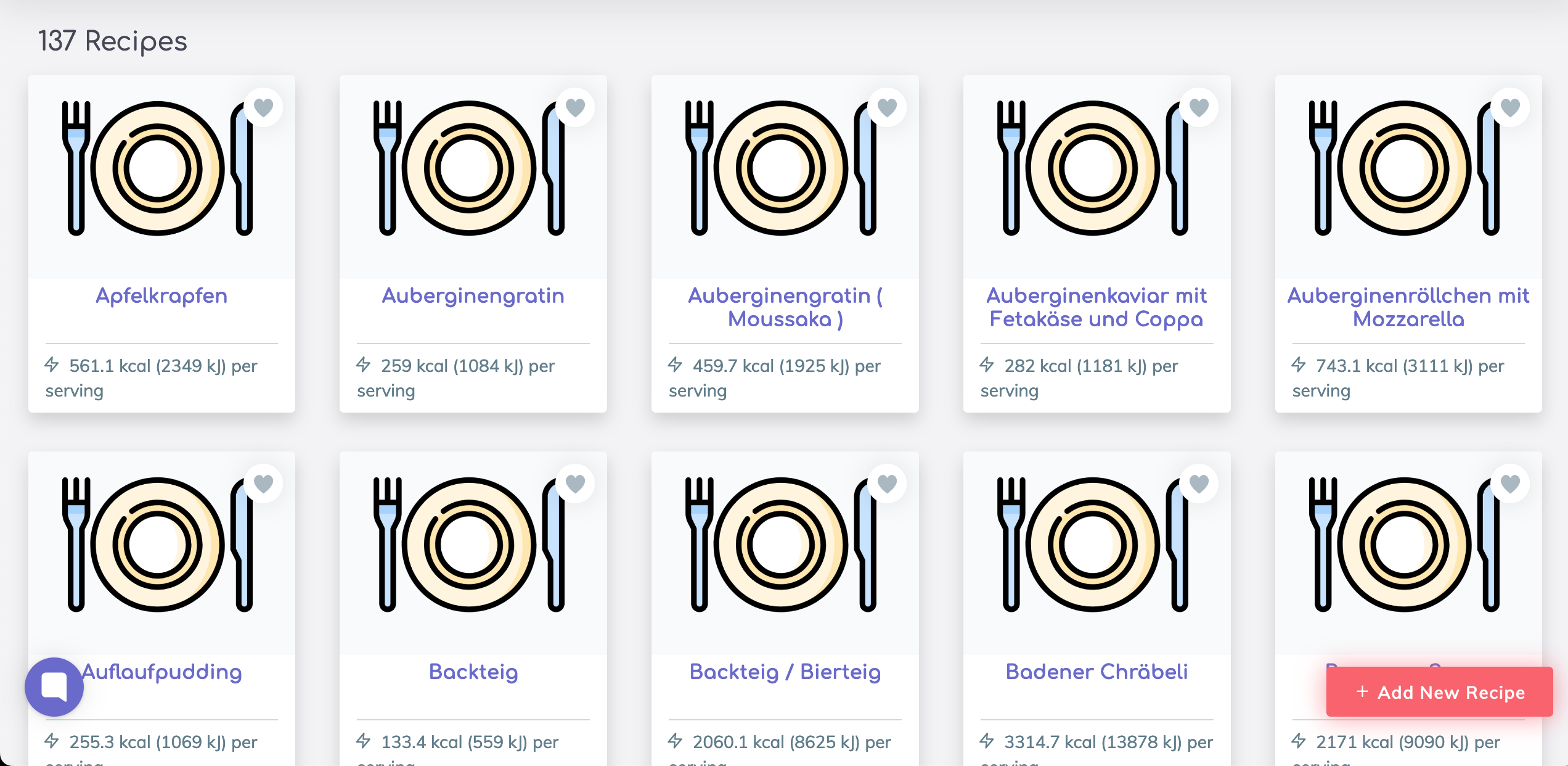
Once you are ready, click on Import. Your recipes will be imported and will appear under the Recipes tab as shown below.

We are happy to help. Please feel free to contact us.