This can be setup as follows: Go to Administration > Configurations > General > Company Information
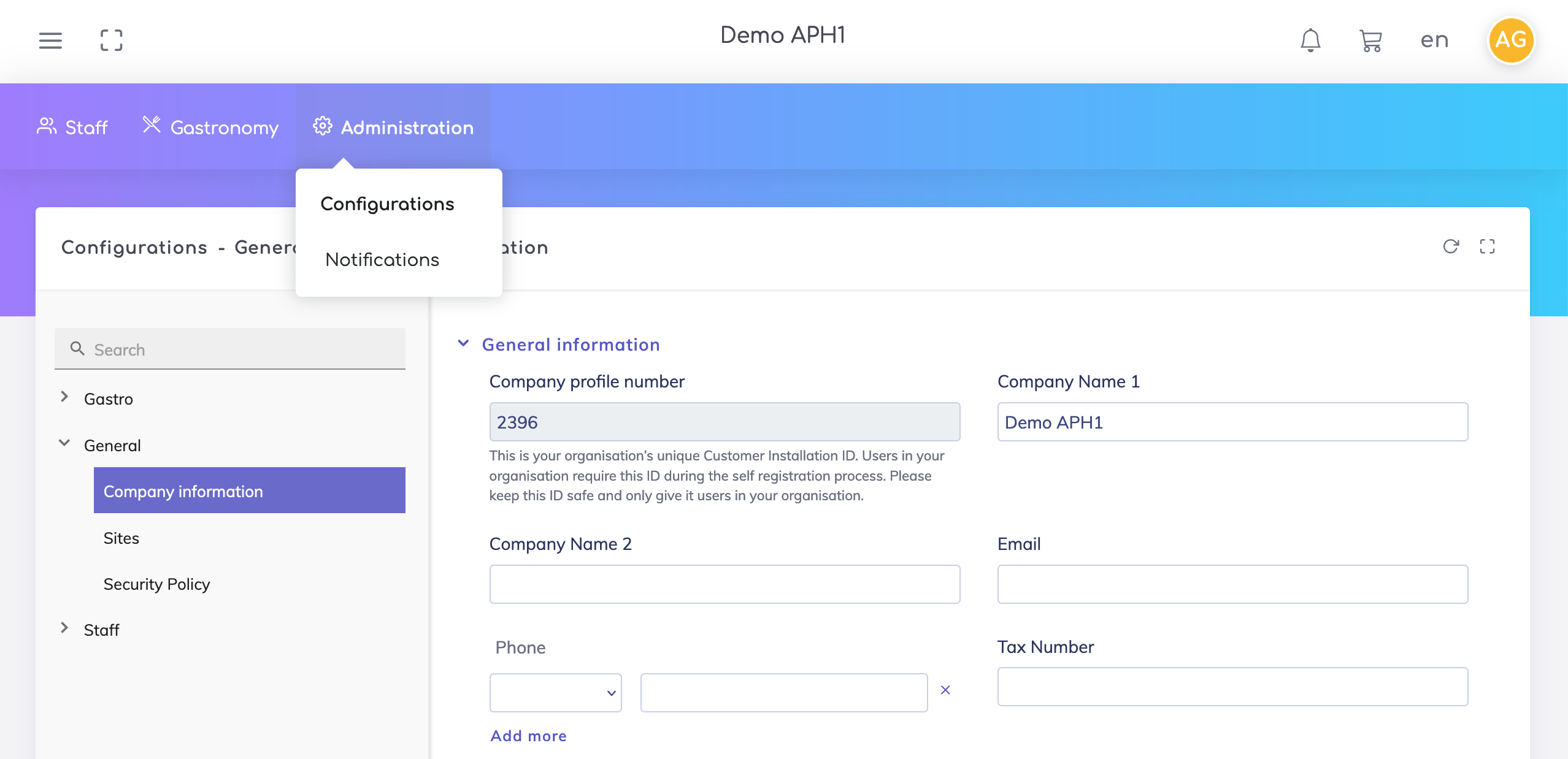
There are 4 sections:
General Information -
Company Profile Number - This ID is automatically generated and is unique for your organisation. There are two options to add users to your organisation:
User Self Registration - Using this option, a member from your organisation can register themselves to join your organisation. During this self registration process, the Company Profile Number is required as a security step to only allow people from your organisation.
Admin User Management option - Using this option, you as the Admin can directly create logins for users within your organisation.
The Company Name and General Company Email fields are mandatory.
Bank Details - Specifying bank details is not mandatory, however if you require this information on invoices that are sent to your customers, then please fill this information.
Logo - The logo is also not mandatory. Uploading a logo enables you to print the logo on various documents such as the Weekly Menu Plan and Invoices. The logo also appears at the top of the app instead of your company name.

Addresses - Your primary company address can be added here as the Sold-To Address. Optionally you may enter different Billing and Shipping addresses for your company. The addresses are relevant for invoices.
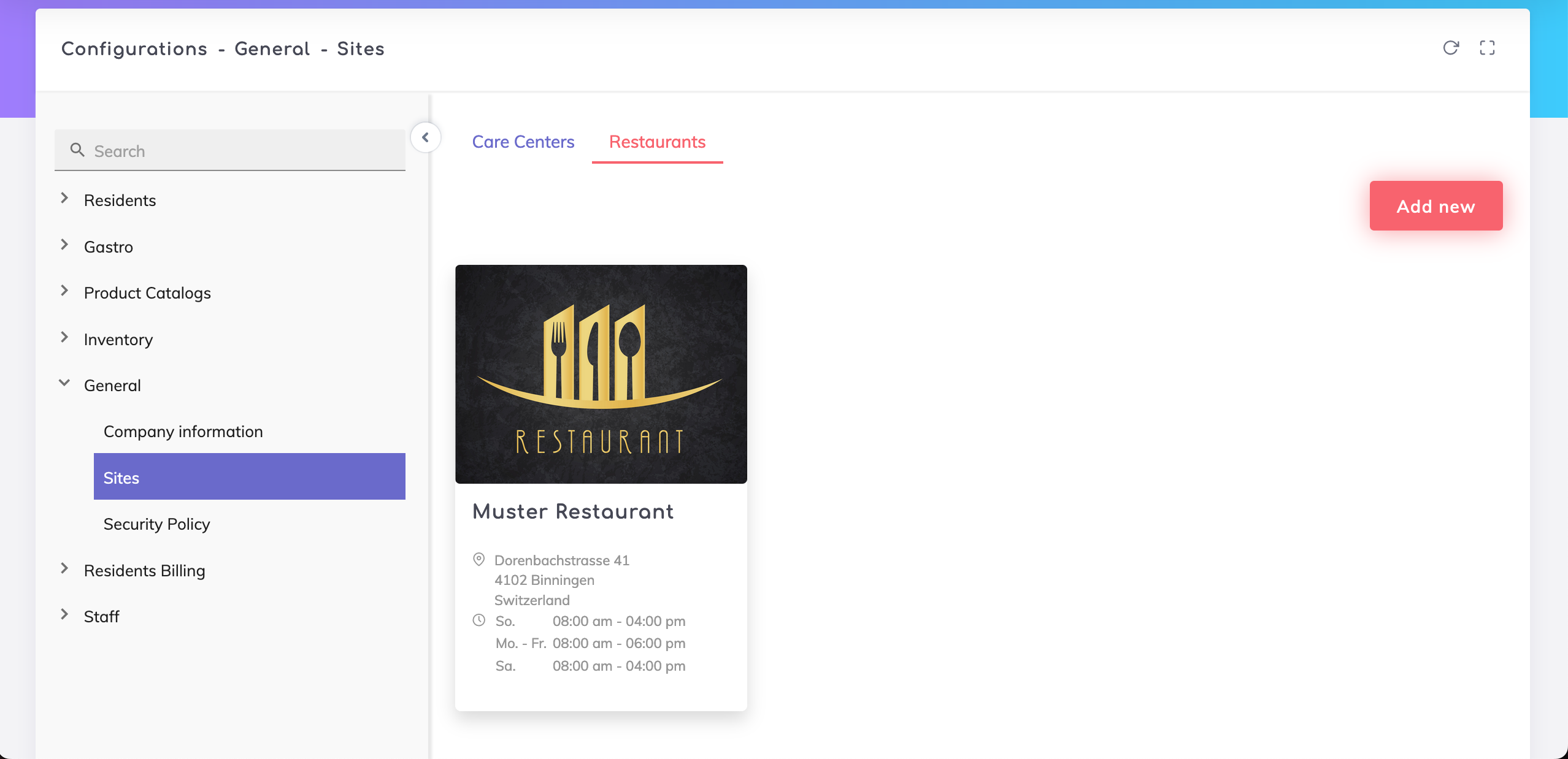
Set up your care and gastronomy departments here. You can set up one or more locations.
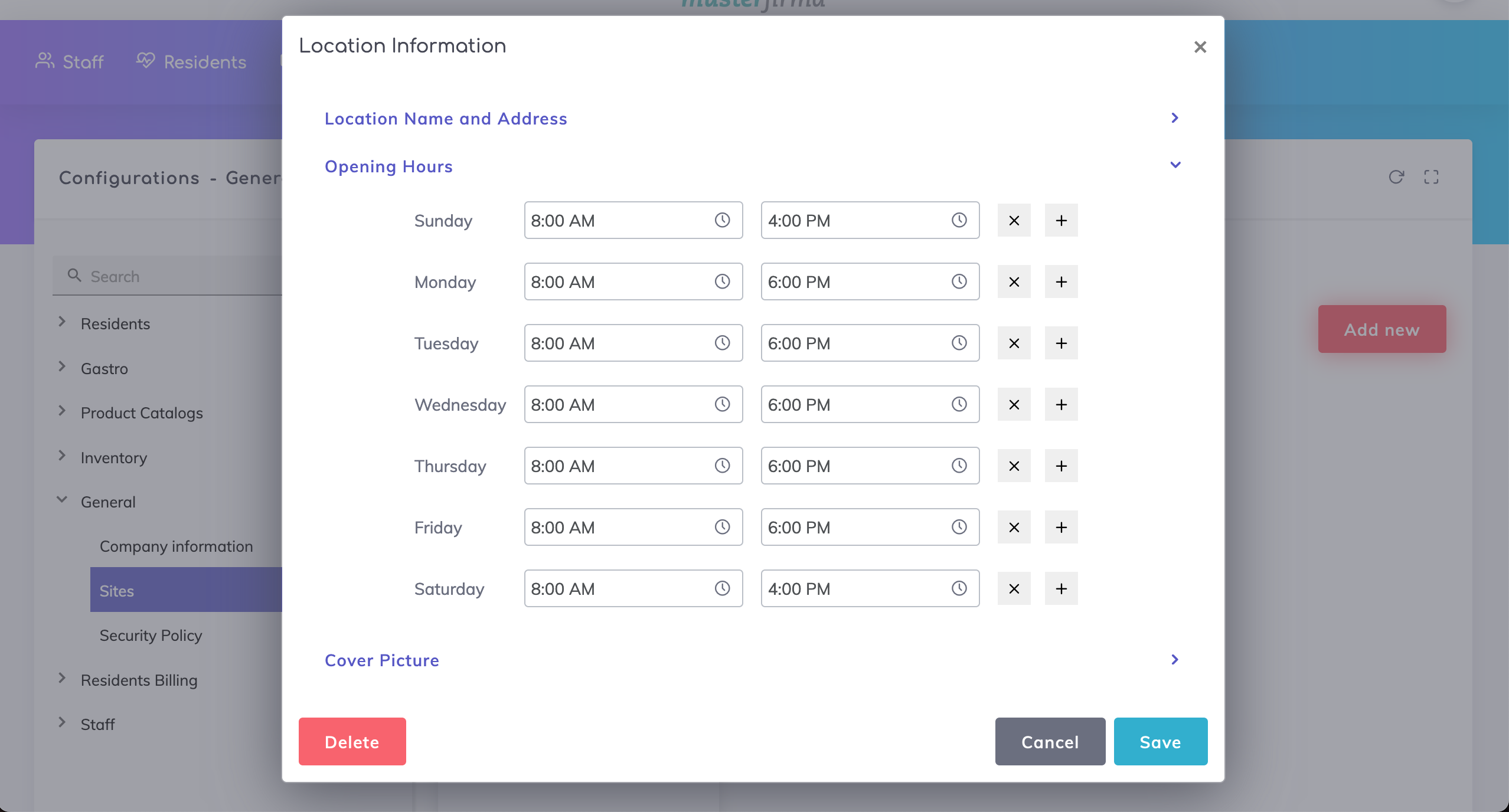
Specify a name for each site, optionally enter the site address information, and configure the departments and rooms within your care facility.
Departments:
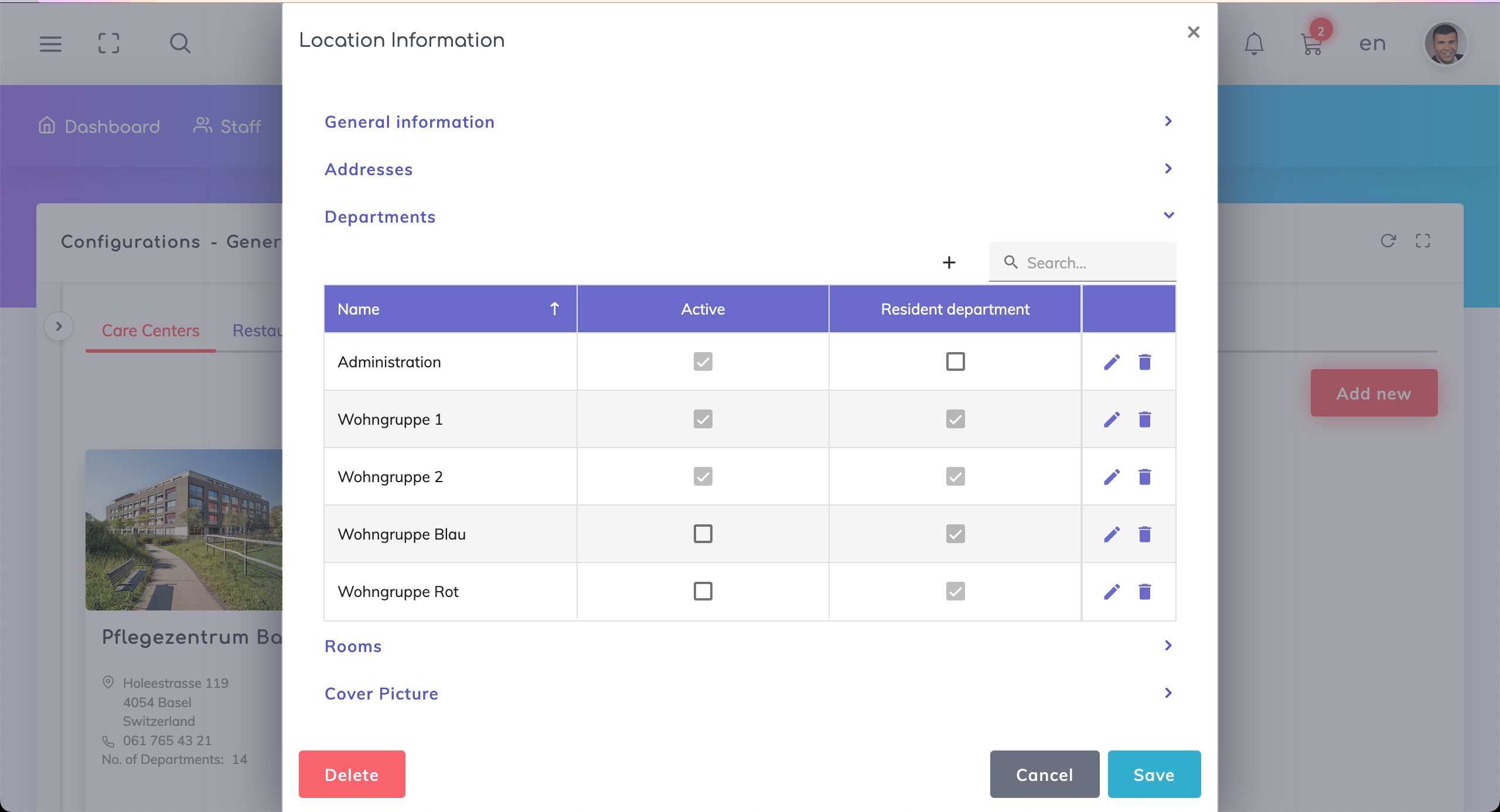
Steps to configure a new department:
Click on the + icon to create a new department.
Active field - If activated (ON), then the department will be available for selection in Department field on the Resident and Employee profiles.
If required, old departments can be deactivated and be replaced with new departments.
It is recommended to not delete the inactive departments as these will not appear anymore in the resident master data, especially for those residents who do not have an Active status any more.
Resident department field - By selecting this, this department would be available in the Department field on the Resident profile. On the Employees profile, all the departments would be available.
Click on Save on the Add Department pop-up, then click on Save on the Location Information pop-up.
Rooms:
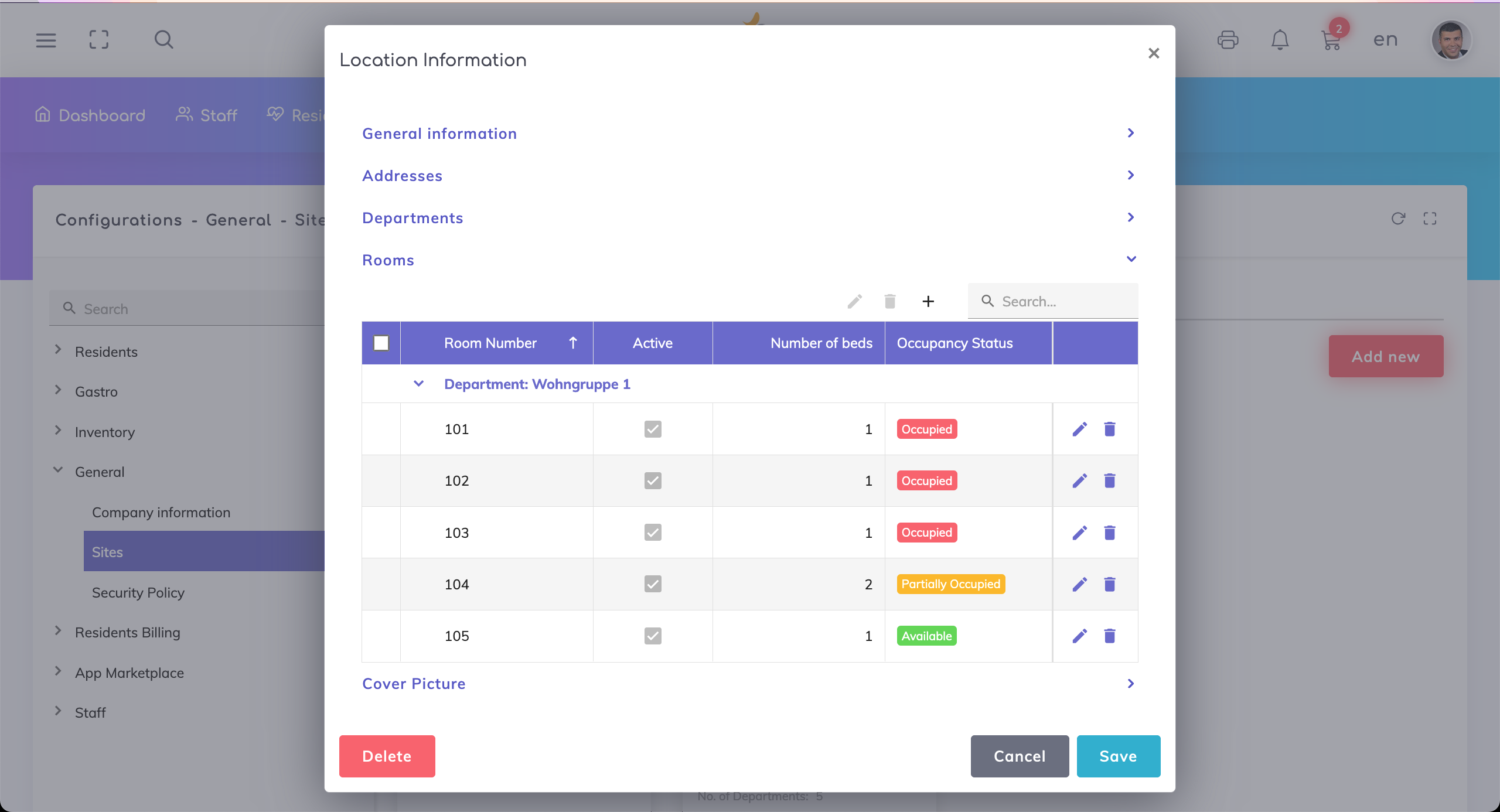
Rooms can be assigned to Departments. The overview table shows the rooms, the room status, the capacity (number of beds each room has) and the current occupancy status of the room.
The Occupancy Status of a room is based on the number of beds available in the room and the the active residents allocated to the room. The Occupancy Statuses imply:
Occupied - All beds in the room are allocated to active residents.
Partially Occupied - Some beds in the room are allocated to active residents.
Available - No beds in this room are allocated to any active residents.
Steps to add rooms:
Click on + and select either “Add new room” or “Add range of rooms”. This provides you the possibility to add a single room at a time or a range of rooms at once e.g. 101 - 120.
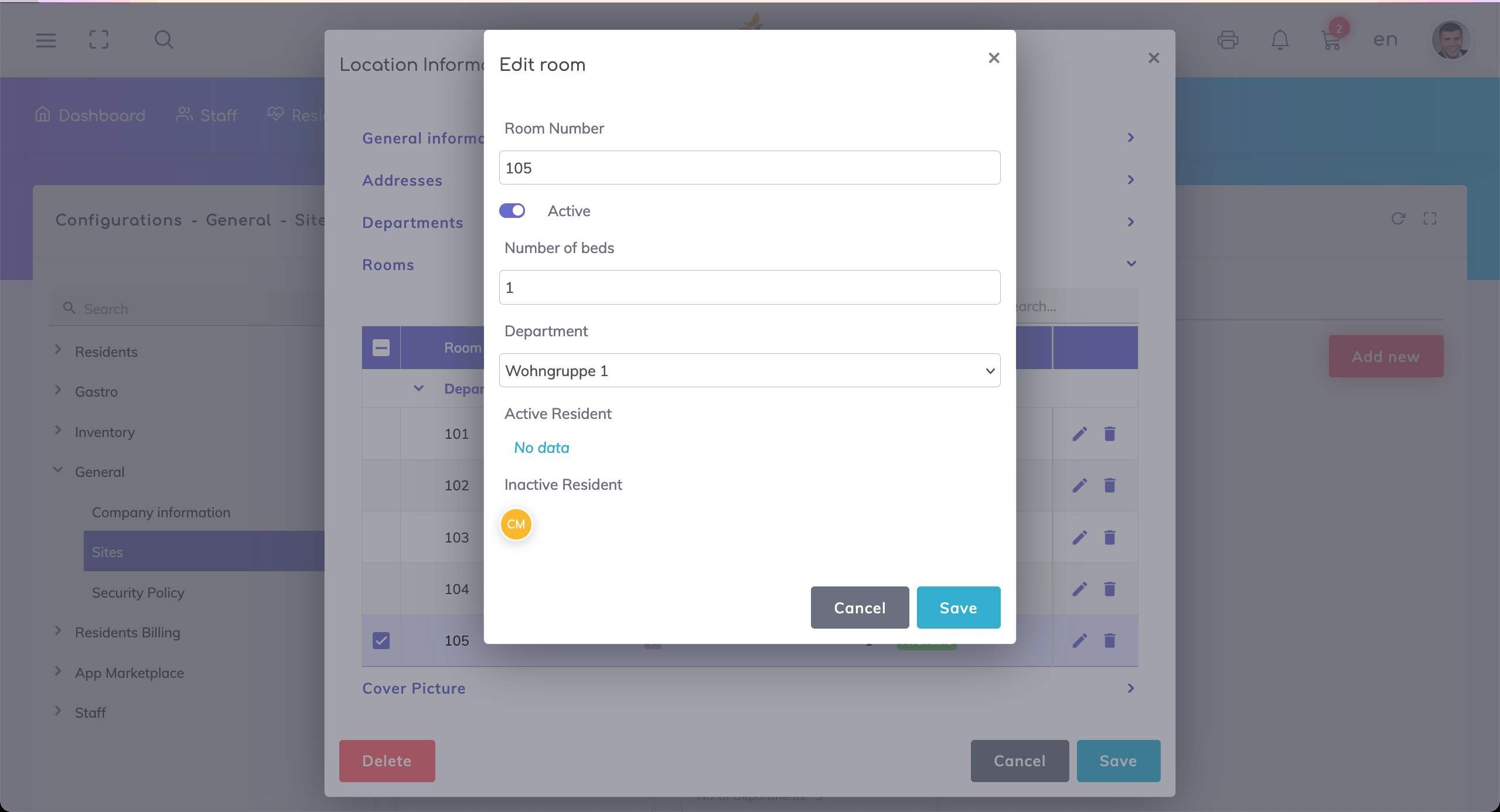
Enter the single room number or room number range, the number of beds in the room, and assign a department. The active status implies that the room will appear in the Room field in the Resident profile.
The Active Resident fields show the current resident occupying the room, whereas the Inactive Resident field shows the previous residents who occupied this room. Initially no data would be shown on these fields, however once the rooms are allocated to residents then the resident initials would be shown here. See screenshot below.
Click on Save on the Add New Room pop-up, then click on Save again on the Location Information pop-up.
Configuring your restaurant or catering facility is important for the following use cases:
menu plans are assigned to these facilities,
ordering of food from within your organisation or
ordering of food by your external customers.
We're here to help. Please feel free to contact us.