A prescription can easily be created from the following locations on the app:
Prescriptions section
Fixed or Reserve Medications section
Care Reports section
Create a Prescription from the Prescriptions section as follows:
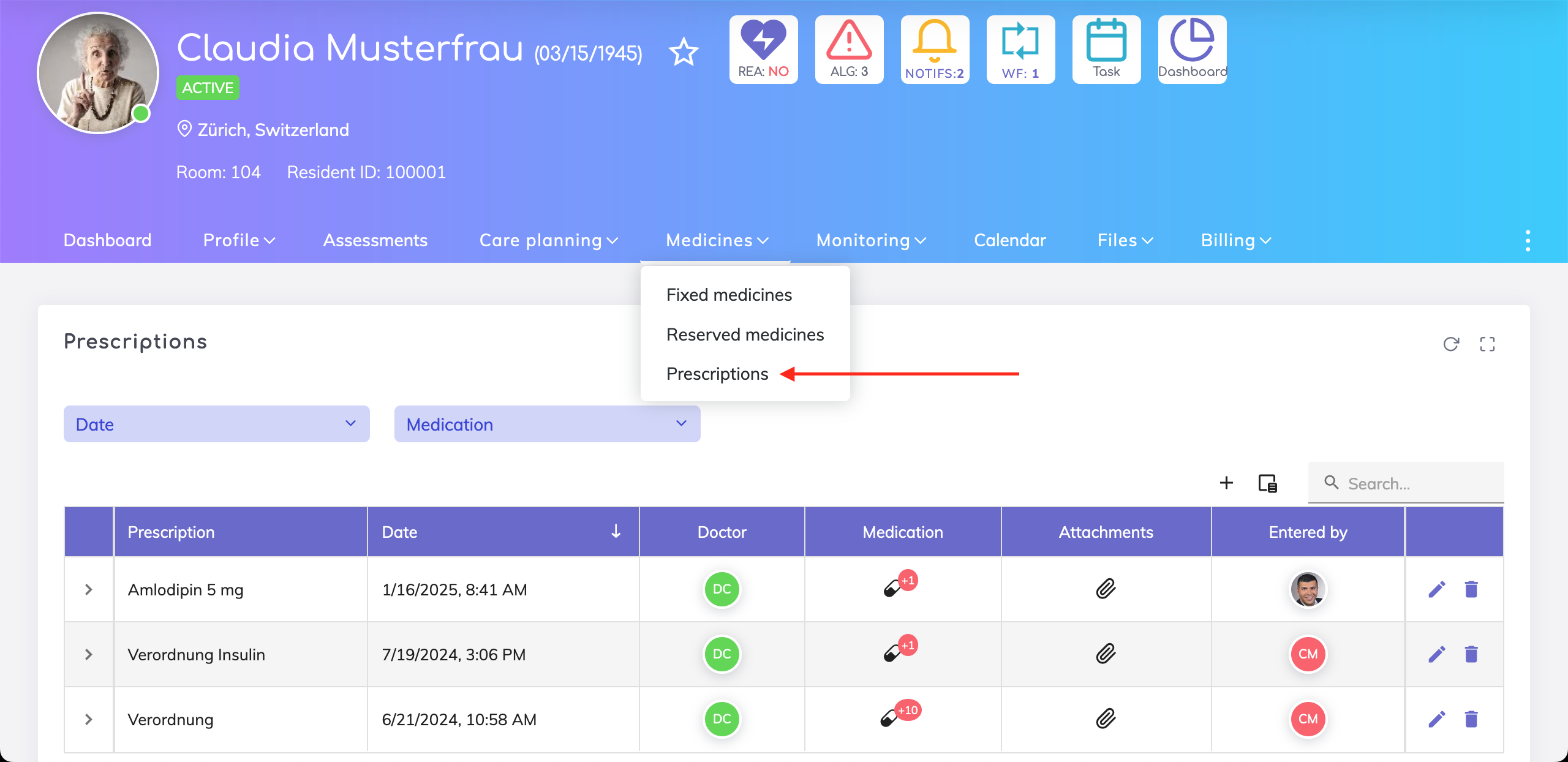
Go to Resident > Medicines > Prescriptions.
An overview table shows you the prescriptions already added. Click on the + icon to create a new prescription.
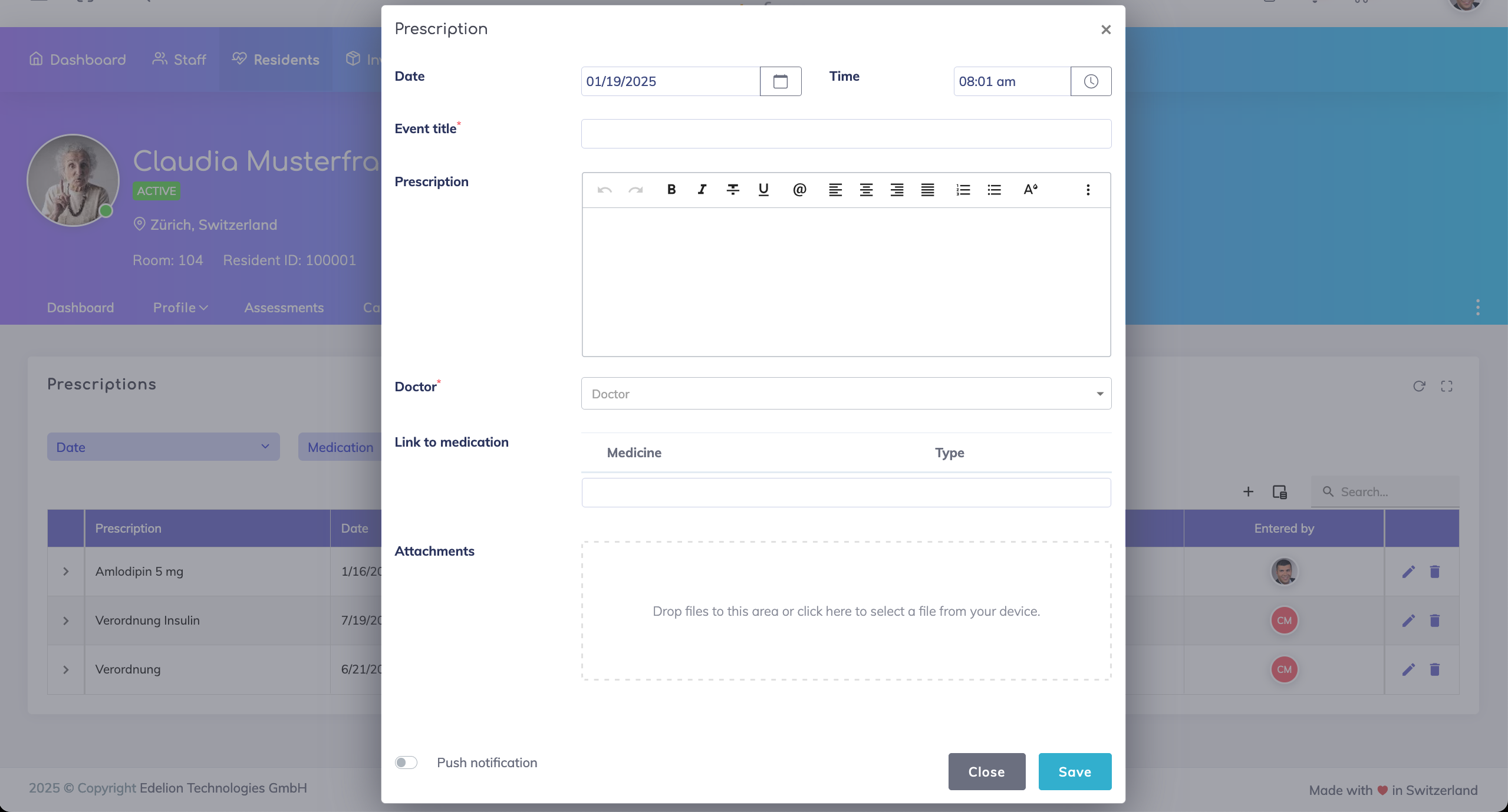
On the pop-up screen, the date and time are automatically selected. You may change these as required.
Specify a short title for the prescription to help you identify the prescription easily. Optionally enter any other details if required in the Prescription field.
Select the doctor who issued the prescription - searching a doctor by the name is also possible.
Search and select the medications that this prescription is for. Adding the medication to the fixed or reserve medications list is therefore a prerequisite. By linking the medication, this prescription then also appears on the medication as well.
You may also optionally upload a scan copy of the prescription as an attachment for future reference.
Push Notification switch - By switching this ON, you can inform other caregivers via an in-app or email notification of this new prescription entry. Your Administrator can configure which caregivers can receive such notifications.
Save.
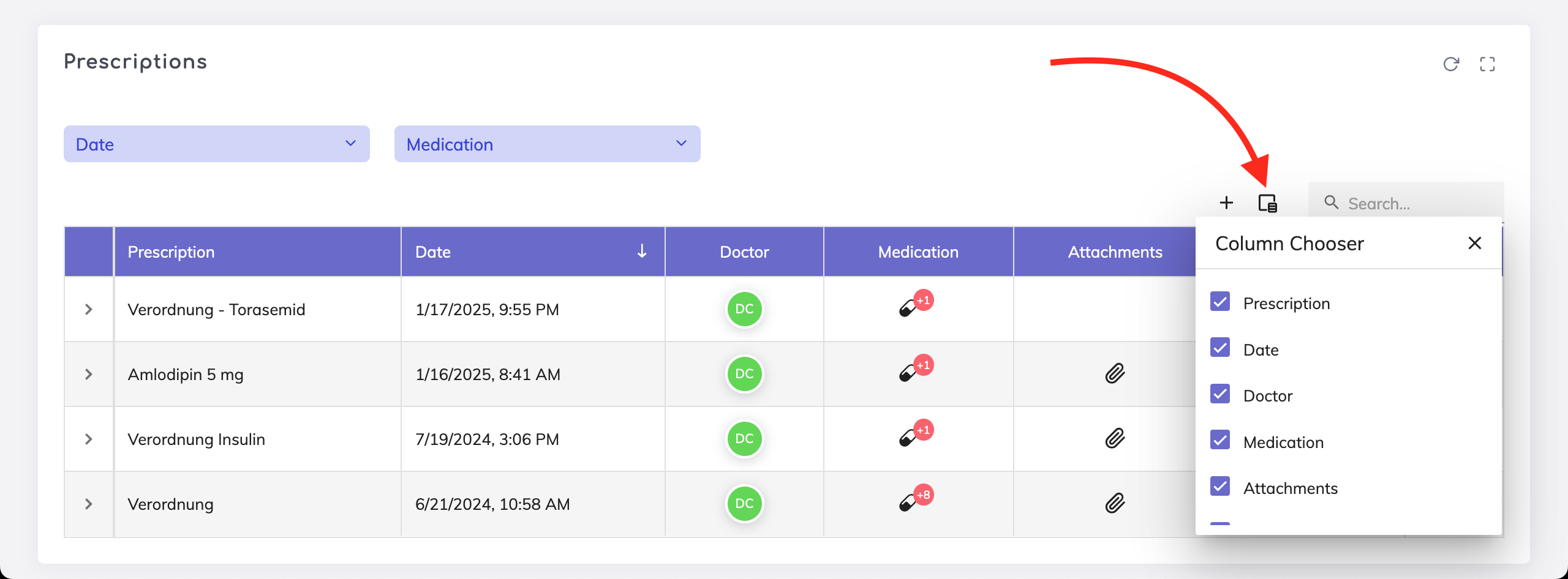
The new prescription appears on the prescriptions overview table. Adjust the columns you would like to view on the table using the Column Chooser icon as shown below.
Create a Prescription from the Medication as follows:
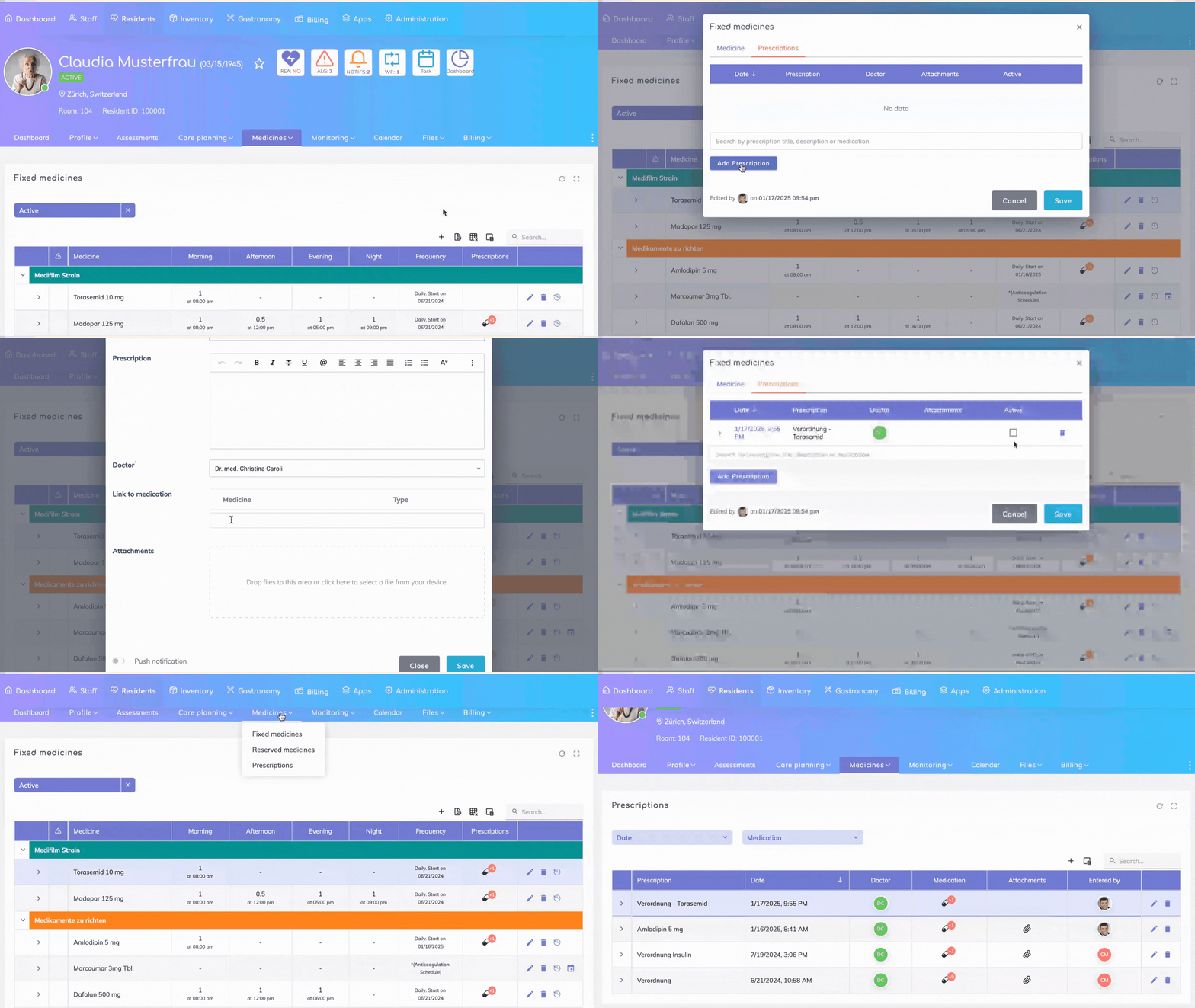
Go to Resident > Medicines > Fixed Medicines or Reserve Medicines.
On the medications overview table, click on the + icon to add a new medication or pen icon to edit an existing medication.
Go to the Prescriptions tab.
Clicking on Add Prescription will open a pop-up where you can enter the prescription information.
Alternatively, if you have an existing prescription and you would like to link to it, then use the search bar to search using the title or description.
Active field for a prescription on the medication - Over time, multiple prescriptions may be issued. Hence use this field to indicate which prescription is currently active (generally it is the most recent one).
Note: If you click on the delete icon on any prescription, then the prescription link to the medication will be removed. The prescription will not be deleted and can be located in the Prescriptions section (Resident > Medicines > Prescriptions).
Save.
The linked prescriptions appear on the medications overview table as shown below. If you do not see this column, then click on the Column Chooser icon and select it so it appears on the overview.

Create a Prescription from the Care Report section as follows:
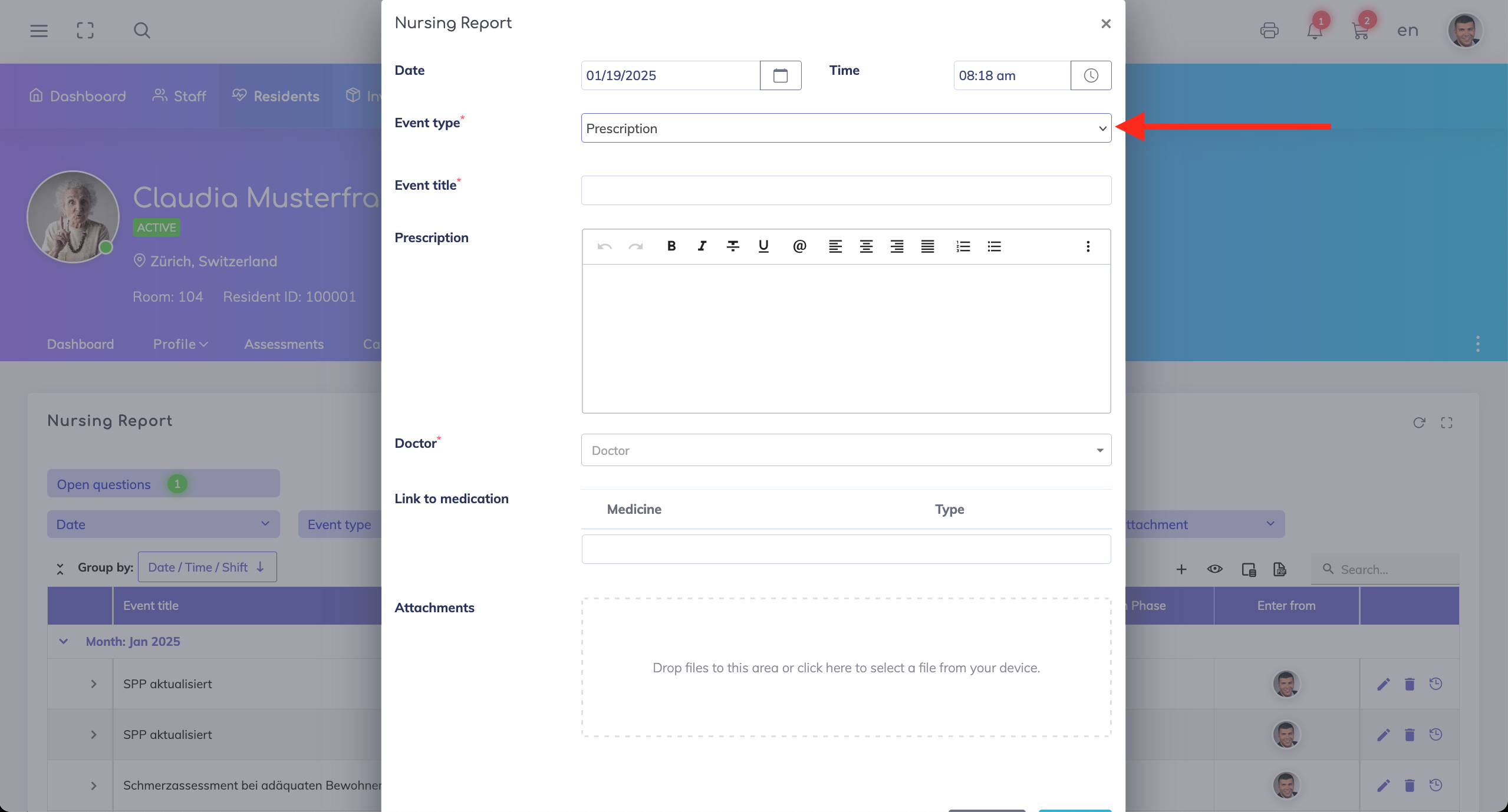
Go to Resident > Monitoring > Nursing Report.
On the overview table, click on the + icon to create a new report.
On the Nursing Report pop-up screen, select the Event Type as "Prescription”.
Specify the prescription information.
Save. By saving, two entries will be created: one as a Nursing Report, and the other as a Prescription.
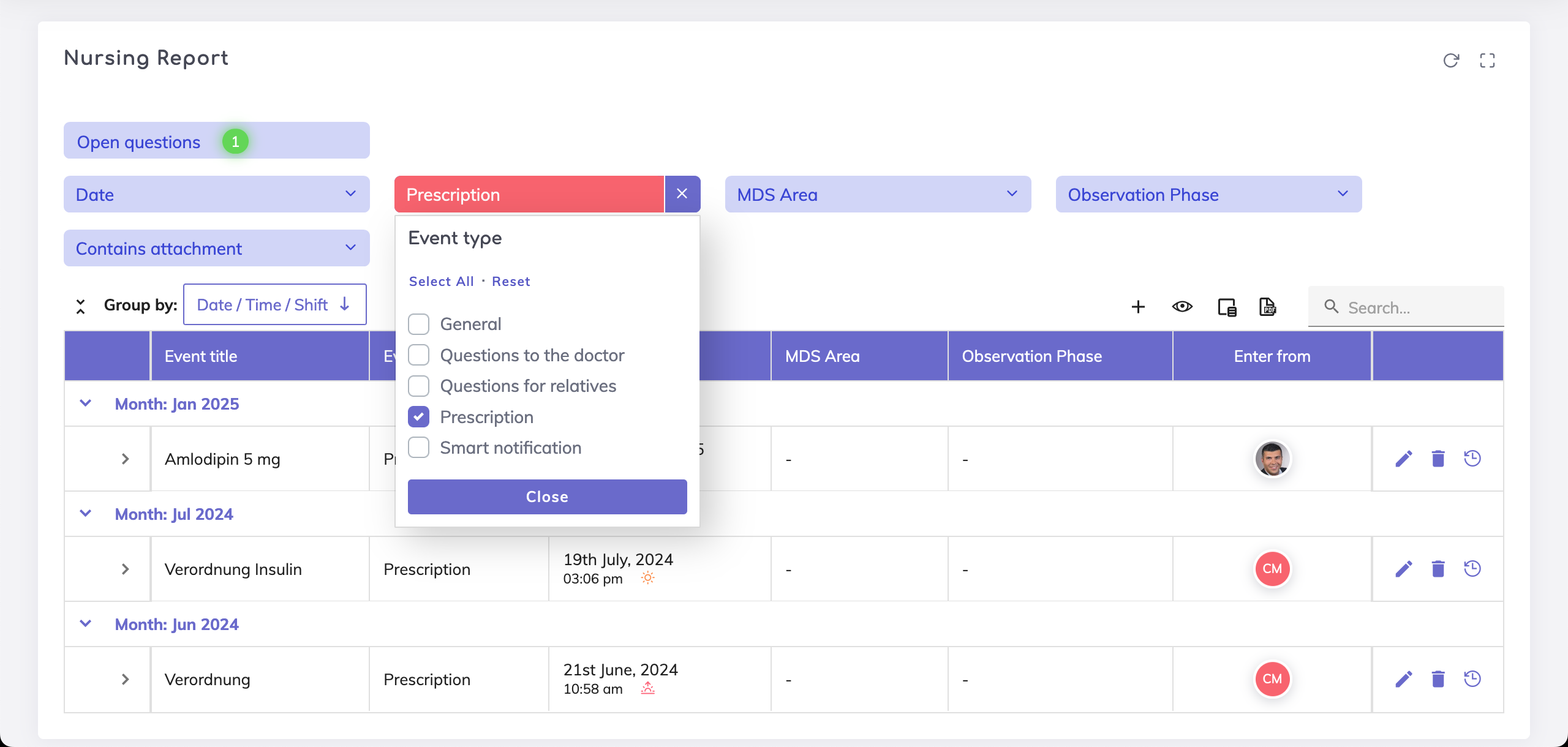
On the overview table, you can filter the care report entries for prescriptions as shown.