Use this feature when services are provided regularly and should be billed automatically, for example:
Monthly telephone subscriptions
Internet or TV subscriptions
Monthly additional services such as cleaning or laundry services
Recurring services are services that do not need to be recorded manually each time.
Instead, they are configured once and automatically added to billing based on a defined schedule.
Navigate to “Recurring Services”
Go to the residents list and open the profile of the desired resident. Go to the corresponding section within the profile.
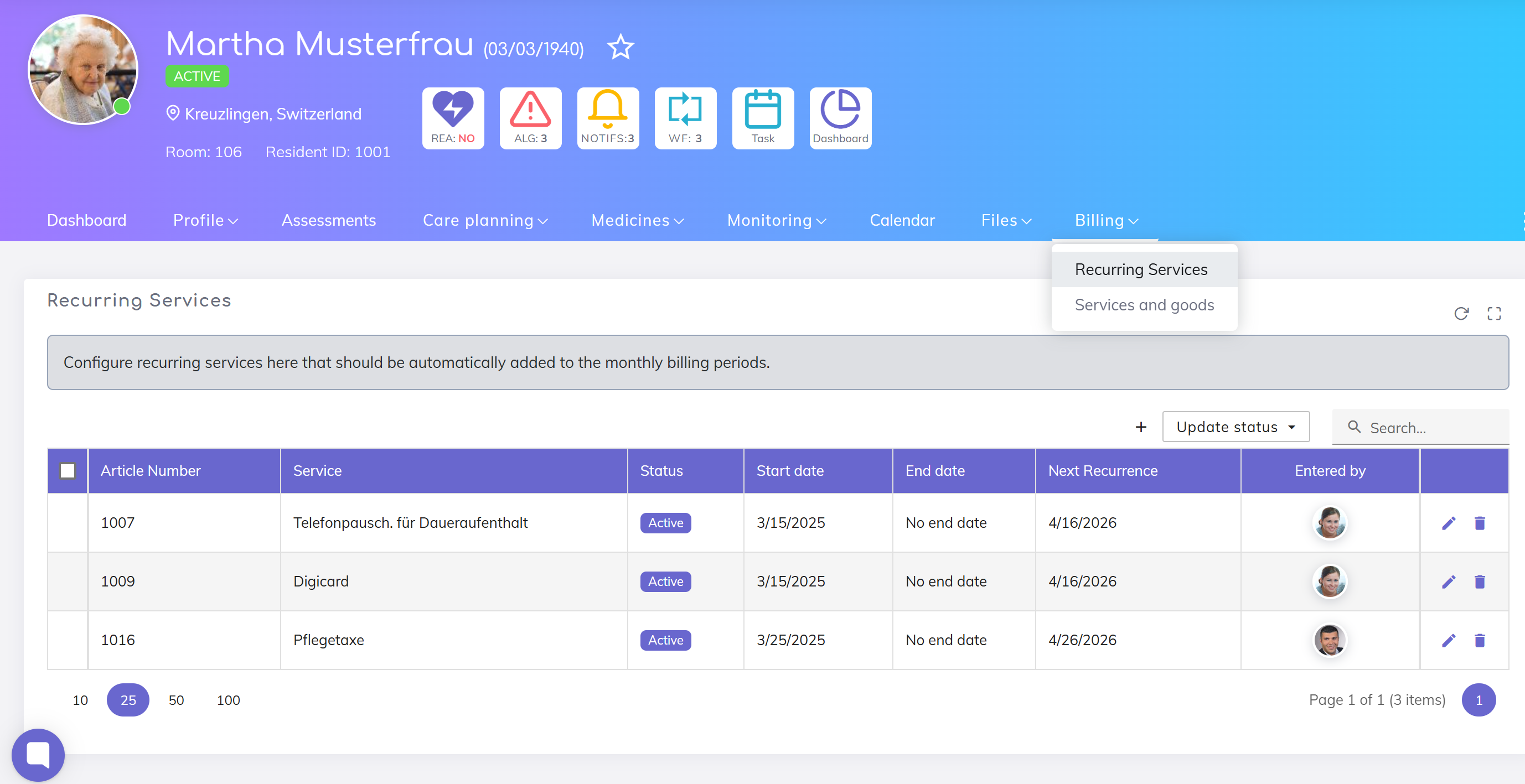
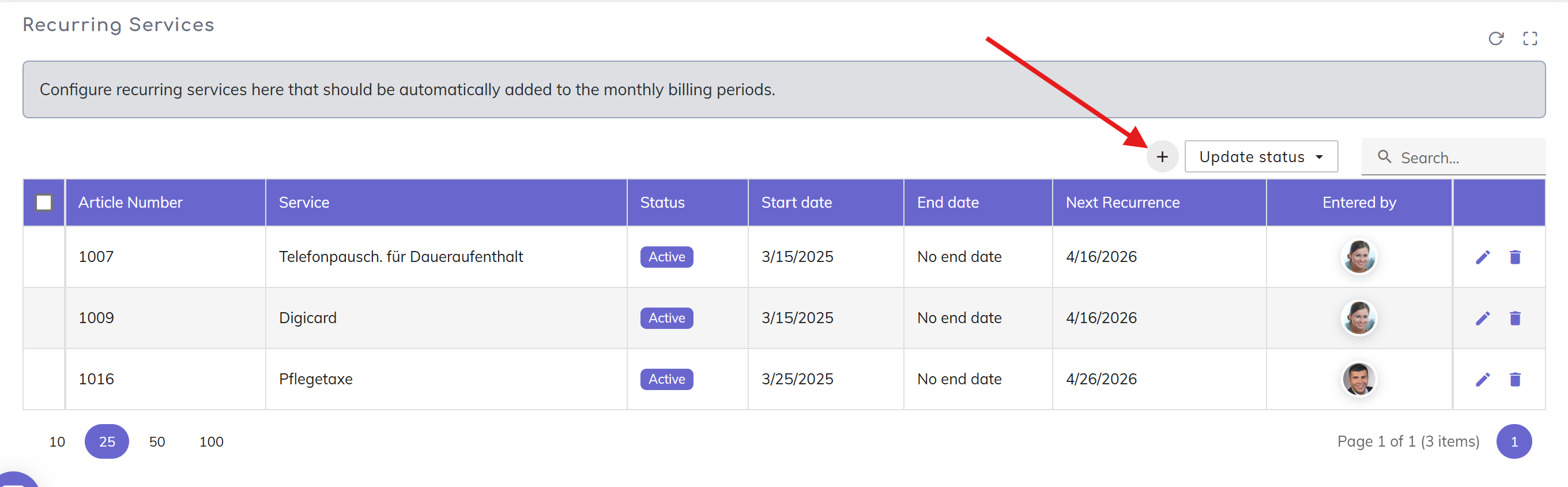
Add new recurring service
Click on Add New Recurring Service
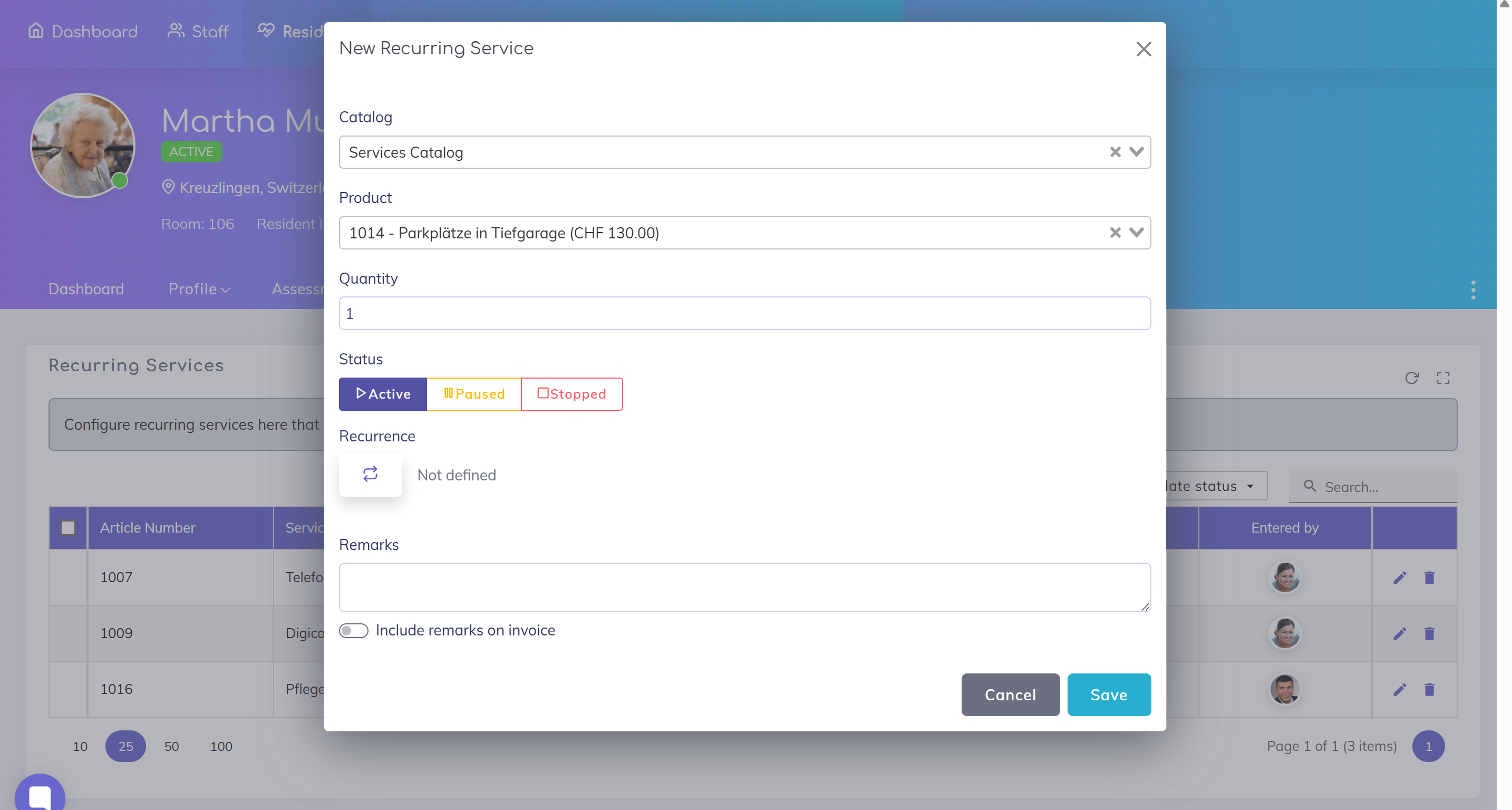
Select service
Choose the required service from the catalog. Specify the quantity and notes (optional).
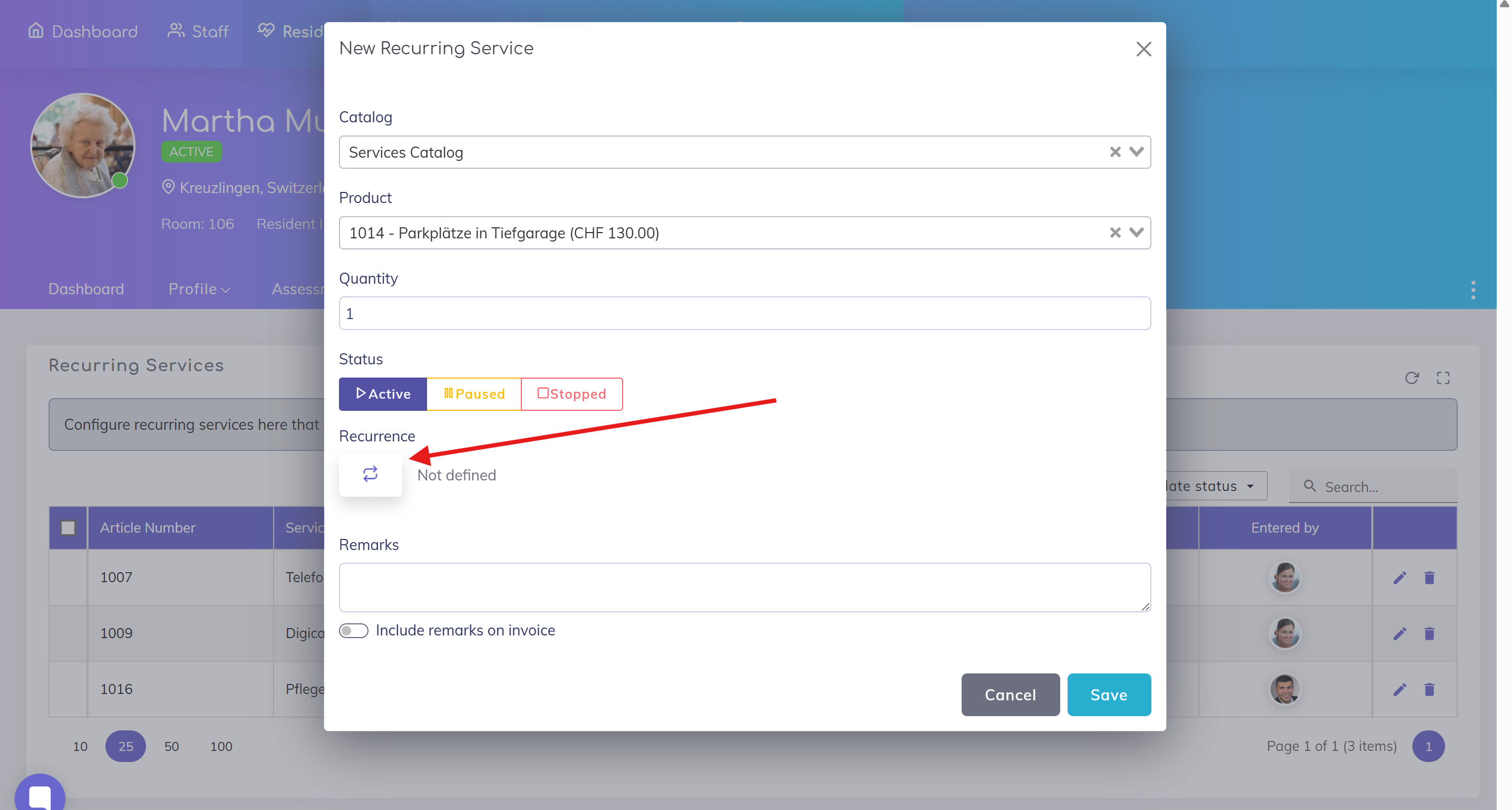
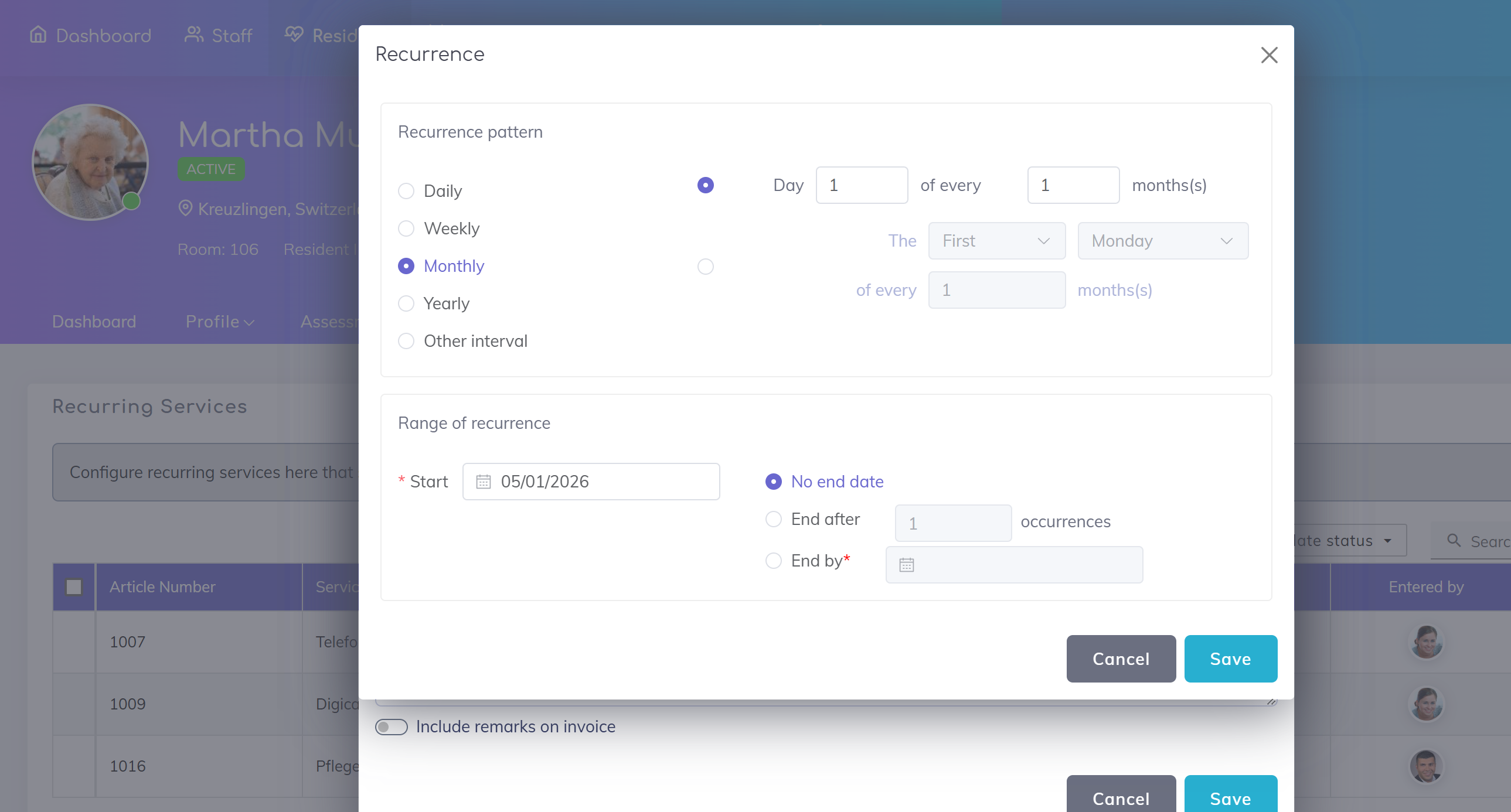
Define recurrence interval
Set how often the service should occur, for example:
Daily
Weekly
Monthly
Define time period
Start date: When the service should begin
End date: Optional end date
Save and activate
Review the details and save the recurring service.
When a monthly recurrence is selected, an additional option appears below the quantity field:
“Multiply quantity by days in the current month”
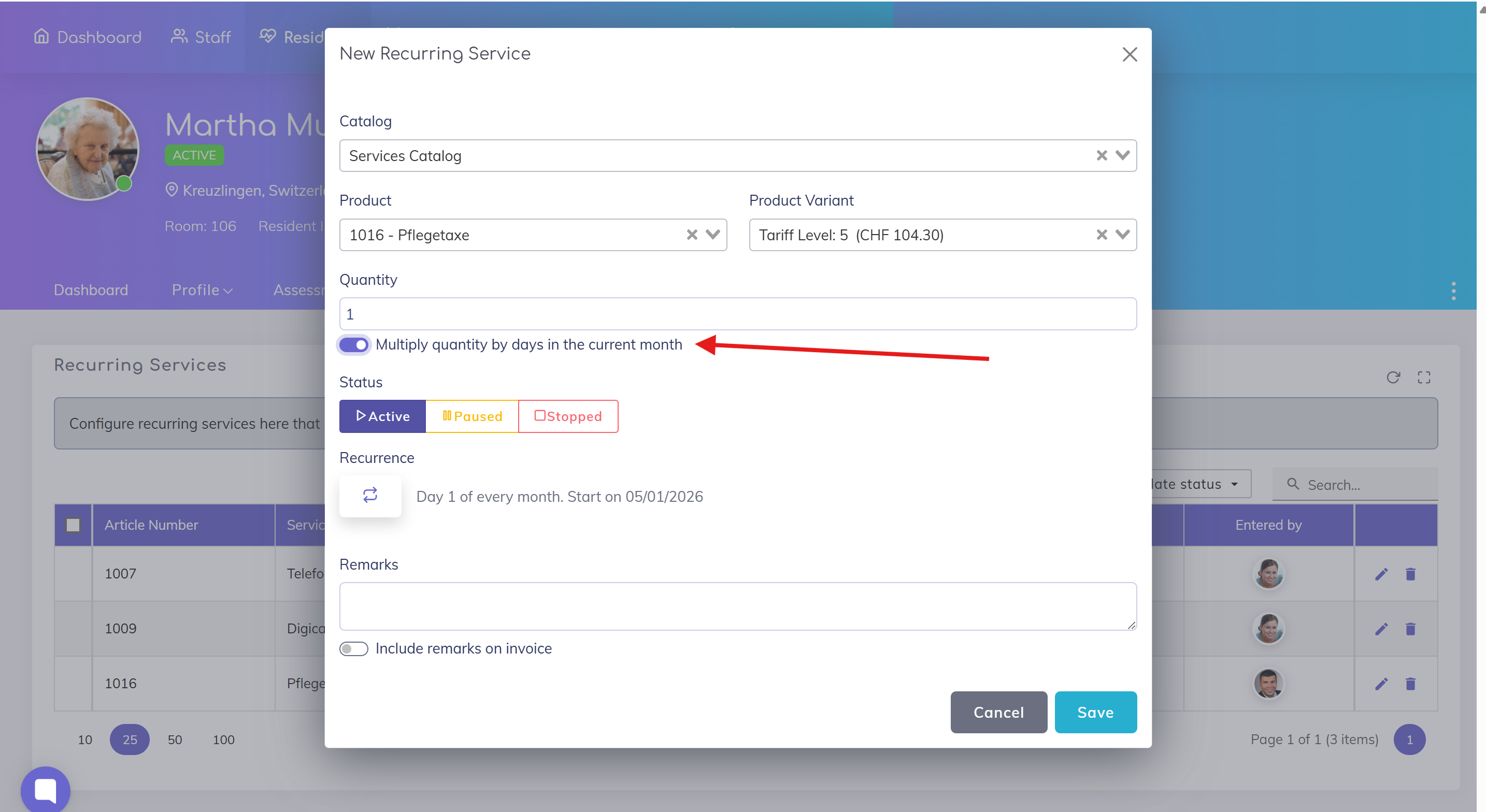
This is useful for daily services billed monthly, for example:
Daily care charges
Daily service rates
👉 Enable this option when:
The service is provided daily
But should appear only once on the invoice
In this case:
The daily quantity is multiplied by the number of days in the month
The service appears as a single line item with the total amount
Recurring services can be paused or stopped at any time, depending on the situation.
Pause service
Set the status to Paused if the service should be temporarily suspended.
👉 Example:
Resident is temporarily absent (e.g. hospital stay)
A service is not needed for a short period
No new billing entries will be generated while the service is paused.
Resume service
A paused service can be set back to Active at any time.
Automatic billing will then continue.
Stop service
Set the status to Stopped if the service should be permanently discontinued.
👉 Example:
A subscription is cancelled
A service is no longer required
Stopped services will no longer be billed automatically.
Select the desired service from the list
Click on Update status
Choose the required status:
Active
Paused
Stopped
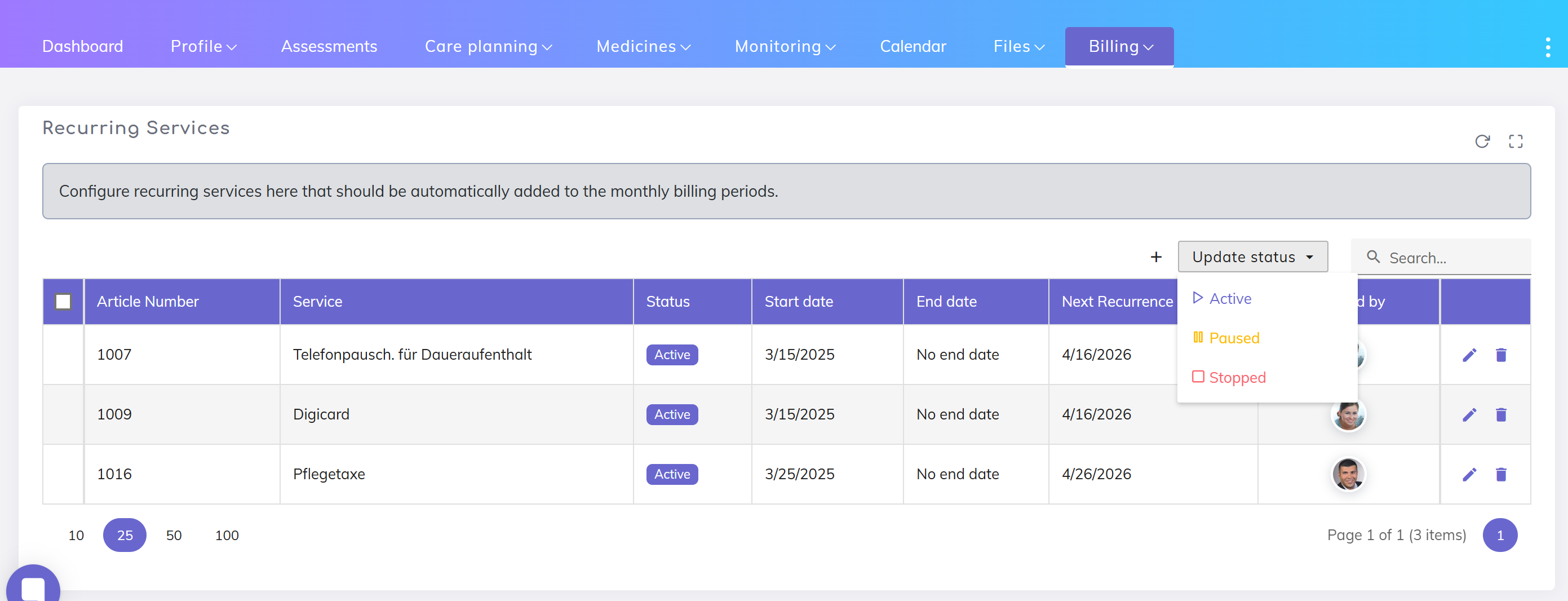
Once configured, the service is automatically added to billing according to the defined interval.
Generated entries can be viewed and edited in the resident profile.
Recurring services can be modified or deactivated at any time
Changes apply only to future entries
Already recorded services remain unchanged
Resident based workflow: Add Service from Resident Profile
Add a service directly from the resident profile to the resident’s billing items list.
We're here to help. Please feel free to contact us.