Use this feature when you want to record services while working directly with a specific resident. This is especially useful during daily care activities.
Navigate to services section
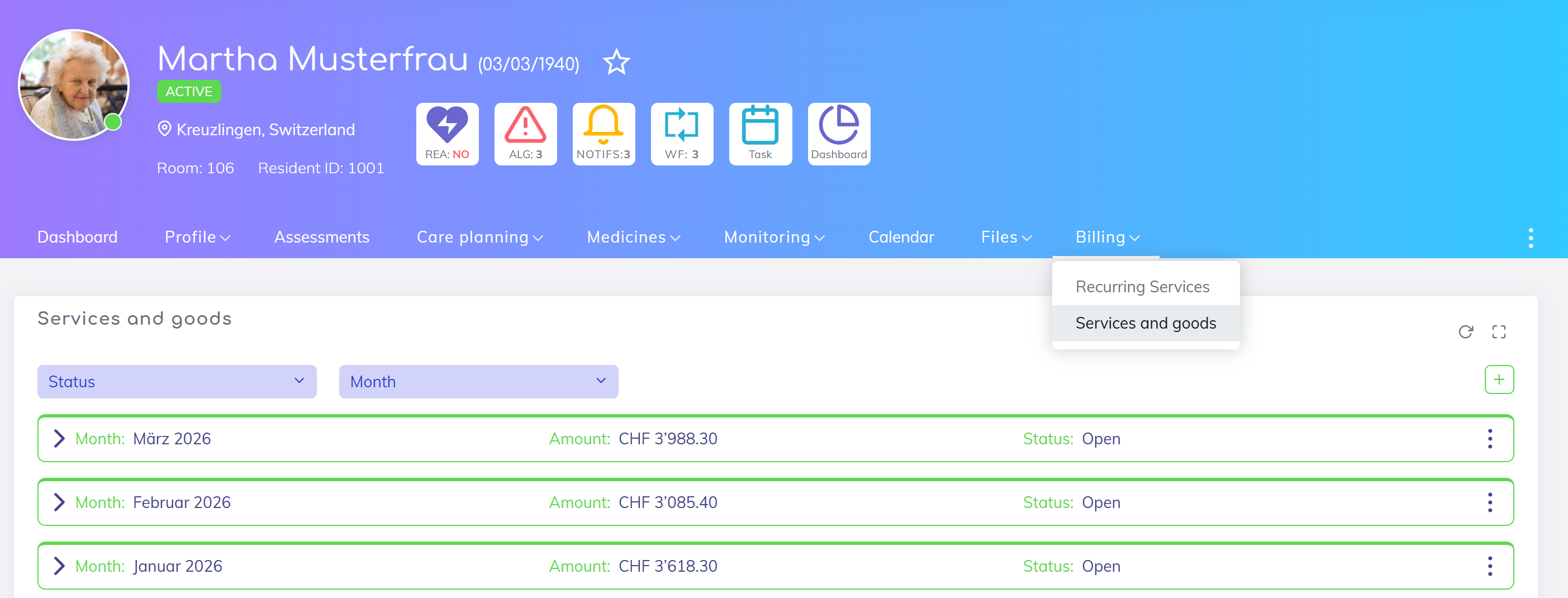
Go to the residents list and open the profile of the desired resident. Within the profile, navigate to the Billing section, Services and Goods subsection.
Add New Billing Period
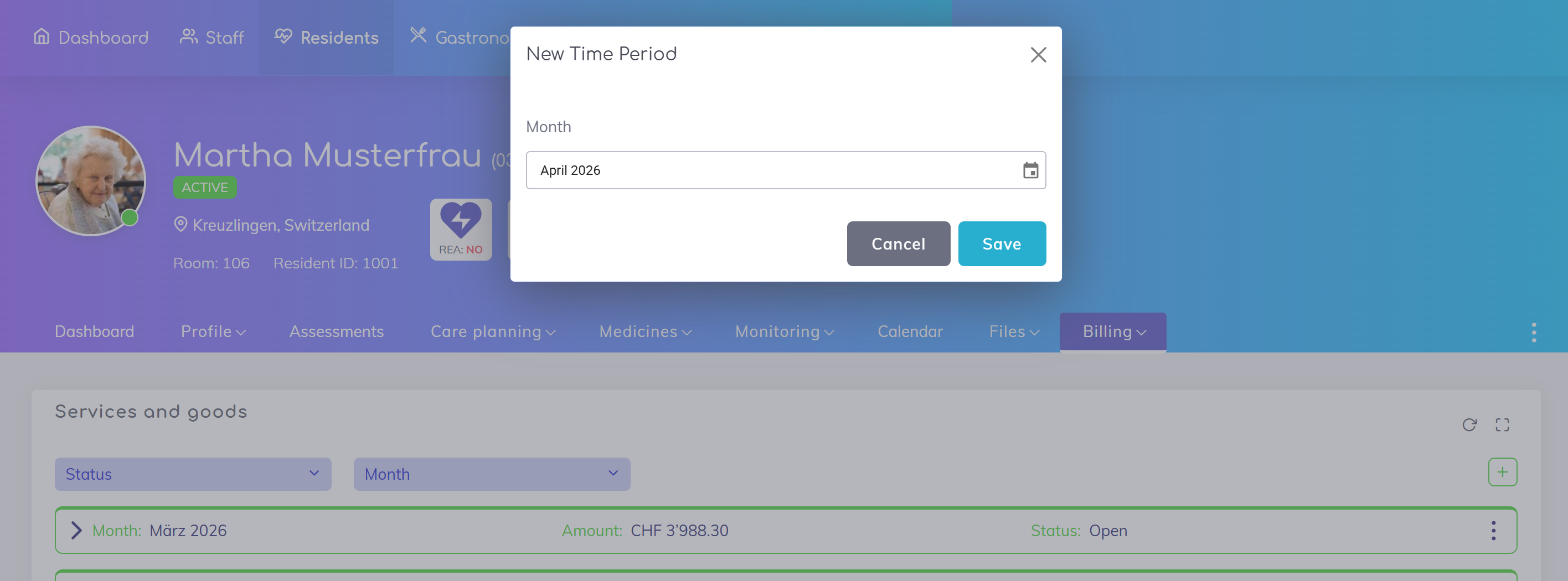
Click on the + symbol to create a new billing period. Select the relevant month on the subsequent popup and save.

Add service
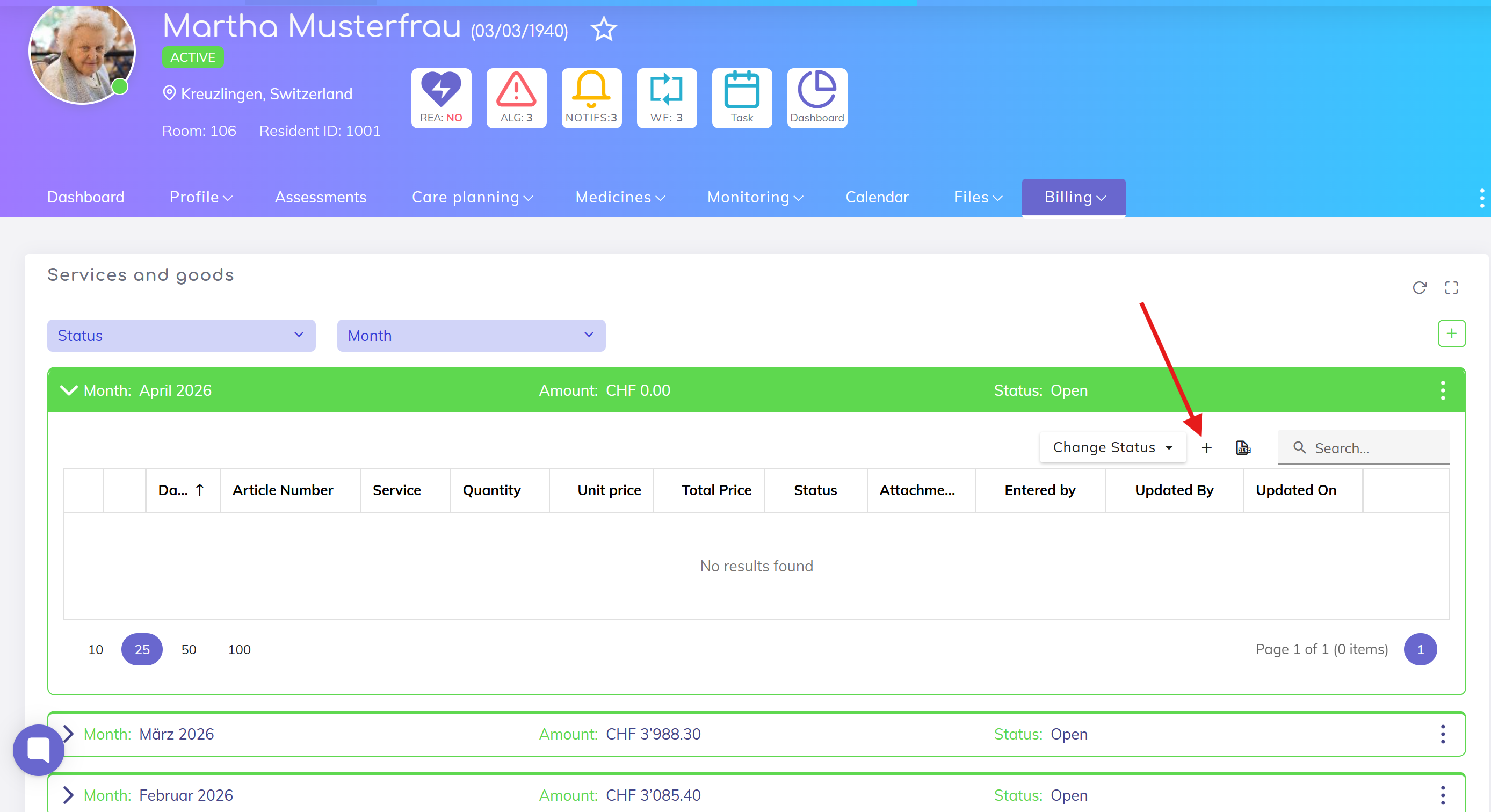
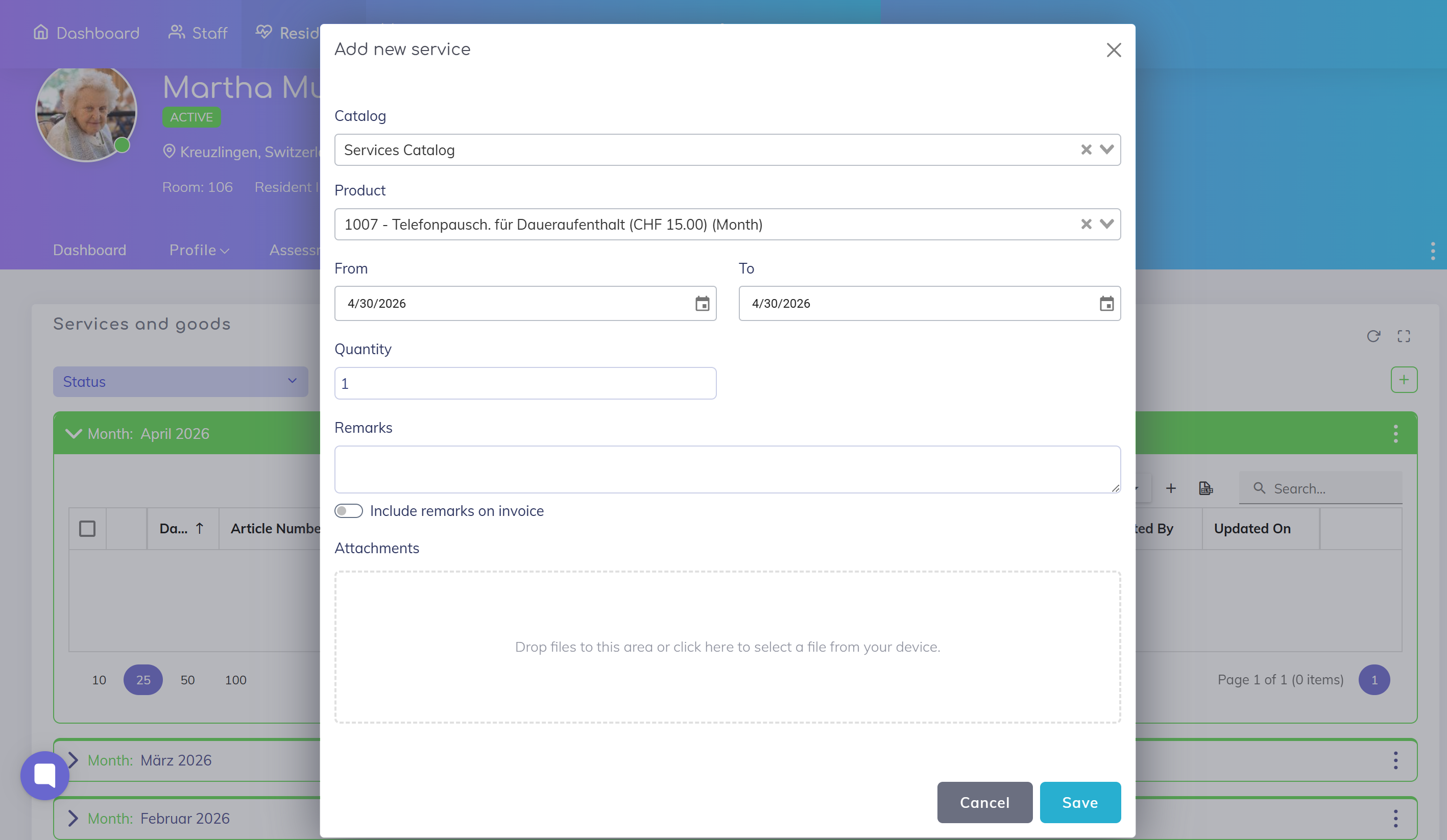
Click on Add Service to create a new entry.
Select service
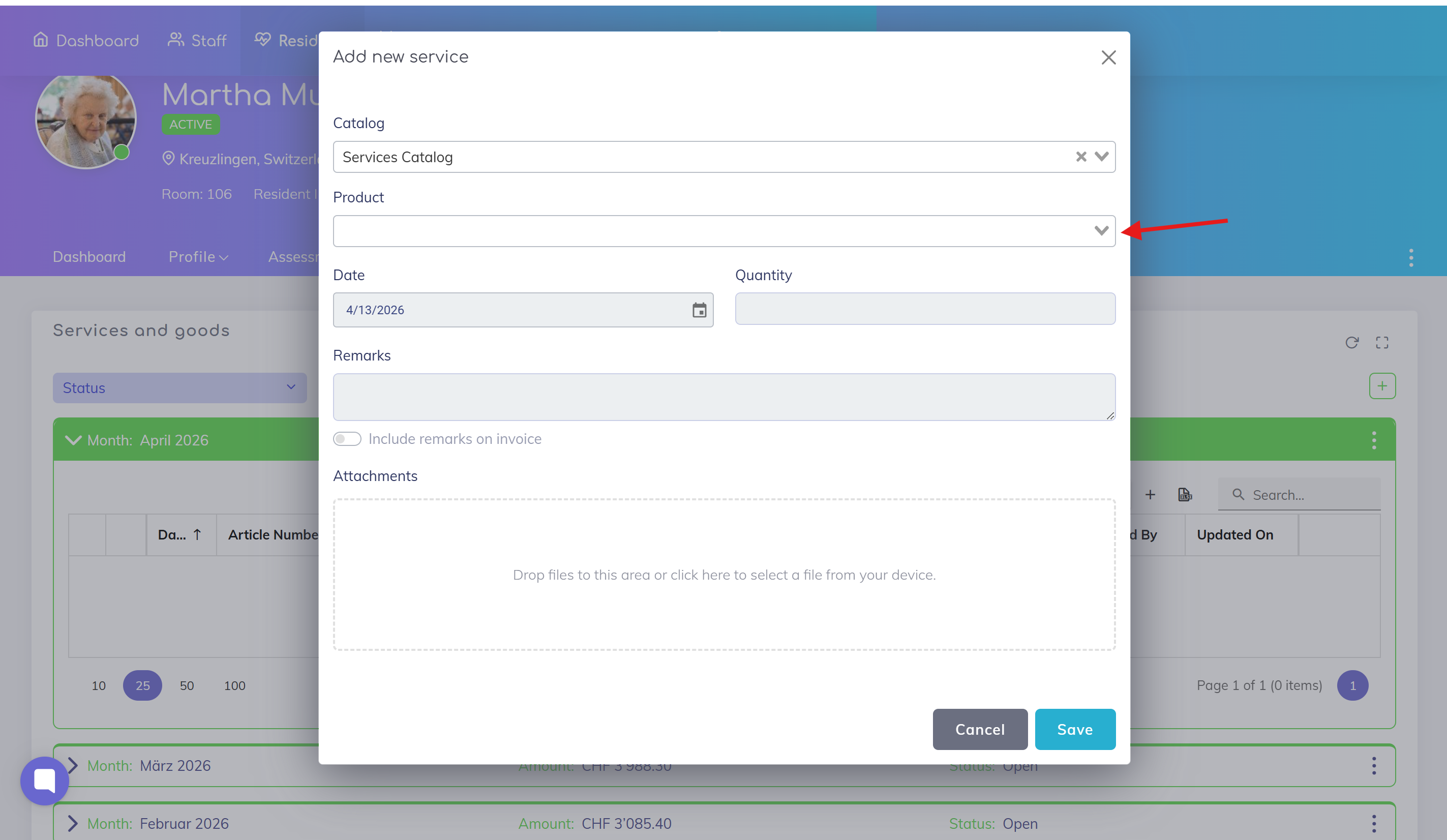
Choose the required service from the catalog.
Add details
Date: Enter the date when the service was provided
Notes: Optionally add comments
Attachments: Optionally upload supporting documents
Save and confirm
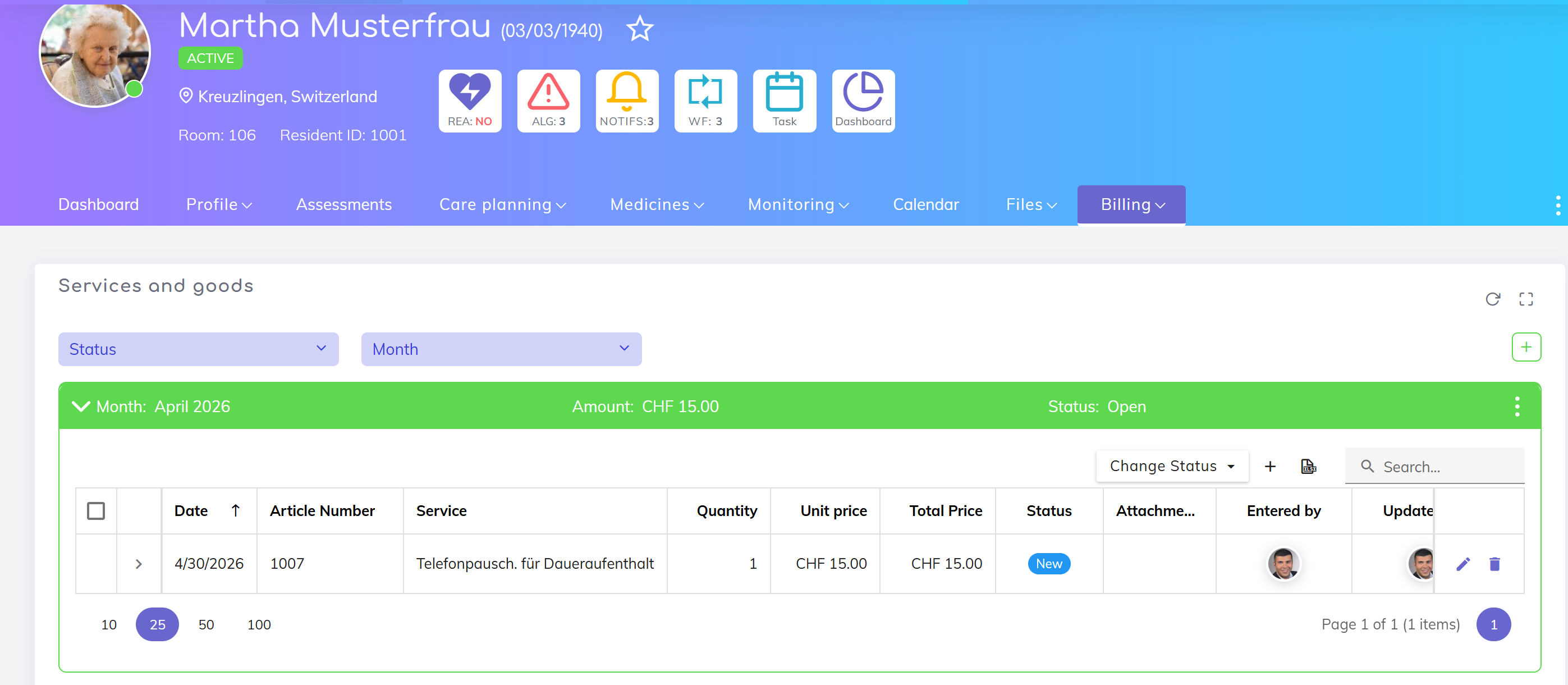
Review the details and click Save to add the service to the resident’s billing list.
Services can also be recorded in other ways in Edelion. Depending on the situation, a different workflow may be more suitable.
👉 See overview of all methods:
Recording Billable Services for Residents – Overview
Record billable services and products for residents using different workflows in Edelion.
Or go directly to other guides:
Catalog based workflow: Add Service from Catalog
Add a product or service from the catalog to a resident’s billing items list.
Overview based workflow: Add Service from Services Overview
Add a service from the services overview to the billing list.
We're here to help. Please feel free to contact us.