Menu items and recipes can be organised into categories so that it is easier to find them. Categories are common for both recipes and menu items. No default categories are provided and customers are free to configure the categories as they want.

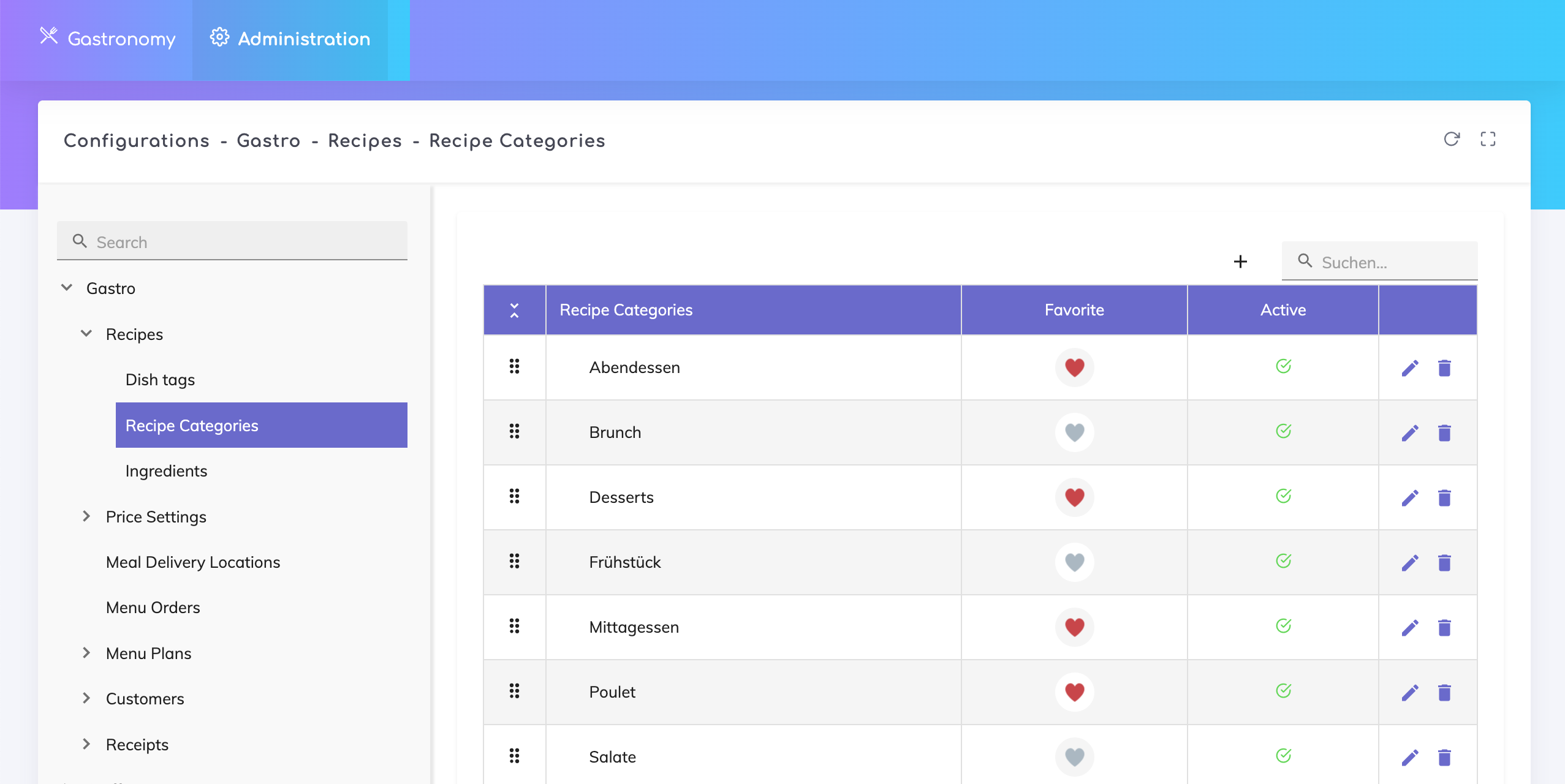
Categories can be managed via the Admin Configurations page:
Configurations > Gastro > Recipes > Recipe Categories
Create a new category by clicking on the + icon next to the search bar.
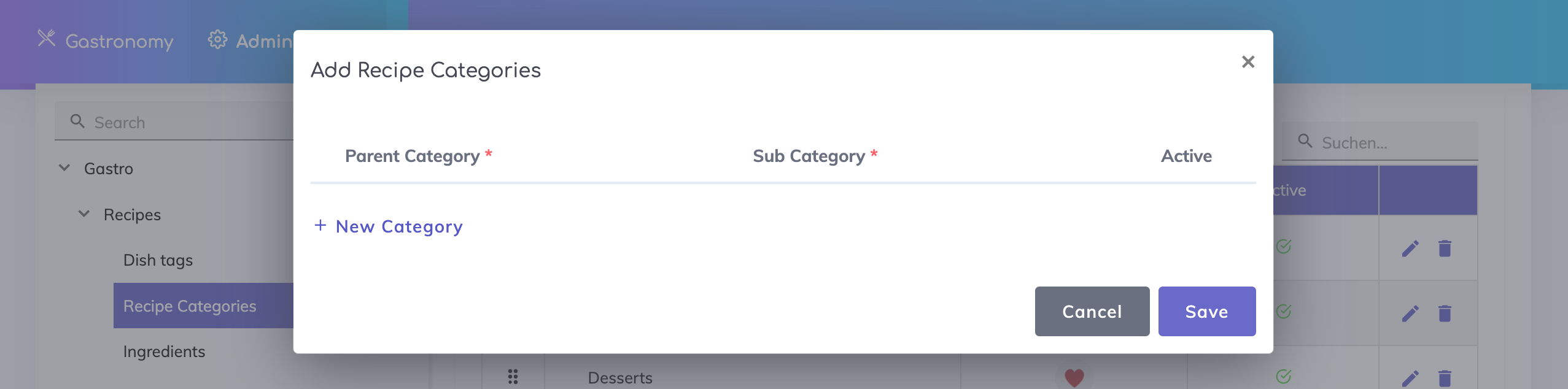
Click on "+ New Category" to add a new row.
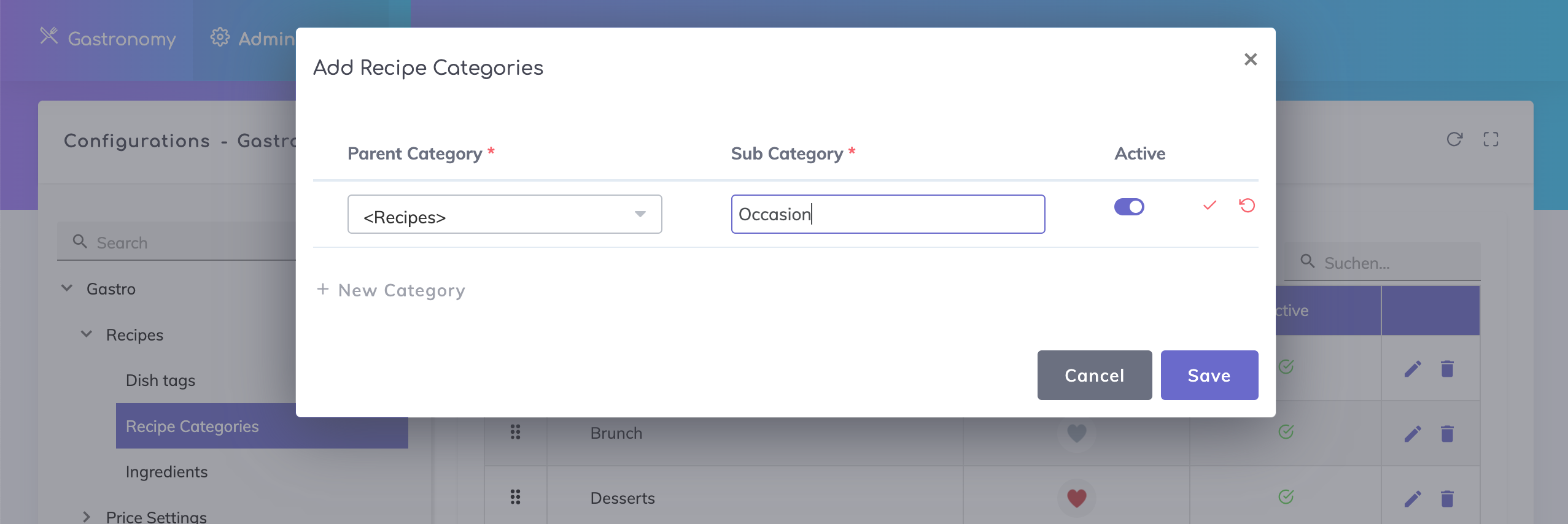
Select the system category <Recipes> as the parent category. Then add your category, for example "Occasion", as a sub category. Click on the tick mark and save.
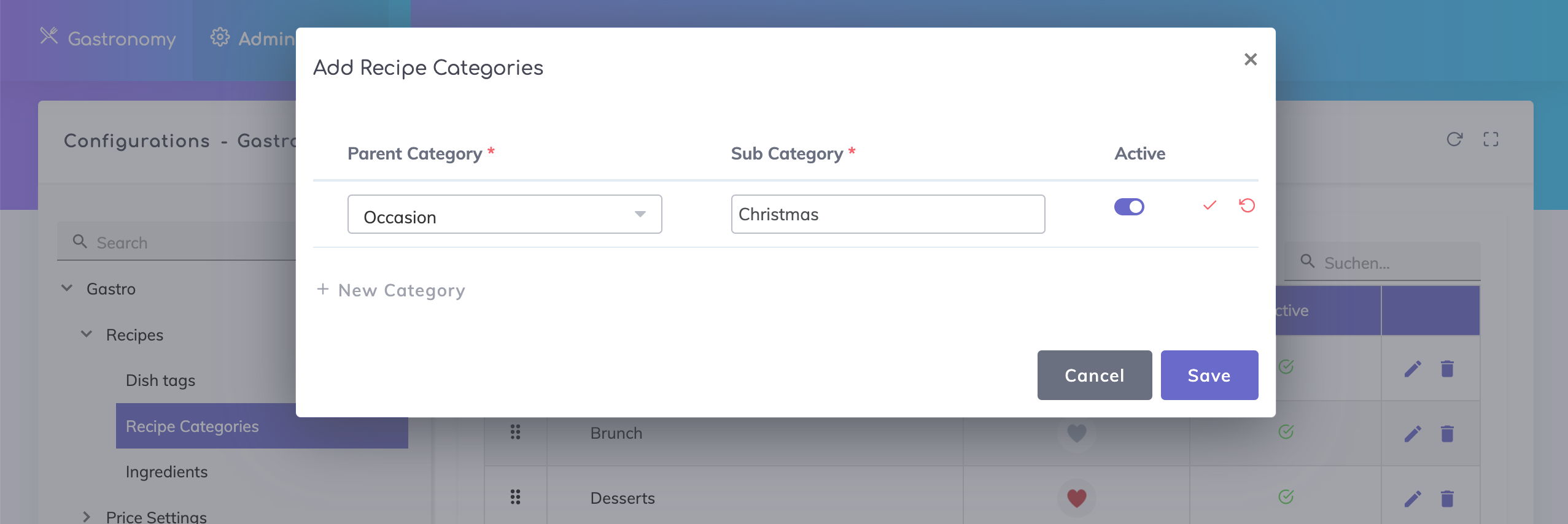
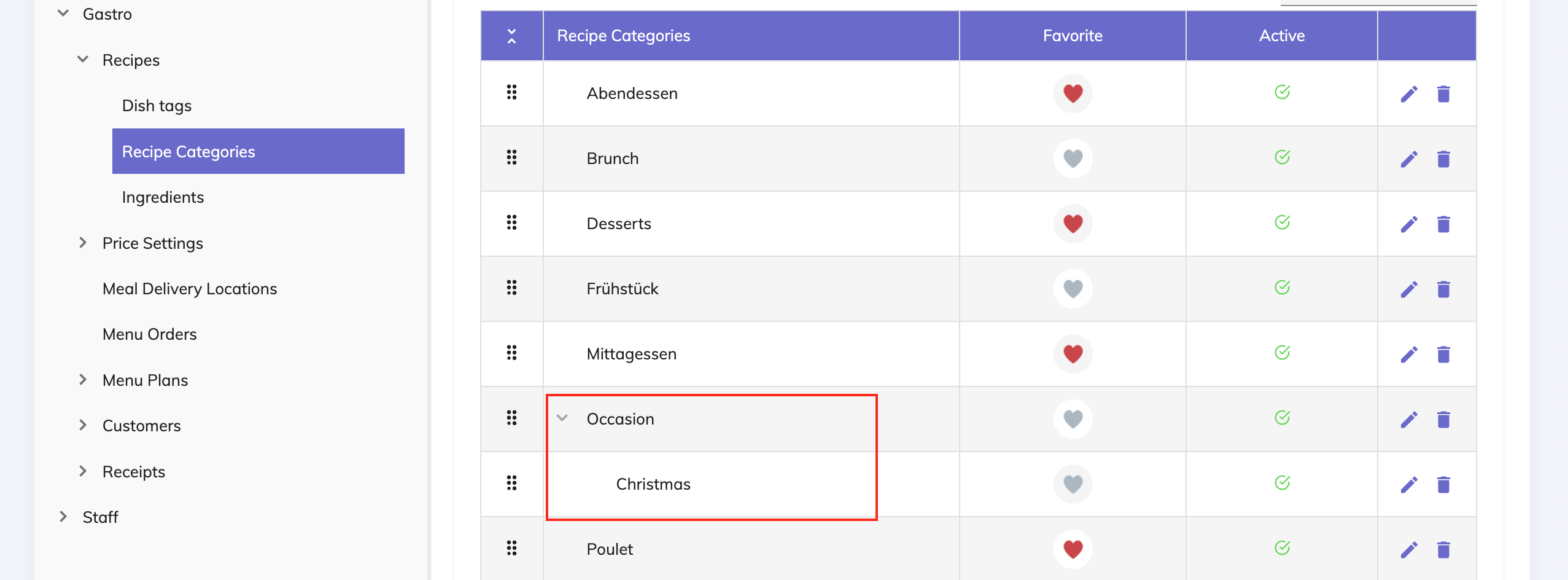
It is also possible to create a sub category of your category as shown below. For example, under Occasion, you may want to create subcategories for Christmas, 1st August, Birthday, Fasnacht and so on.
Once saved, the categories and sub-categories appear in the overview table.
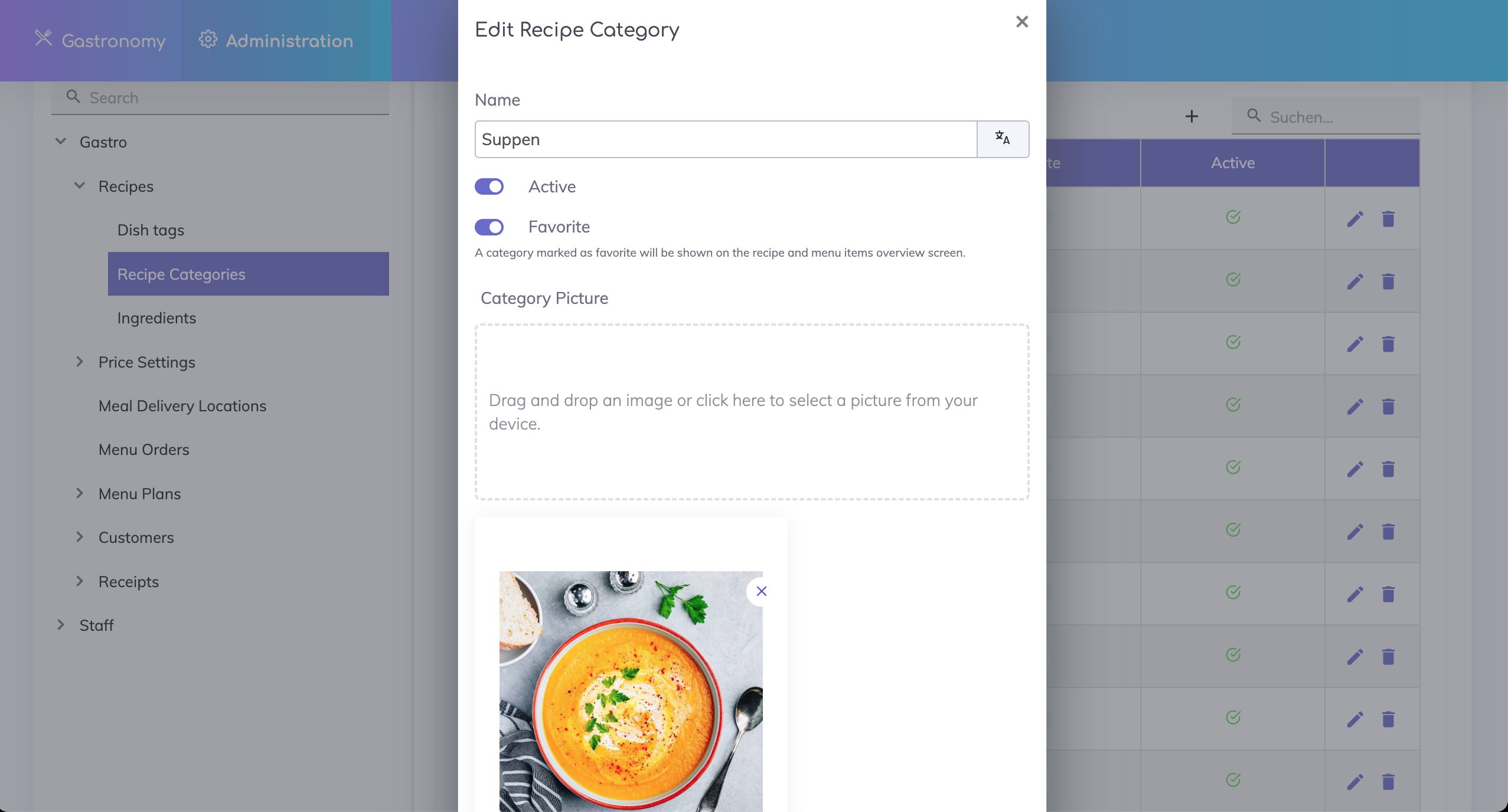
A picture can be added to the category or the category can activated or deactivated. To do this, click on the edit icon on the respective category.
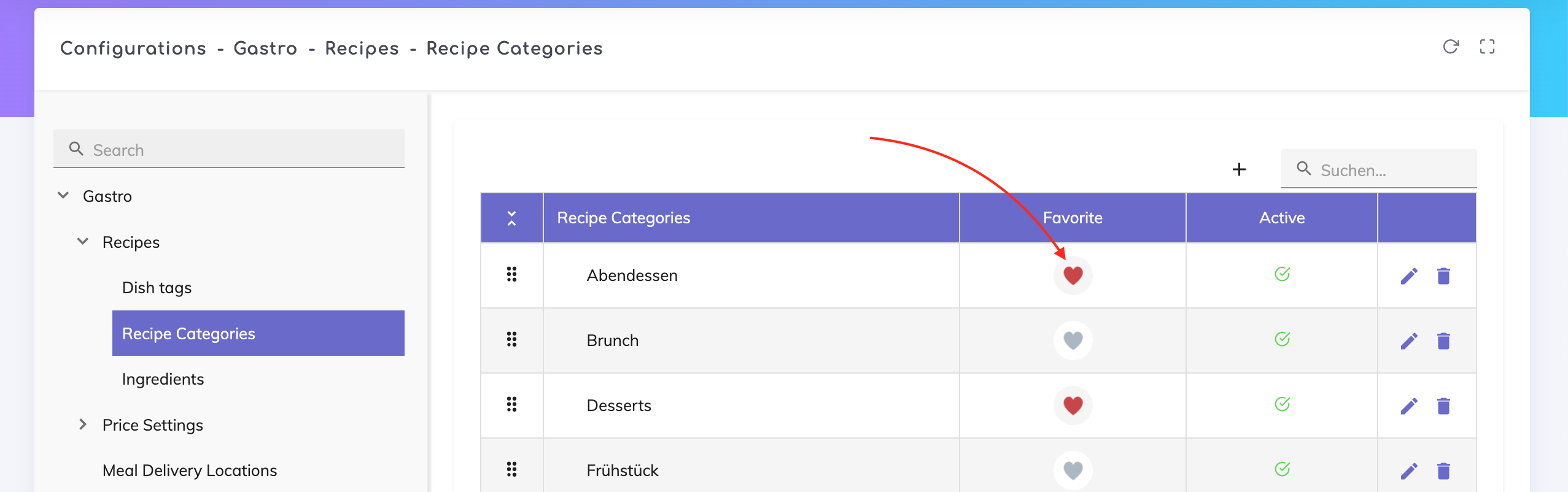
Your most used categories can be marked as favorites by clicking on the heart icon shown.
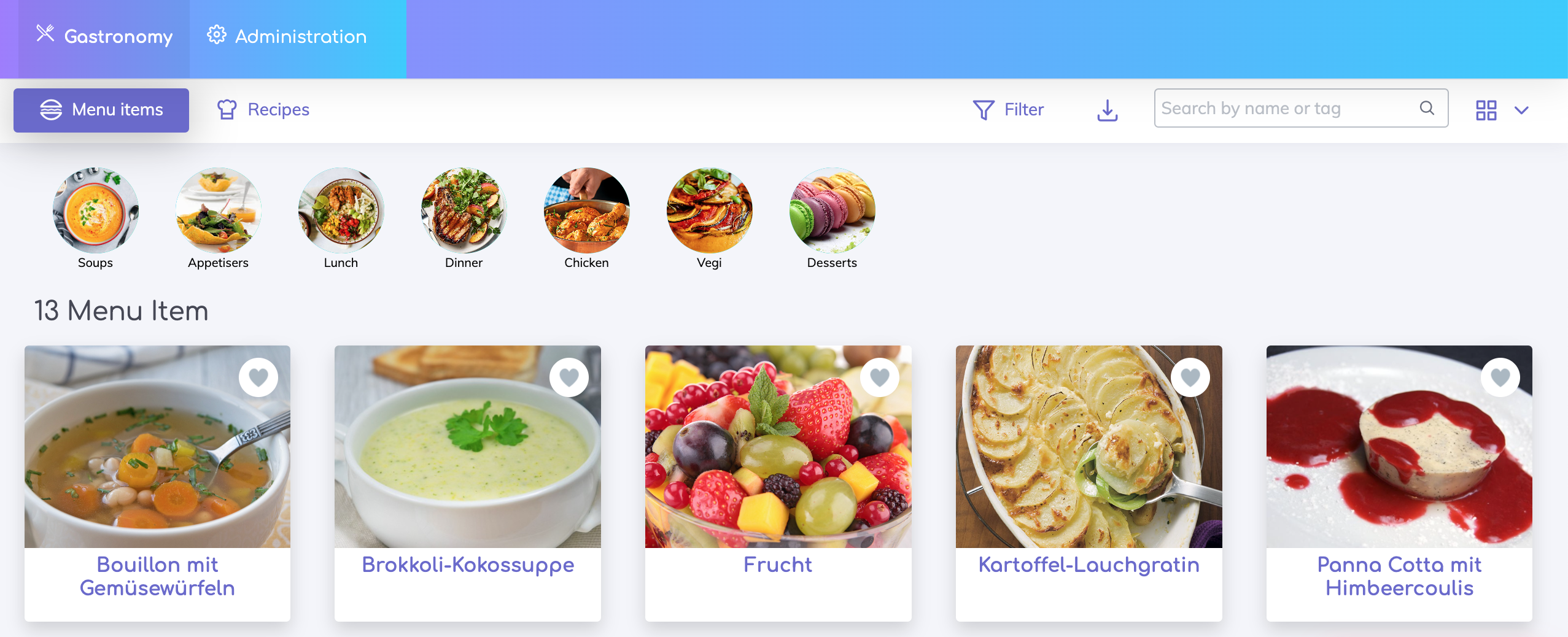
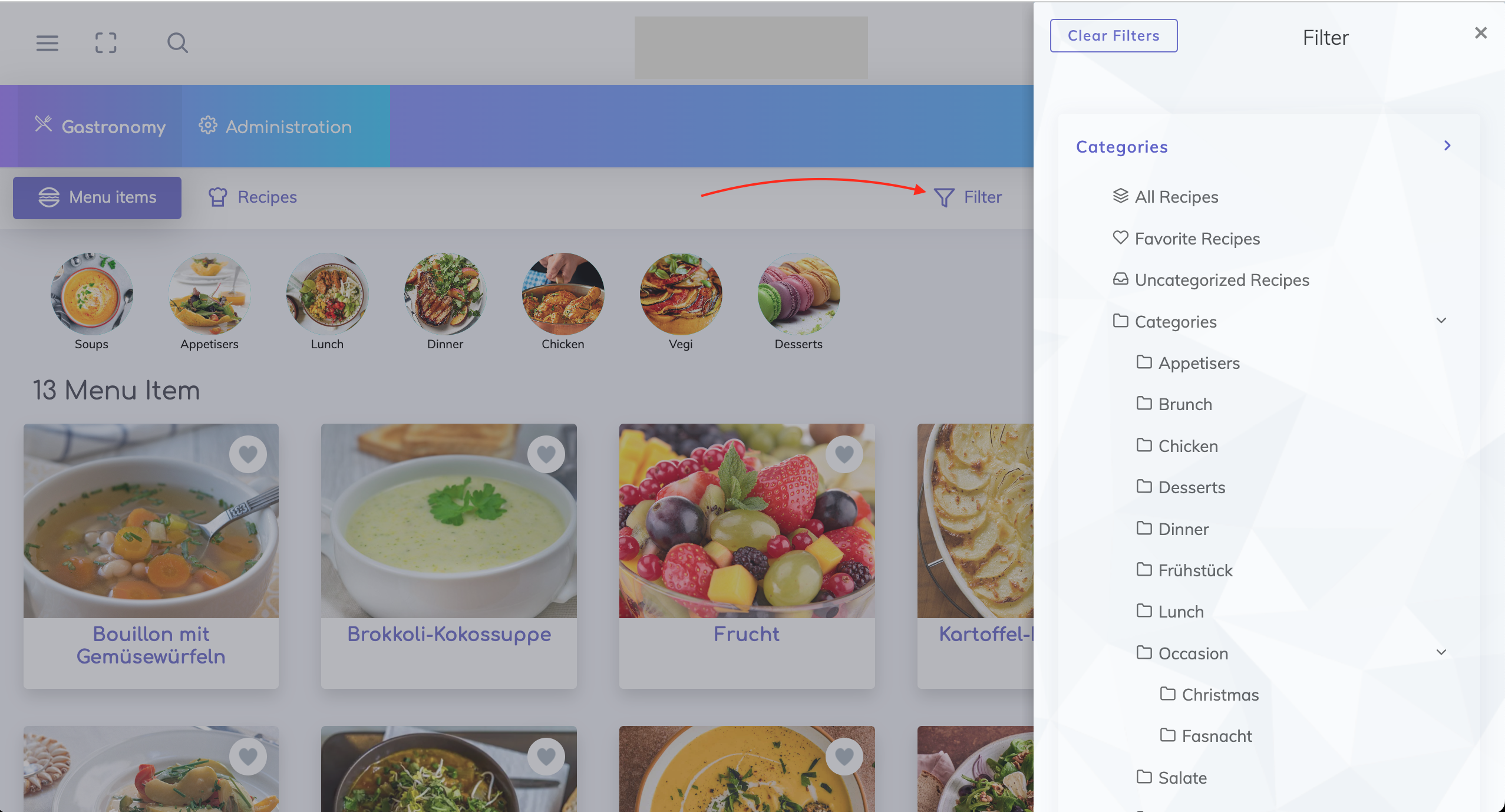
By marking it as a favorite in the configuration, the category then appears on the Catalog as shown. As long as menu items and recipes are categorised, you can click on the category to filter those items or recipes.
Recipes and menu items can additionally be filtered by their categories using the filter option shown.
We are happy to help. Please feel free to contact us.