Menu items are required to plan your menu cards. To add menu items, go to the Catalog of Menu Items in the Gastronomy App. Then click on the red button on the bottom right side "+ New Menu Item".

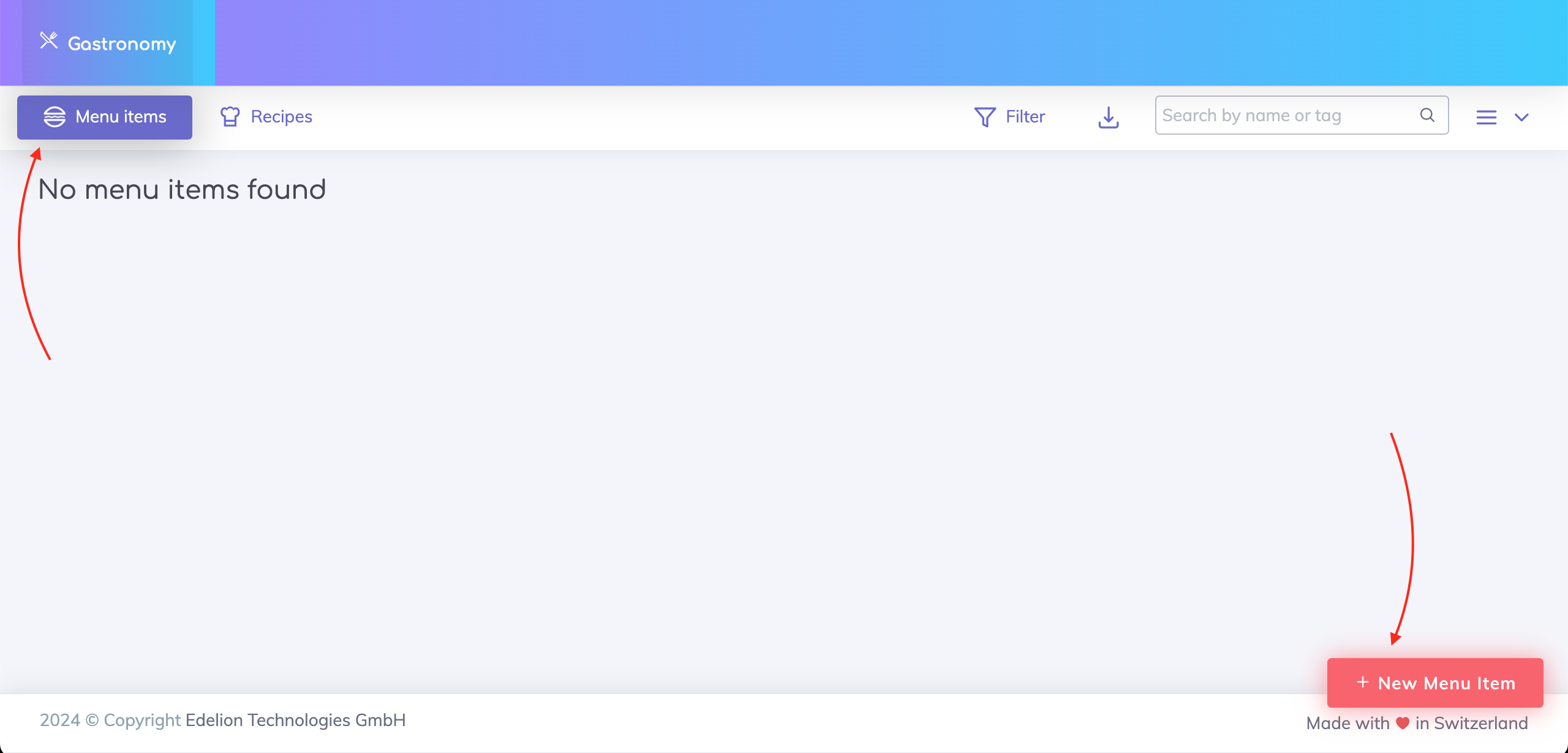
A Menu Item contains the following data sections:
General Data
Nutrition Data
Allergens Data
Price Data
Photos
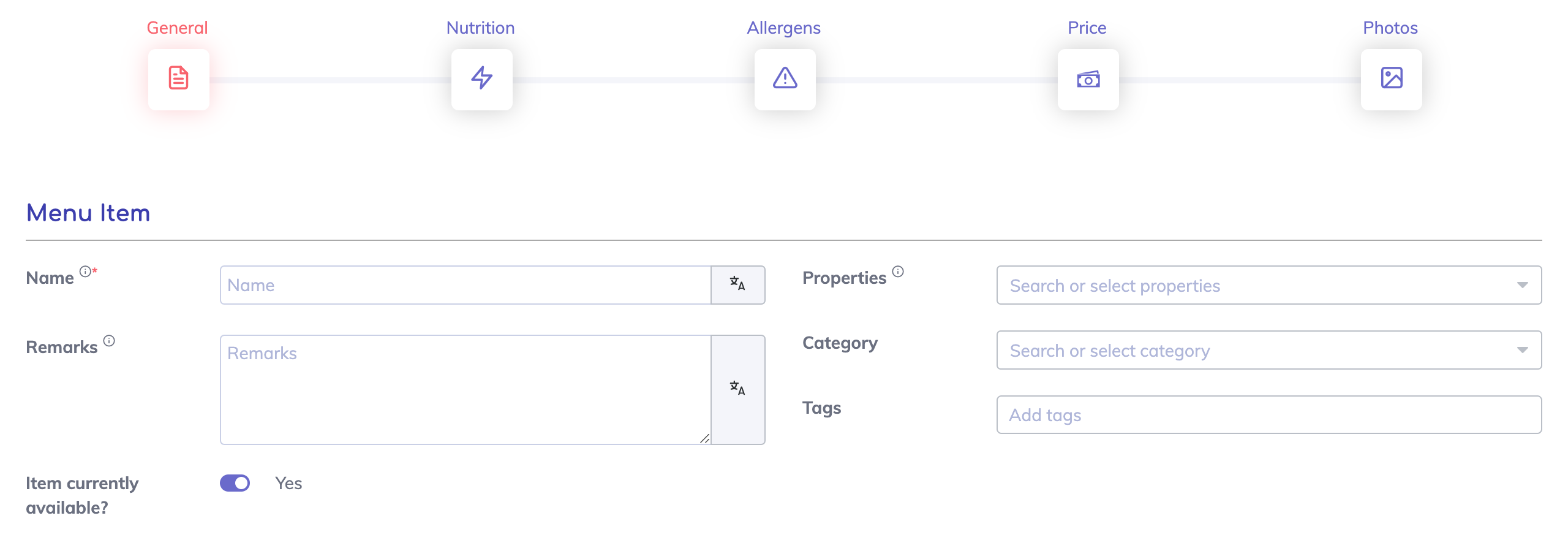
The following information is visible for customers on the menu ordering screen:
Menu item name - This is a mandatory field.
Properties - Use properties such as Vegan, Vegetarian, Halal, Kosher etc. to show your customers what a menu item contains. If you would like more properties to be added to this list, please let us know.
Remarks - Add a description for your menu item here.
Item currently available - If your menu item is not available for ordering, then set the switch to No. The item will be displayed on the menu ordering screen but it will not be possible to order it.
The following information is visible only for the kitchen:
Category - Assign categories to your menu item to easily find them on the Menu Item Catalog. Manage your categories from the Configurations page.
Tags - Tags can be used to search for menu items on the Menu Item Catalog. Manage your tags from the Configurations page
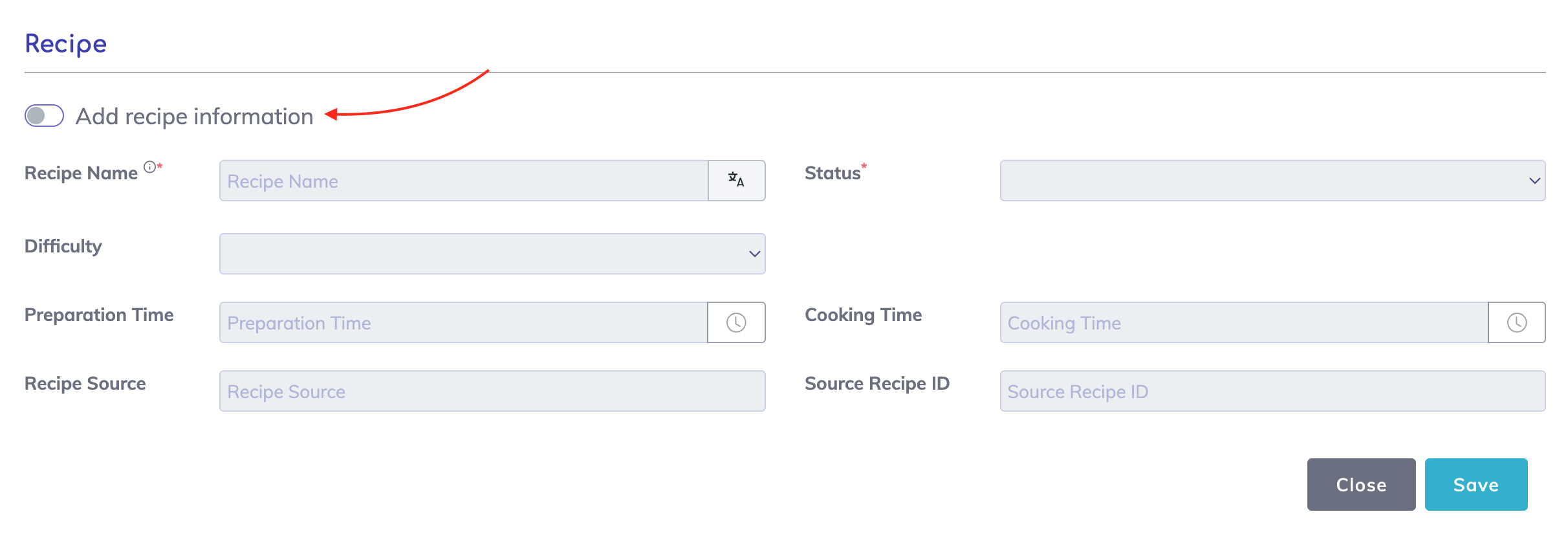
A recipe can optionally be added to the menu item. Switch on the "Add recipe information" field to activate the recipe fields. Additionally, the Ingredients and Cooking Instructions tab will now be visible.

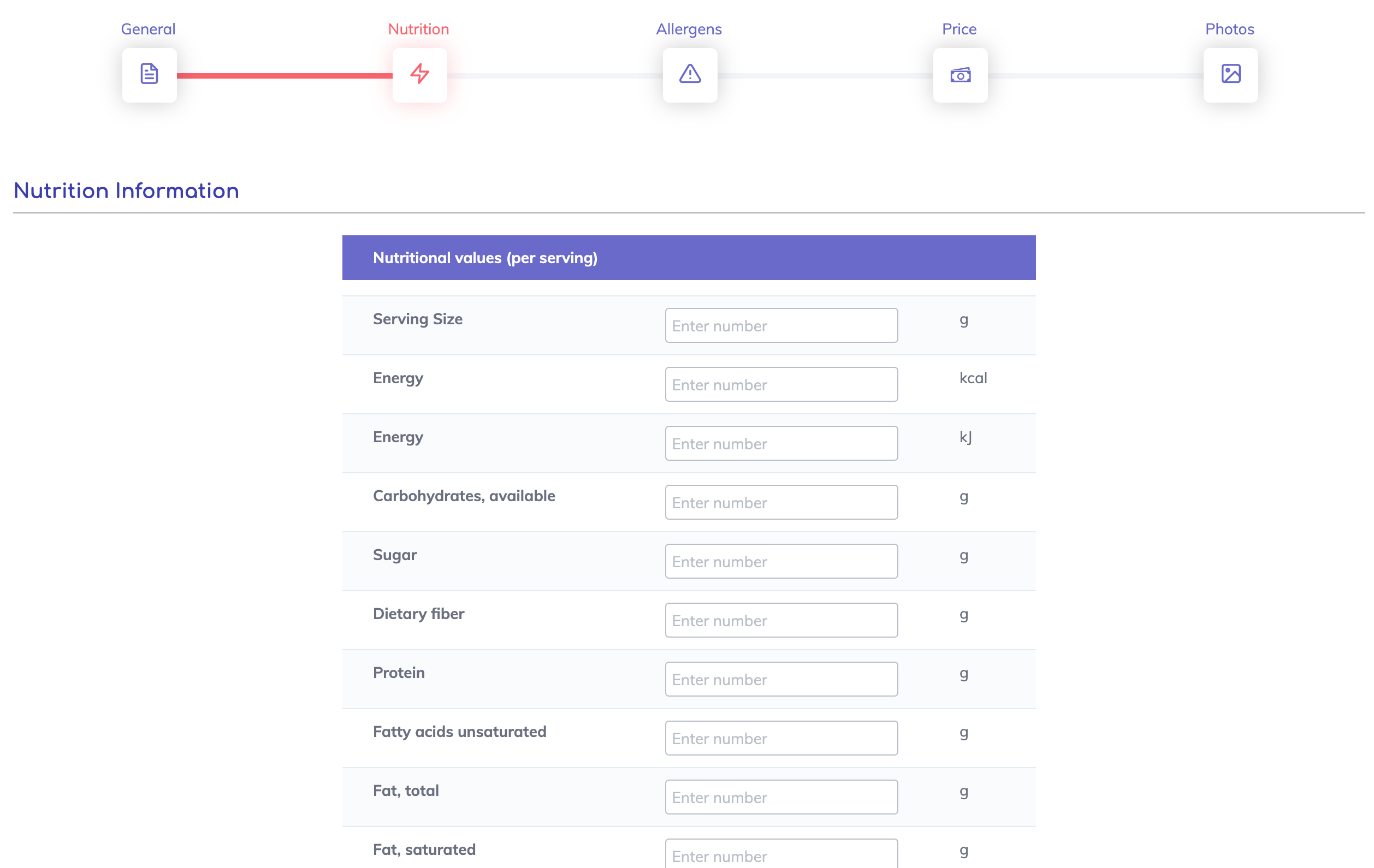
Nutrition information for your menu item may be added here.
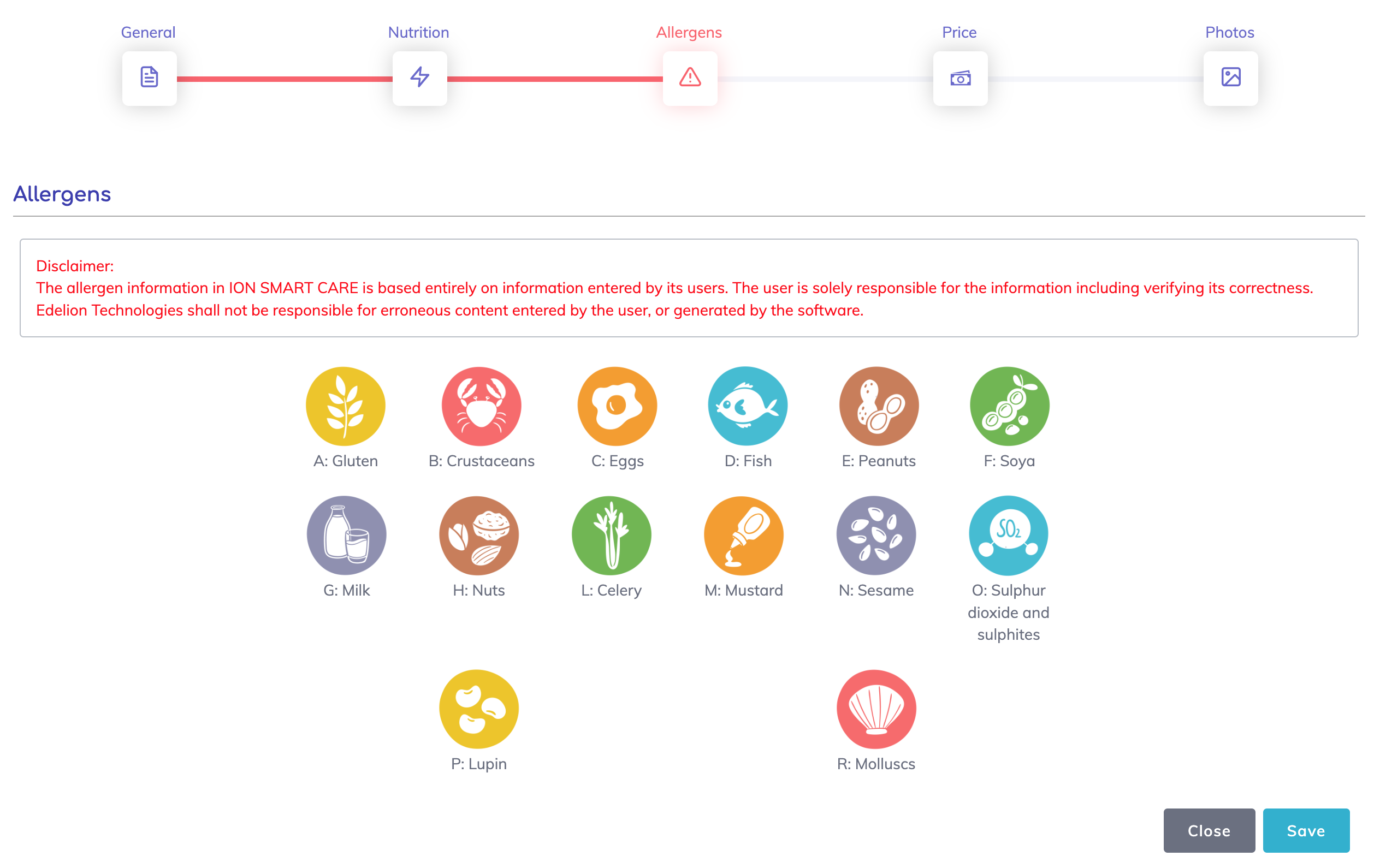
Allergens for your menu item should be selected here. Based on your selection here and the allergens selected on the resident's profile, a warning shall appear when ordering the menu item.
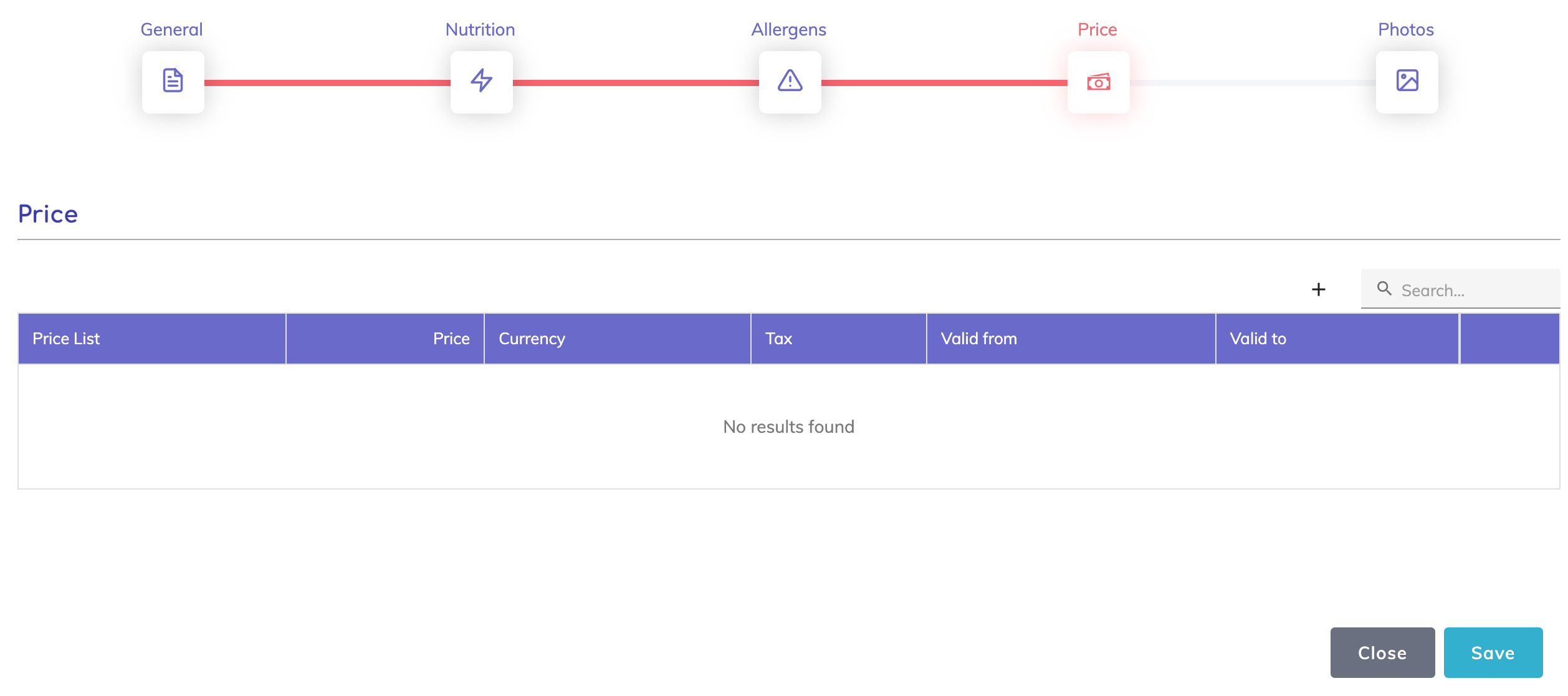
The menu item price should be added here.

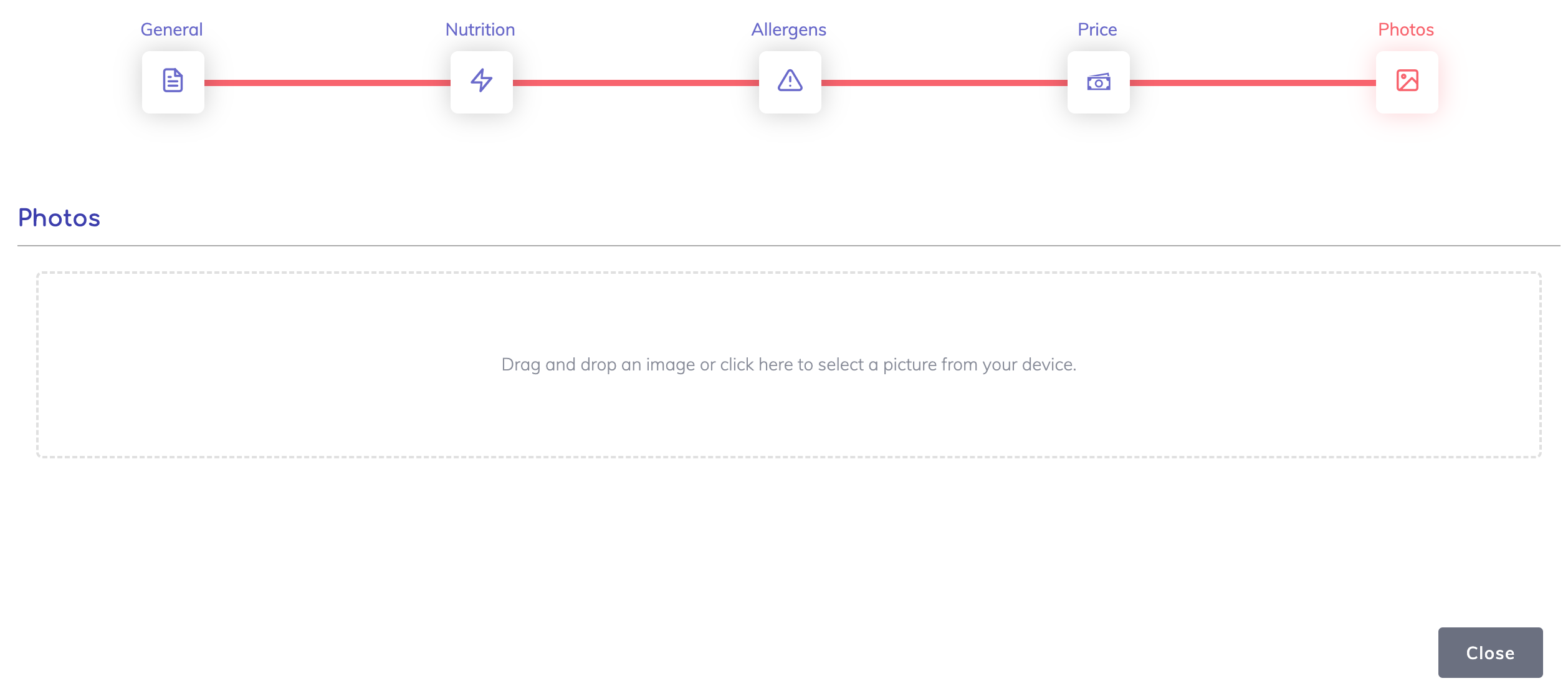
Make your menu item appealing by adding at least one photo. This is optional.
We are happy to help. Please feel free to contact us.